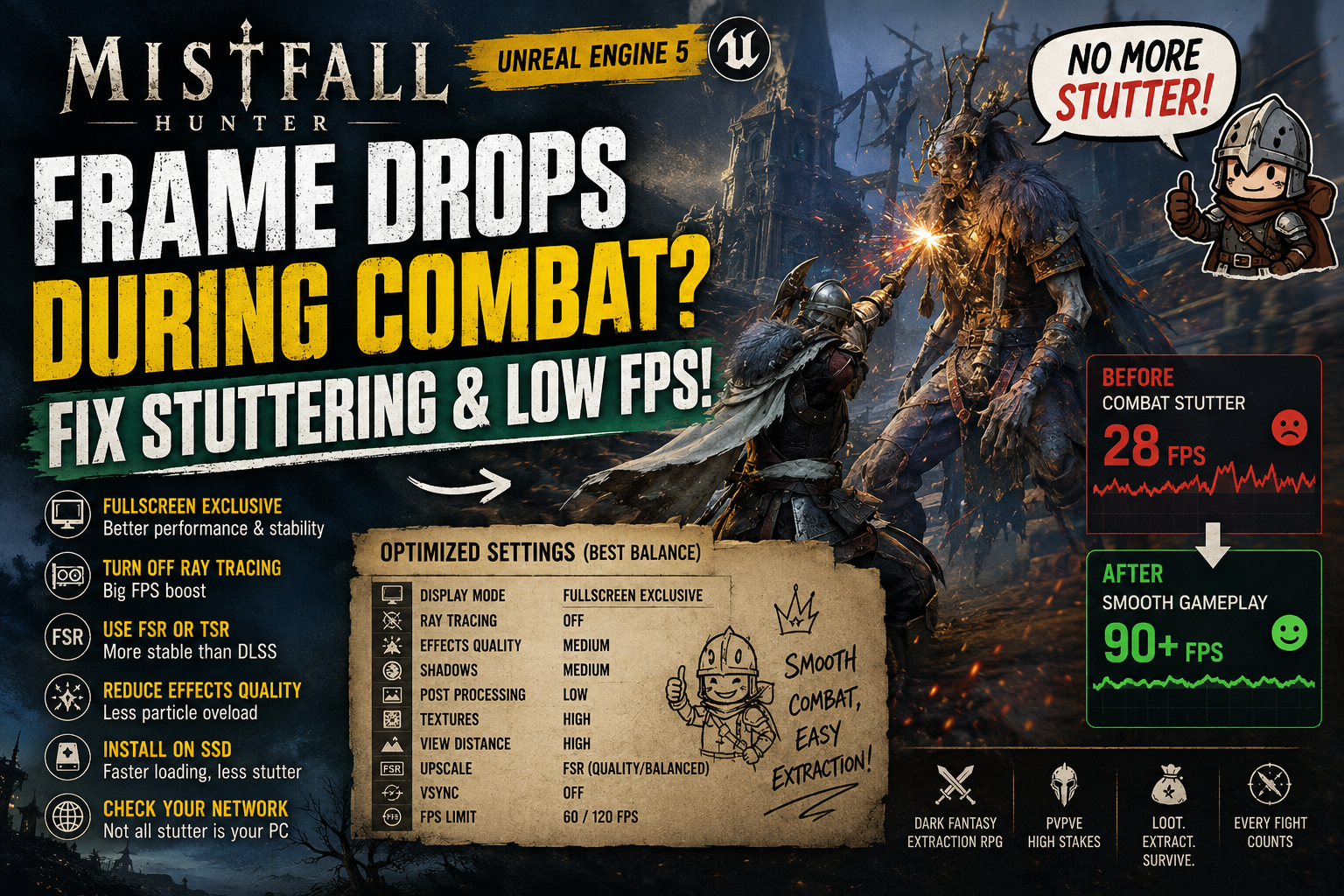
Mistfall Hunter Frame Drops During Combat Fix: How to Stop Stuttering and Low FPS
Mistfall Hunter immediately grabbed my attention because it mixes extraction mechanics with dark fantasy combat in a way that feels refreshing. The world looks incredible, the spell effects are flashy without being over-the-top, and every successful extraction feels rewarding. Unfortunately, after spending quite a few hours with the game, one problem kept ruining the experience: sudden FPS drops right when battles became exciting.
I’ve played enough Unreal Engine games over the years to recognize a familiar pattern. Whether it was Lords of the Fallen, Remnant II, The First Descendant, or several UE5 betas, the symptoms were almost identical. The game would run perfectly while exploring, then the moment multiple enemies appeared, magic effects filled the screen, or another player joined the fight, performance would nosedive. Mistfall Hunter behaves very similarly, and after experimenting with dozens of settings, I found several changes that consistently improved performance without turning the game into an ugly mess.
If you’re struggling with Mistfall Hunter combat stuttering, low FPS, frame drops, or micro-freezes, here’s what actually worked for me.
Shards of Order Roadmap 2026: Post-Launch DLC, New Laws, and Future Content Explained
Why Mistfall Hunter Suffers From Combat FPS Drops
One thing I’ve learned after years of PC gaming is that not every performance problem comes from weak hardware. Modern engines are incredibly demanding, but optimization plays an equally important role.
Mistfall Hunter uses Unreal Engine 5, and while UE5 can produce beautiful visuals, it’s also notorious for introducing shader compilation stutter and inconsistent frame pacing. During exploration, everything may feel stable, but the first time a complex visual effect appears, the engine often compiles new shaders in real time. That’s exactly when noticeable freezes occur.
Several factors seem to contribute to the issue:
- Shader compilation during gameplay
- Heavy particle effects during magical combat
- Ray Tracing overhead
- Upscaling conflicts with certain graphics settings
- Background Windows resource allocation
- Occasional server desynchronization that feels like FPS loss
The frustrating part is that these issues often stack together. You may think your graphics card isn’t powerful enough, when in reality the game is struggling with several smaller problems simultaneously.
My Biggest Performance Improvement Came From Fullscreen Mode
I honestly didn’t expect this setting to make much difference.
Like many modern games, Mistfall Hunter launches in Borderless Windowed Mode by default. Normally I leave games that way because switching between applications becomes easier.
This time, however, changing to Fullscreen Exclusive noticeably improved frame consistency. Besides giving Windows better GPU prioritization, it also reduced random frame pacing issues that appeared whenever large spell effects covered the battlefield.
Recommended Display Changes
- Switch to Fullscreen Exclusive.
- Disable VSync in-game.
- Restart the game after changing display mode.
- Test combat before making further adjustments.
Sometimes one simple adjustment produces a surprisingly large improvement.
Ray Tracing Looks Nice—But It’s Not Worth It
This is probably the easiest recommendation I can make. Yes, Ray Tracing adds more realistic lighting and shadows, but you probably won’t notice those improvements while trying to survive a chaotic PvPvE fight. The performance penalty is simply too high for the visual benefit.
Turning Ray Tracing completely off immediately stabilized my minimum FPS, especially during crowded encounters. The game still looks fantastic thanks to its excellent art direction, and after a few minutes I completely forgot that Ray Tracing was disabled.
DLSS Isn’t Always the Best Choice Here
Normally, DLSS is my first recommendation in almost every modern PC game. Mistfall Hunter surprised me.
During testing, I experienced smoother gameplay after switching from DLSS to FSR. Several friends reported similar improvements, while others preferred Unreal Engine’s native TSR. It doesn’t necessarily mean DLSS is broken, but the current version of the game seems to behave differently depending on hardware and driver combinations.
| Upscaling Option | Performance | Image Quality | Recommendation |
|---|---|---|---|
| DLSS | High but occasionally inconsistent | Excellent | Test individually |
| AMD FSR | Very Stable | Very Good | Recommended |
| TSR | Stable | Good | Great Alternative |
If your game only stutters during combat sequences, changing the upscaler should be one of your first troubleshooting steps.
Don’t Lower Every Graphics Setting
One mistake I constantly see is players immediately dropping every graphical option to Low. In most cases, that dramatically reduces image quality while delivering only minor FPS improvements.
Instead, focus on the settings that actually affect combat performance.
| Setting | Recommended Value | Reason |
|---|---|---|
| Effects Quality | Medium | Reduces particle overload |
| Shadows | Medium | Large FPS improvement |
| Post Processing | Low | Removes expensive visual effects |
| Textures | High (8GB+ VRAM) | Minimal performance impact |
| View Distance | High | Better player visibility |
| Anti-Aliasing | Medium | Balanced visuals |
The biggest improvement came from lowering Effects Quality, since that setting directly controls many of the explosions, spell effects, and magical abilities filling the screen during PvPvE encounters.
Windows Might Be Holding Your GPU Back
Gaming laptops are especially vulnerable to Windows power management, but desktops aren’t completely immune either. Sometimes Windows simply doesn’t prioritize the dedicated graphics card correctly.
I always recommend opening Windows Graphics Settings and manually assigning Mistfall Hunter to the High Performance profile. It only takes a minute, yet I’ve seen it solve inconsistent frame rates more than once.
It’s also worth enabling the High Performance or Ultimate Performance Windows power plan if your system supports it.
Unreal Engine 5 Loves RAM
Another pattern I’ve noticed across Unreal Engine 5 games is aggressive memory usage. Longer gaming sessions often increase RAM consumption as more assets remain cached in memory.
Once available RAM becomes limited, Windows starts relying heavily on the paging file, which often introduces hitching whenever new assets need to load. Increasing virtual memory isn’t a magical FPS boost, but it can significantly reduce severe frame spikes on systems with limited memory resources.
Systems That Benefit Most
- 16GB RAM configurations.
- GPUs with limited VRAM.
- PCs running multiple background applications.
I personally noticed smoother gameplay during extended sessions after manually increasing the pagefile size.
Don’t Ignore Storage Speed
This is another factor that many players underestimate. If you’re still installing modern Unreal Engine 5 games on a mechanical hard drive, you’re making the engine’s streaming system work much harder than necessary.
Mistfall Hunter constantly streams textures and environmental assets while moving through maps. Installing the game on an NVMe SSD noticeably reduces loading delays and minimizes traversal stuttering. Even a traditional SATA SSD performs significantly better than an HDD.
Sometimes It Isn’t Your PC
This is something many optimization guides completely overlook. Mistfall Hunter is an online extraction game, and not every hitch is caused by rendering performance.
Sometimes your character freezes briefly because the client temporarily loses synchronization with the game server. From the player’s perspective, it feels almost identical to an FPS drop even though GPU utilization remains perfectly normal.
If the game runs smoothly in training areas but starts stuttering in populated matches, networking may actually be responsible.
Network Tips
- Use a wired Ethernet connection whenever possible.
- Avoid downloading files while gaming.
- Close bandwidth-intensive background applications.
- Select the closest matchmaking region whenever available.
My Recommended Competitive Settings
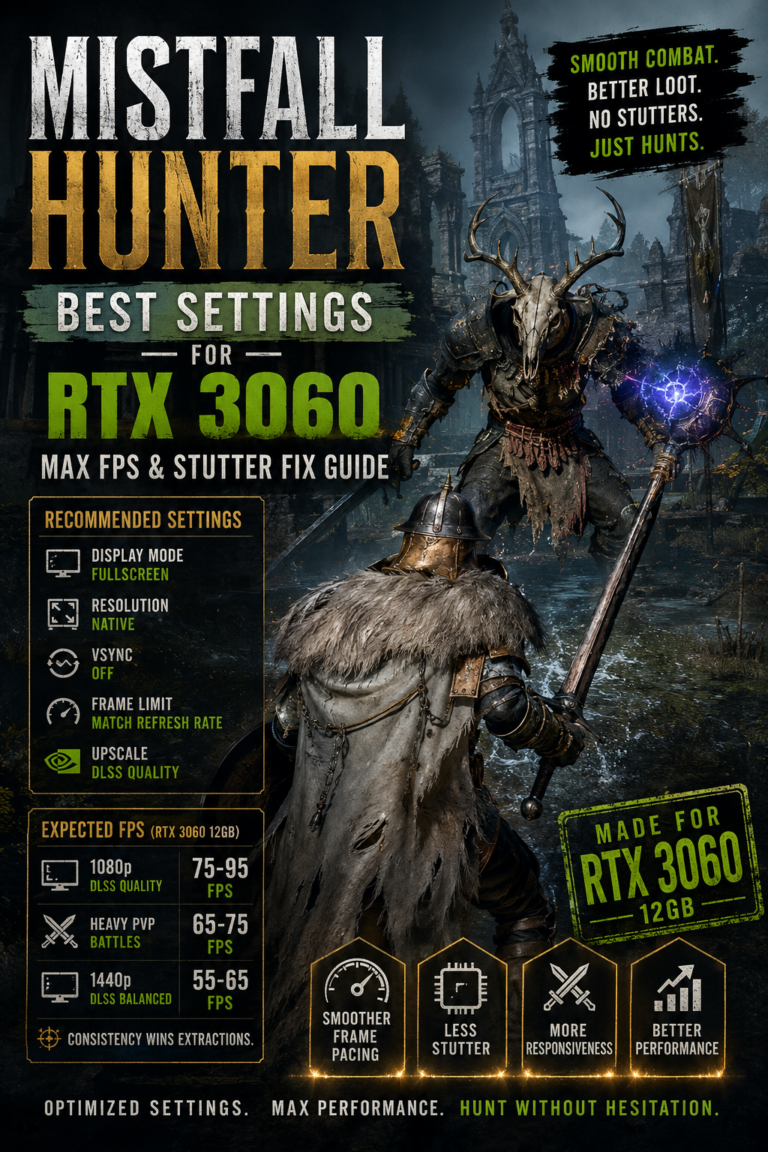
After many hours of testing, this configuration delivered the best balance between image quality and consistently smooth gameplay.
| Category | Recommended Setting |
|---|---|
| Display Mode | Fullscreen Exclusive |
| Resolution | Native Resolution |
| Frame Rate Limit | 60 FPS or 120 FPS |
| VSync | Off |
| Ray Tracing | Disabled |
| Shadows | Medium |
| Effects | Medium |
| Post Processing | Low |
| Textures | High |
| View Distance | High |
| Anti-Aliasing | Medium |
| Upscaling | FSR Quality or Balanced |
| Frame Generation | Enable Only Above 50 FPS Base Performance |
The objective isn’t chasing the highest FPS counter. Stable frame pacing is much more valuable than occasional performance spikes, especially in an extraction game where every encounter can determine whether you keep or lose your loot.
Final Verdict
After spending plenty of time with Mistfall Hunter, I don’t believe there’s a single setting responsible for every performance issue. Instead, the problems come from a combination of Unreal Engine 5 shader compilation, demanding visual effects, networking, and several default configuration choices that aren’t ideal for competitive gameplay.
The good news is that most of these issues can be improved. Switching to Fullscreen Exclusive, disabling Ray Tracing, lowering Effects Quality, experimenting with FSR, assigning the game to High Performance in Windows, and installing it on an SSD collectively transformed my experience. Combat became smoother, frame pacing improved dramatically, and frustrating micro-stutters became much less frequent.
Bellring Games will hopefully continue releasing optimization updates over the coming months, but until then, these adjustments provide the best balance between visual quality and reliable performance. In an extraction RPG where every fight matters, eliminating stutter is every bit as valuable as finding better equipment.