How to Fix The Relic: First Guardian Fatal Error on Launch (PC Crash Guide)
If there’s one thing I’ve learned after spending years playing new PC releases, it’s this: launch-day problems are almost becoming part of the experience. Whether it’s Unreal Engine shader compilation, driver conflicts, or a random Windows issue that only affects a handful of systems, every major release seems to have its own technical headache. Unfortunately, The Relic: First Guardian is no exception.
The game deserves attention for the right reasons. Its dark fantasy atmosphere, aggressive combat system without stamina restrictions, and challenging boss encounters make it one of the more interesting action RPGs released this year. But for many PC players, none of that matters if the game refuses to reach the main menu.
The most common complaint right now is the dreaded Fatal Error that appears immediately after launching the game. Sometimes it crashes before the logos finish playing, while in other cases it disappears without any useful error message at all. The good news is that this isn’t always caused by the game itself. In many situations, it’s the result of Windows, graphics drivers, or Unreal Engine configuration files that can be fixed without waiting for a patch.
After testing similar Unreal Engine games over the past few years, I’ve noticed that the same handful of solutions solve launch crashes far more often than people expect. Here are the fixes worth trying first.
How to Fix The Relic: First Guardian PC Stuttering, FPS Drops, and Lag
Why Does The Relic: First Guardian Crash on Startup?
A generic Fatal Error rarely points to one specific problem. Instead, it’s Unreal Engine’s way of saying something failed before the game could fully initialize. This can happen because of damaged files, incorrect rendering settings, outdated drivers, or missing system components.
From my own experience with modern PC releases, especially games built on Unreal Engine 5, corrupted configuration files and graphics driver conflicts are responsible for a huge number of startup crashes. The good news is that most of these problems can be fixed without advanced technical knowledge.
| Possible Cause | Difficulty to Fix | Success Rate |
|---|---|---|
| Corrupted local cache | Easy | High |
| Graphics driver conflict | Medium | High |
| DirectX initialization failure | Easy | High |
| Missing Visual C++ files | Easy | Medium |
| Overlay software conflicts | Easy | Medium |
| Damaged game files | Easy | Medium |
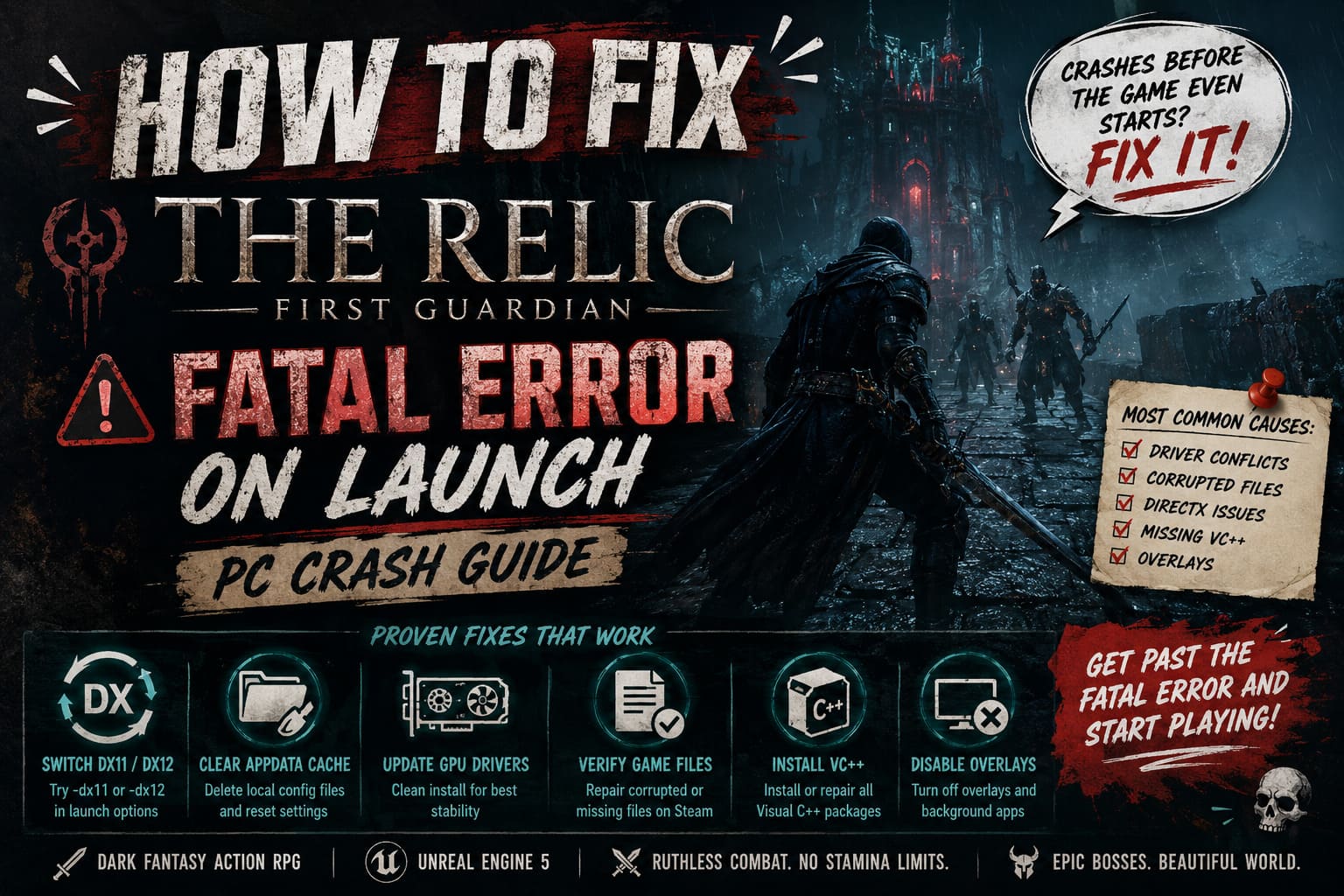
Try Switching Between DirectX Versions
One of the simplest fixes for The Relic: First Guardian Fatal Error is forcing the game to use a different DirectX version. Unreal Engine 5 games usually prefer DirectX 12 because it supports advanced features, but not every PC configuration handles it perfectly.
I’ve seen plenty of powerful gaming PCs struggle with DX12 while running flawlessly after switching to DX11. Sometimes the problem isn’t your hardware but the way Windows, drivers, and the engine communicate during startup.
To change the DirectX launch option:
- Open your Steam Library.
- Right-click The Relic: First Guardian and select Properties.
- Find the Launch Options box.
- Enter -dx11 and start the game.
- If the crash continues, remove it and try -dx12.
This small adjustment can bypass the initial engine crash and allow the game to reach the main menu.
Delete the Local Configuration Files
This is one of my favorite troubleshooting methods because it fixes a surprising number of PC game problems. Modern games save graphics settings, shader data, and temporary files locally, and if something becomes corrupted during the first launch, the game may continue crashing every single time.
Resetting these files forces Unreal Engine 5 to rebuild its configuration from scratch.
How to Clear The Relic: First Guardian Cache
- Press Windows + R on your keyboard.
- Type %localappdata% and press Enter.
- Find the folder related to The Relic, First Guardian, or Project Cloud Games.
- Delete the folder.
- Restart the game through Steam.
Your Steam Cloud saves should remain safe. This process only removes temporary files and resets local graphics settings.
Install the Latest Graphics Driver
Graphics drivers are one of the biggest reasons why new PC games crash during release week. Developers test on thousands of hardware combinations, but sometimes a specific driver version creates problems with new rendering technologies.
The Relic: First Guardian uses Unreal Engine 5 features that depend heavily on modern GPU support. Shader compilation, asset streaming, and advanced lighting systems can fail if your driver installation is outdated or damaged.
Recommended Driver Update Process
- NVIDIA users should install the latest Game Ready Driver.
- AMD users should update through AMD Software: Adrenalin Edition.
- For the cleanest result, remove old drivers completely before installing new ones.
Using a clean driver installation eliminates leftover files that may conflict with the new version.
Verify The Game Files Through Steam
Sometimes the problem is much simpler than a driver issue. A corrupted download, incomplete update, or damaged game file can prevent Unreal Engine from loading correctly.
Steam includes a built-in repair tool that checks every file and replaces anything missing or broken.
- Open Steam Library.
- Right-click The Relic: First Guardian.
- Select Properties.
- Open Installed Files.
- Click Verify integrity of game files.
The process may take several minutes, but it is one of the safest solutions to try before making bigger changes.
Repair Microsoft Visual C++ Redistributables
Many players forget about Microsoft Visual C++ packages because they work silently in the background. However, Unreal Engine games depend on these runtime libraries to execute important system functions.
If these files are missing or corrupted, the game may instantly display a Fatal Error before showing any meaningful information.
Install or Repair These Packages:
- Visual C++ 2015 Redistributable
- Visual C++ 2017 Redistributable
- Visual C++ 2019 Redistributable
- Visual C++ 2022 Redistributable
Install both x64 and x86 versions, restart your computer, and try launching the game again.
Disable Conflicting Overlays and Background Software
Overlay programs are useful, but they are also common causes of unexpected crashes. These applications inject themselves into games to display additional information, record gameplay, or monitor hardware performance.
Most of the time they work perfectly, but Unreal Engine games can sometimes react badly to these extra processes.
Temporarily Disable:
- Steam Overlay
- Discord Overlay
- MSI Afterburner
- RivaTuner Statistics Server
- NVIDIA GeForce Experience Overlay
- Third-party antivirus protection
If the game starts working afterward, enable each program individually to find the one causing the conflict.
Run The Game as Administrator
Windows security settings can occasionally prevent games from accessing folders, creating cache files, or writing configuration data correctly. Running the executable with administrator privileges is a quick way to test whether permissions are the problem.
Steps:
- Open the game’s installation folder through Steam.
- Find the main .exe file.
- Right-click and select Properties.
- Open the Compatibility tab.
- Enable Run this program as an administrator.
- Click Apply.
After that, launch the game again and check if the crash has disappeared.
Additional Fixes Worth Trying
If none of the main solutions work, there are still several smaller adjustments that can help. These fixes are not guaranteed, but they remove many common causes of startup instability.
- Update Windows to the latest version.
- Disable CPU or GPU overclocking temporarily.
- Close unnecessary background applications.
- Make sure the game is installed on an SSD.
- Keep enough free space on your system drive.
- Restart your PC before testing again.
My Thoughts
After playing countless PC releases over the years, I’ve learned that launch problems don’t always represent the quality of a game. Some titles have rough beginnings but become much better after a few updates.
The Relic: First Guardian is a good example of why technical issues can be so frustrating. The combat, atmosphere, and boss design create a strong dark fantasy experience, but none of that matters if players cannot get past the first loading screen.
If I had to choose the most effective solutions, I would start with deleting the AppData cache, verifying Steam files, testing DirectX launch options, and performing a clean graphics driver installation. These methods solve the majority of Unreal Engine startup crashes I’ve encountered.
Official patches will likely improve stability over time, but many players won’t need to wait. With a few simple adjustments, the Fatal Error problem can usually be fixed within minutes, allowing you to finally explore the dangerous world of The Relic: First Guardian.