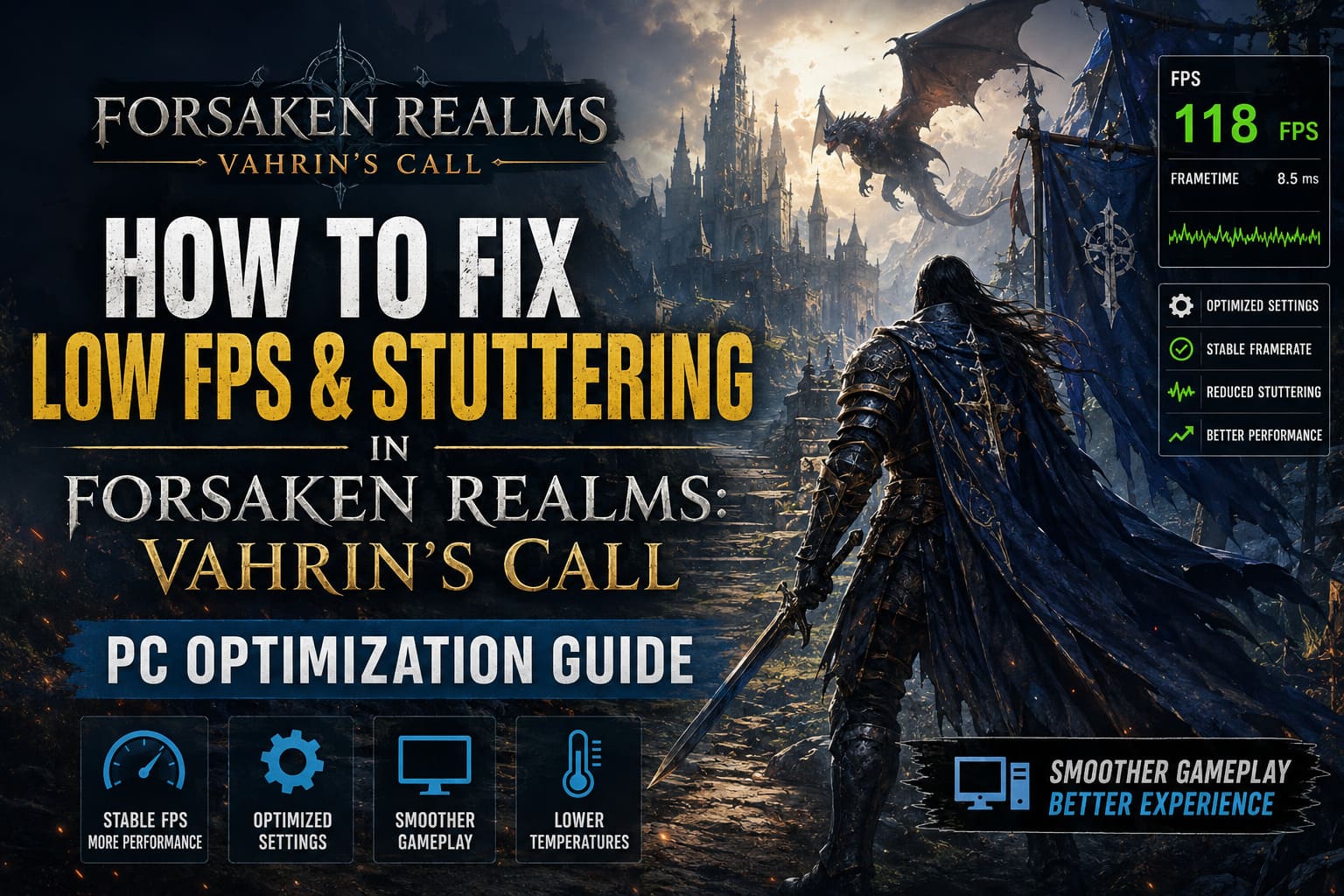
How to Fix Low FPS and Stuttering in Forsaken Realms: Vahrin’s Call – PC Optimization Guide
Few things are more frustrating than loading into a beautiful fantasy world only to watch your frame rate collapse the moment a fight begins. That was my first impression of Forsaken Realms: Vahrin’s Call. The atmosphere is incredible, the environments are packed with detail, and the combat feels satisfying—but the PC version can struggle even on hardware that should have no trouble handling modern games.
After spending time experimenting with different settings, reading discussions from other PC players, and testing various Windows and driver tweaks, I found that the biggest improvements don’t come from lowering every graphics option to Low. Instead, it’s about knowing which settings actually matter and which ones simply waste performance without offering much visual benefit.
If you’re dealing with random stutters, unstable FPS, or inconsistent frame pacing, this guide covers the adjustments that made the biggest difference for me.
Why Does Forsaken Realms: Vahrin’s Call Stutter?
The game is visually demanding, but raw graphics aren’t the only reason performance suffers. In my experience, several technical factors combine to create the problem.
The biggest issues include:
- Heavy CPU workload during exploration and combat.
- Texture streaming while traveling through large environments.
- Inconsistent frame pacing caused by the built-in frame limiter and V-Sync.
- Background software interfering with rendering.
- Thermal throttling on systems with inadequate cooling.
Interestingly, average FPS isn’t always terrible. The real issue is the 1% lows, which create noticeable hitching even when the FPS counter looks perfectly acceptable.
Graphics Settings That Actually Improve Performance
When I first launched the game, I tried using the High preset. The visuals looked fantastic, but performance became inconsistent almost immediately.
After several rounds of testing, these settings offered the best balance between image quality and smooth gameplay.
| Setting | Recommended Value | Why |
|---|---|---|
| Display Mode | Exclusive Fullscreen | Lowest input latency |
| Resolution Scale | 100% | Keeps the image sharp |
| Shadow Quality | Medium | Large FPS improvement |
| Volumetric Effects | Low or Off | Reduces GPU load significantly |
| Anti-Aliasing | Medium | Good image quality with lower cost |
| Foliage Density | Medium | Helps both CPU and GPU |
| Motion Blur | Off | Cleaner image and small FPS gain |
| Depth of Field | Off | Improves visibility during combat |
One thing I noticed quickly was that shadows and volumetric lighting consume far more performance than most other graphics options. Lowering these alone produced a much smoother experience while keeping the overall visuals impressive.
Stop Letting the Game Control Your Frame Rate
One of the biggest improvements came from changing how the game handles frame timing.
The internal frame limiter often produced uneven frame delivery on my system. Even at 70–90 FPS, movement didn’t always feel smooth.
Here’s what worked much better:
- Turn V-Sync Off inside the game.
- Set the in-game FPS limiter to Unlimited.
- Use RivaTuner Statistics Server (RTSS) to cap your frame rate instead.
- Match the limit to your display refresh rate—or slightly below it.
Examples:
- 60 Hz monitor → 60 FPS
- 120 Hz monitor → 118 FPS
- 144 Hz monitor → 141 FPS
- 165 Hz monitor → 162 FPS
This simple adjustment dramatically improved frame consistency during long exploration sessions.
Instead of chasing the highest FPS number possible, aim for stable frame times. Smooth gameplay almost always feels better than constantly fluctuating frame rates.
Update Your GPU Drivers the Right Way
Simply installing new graphics drivers over old ones isn’t always enough.
If you’ve been updating drivers for months without performing a clean installation, leftover files can occasionally create strange issues.
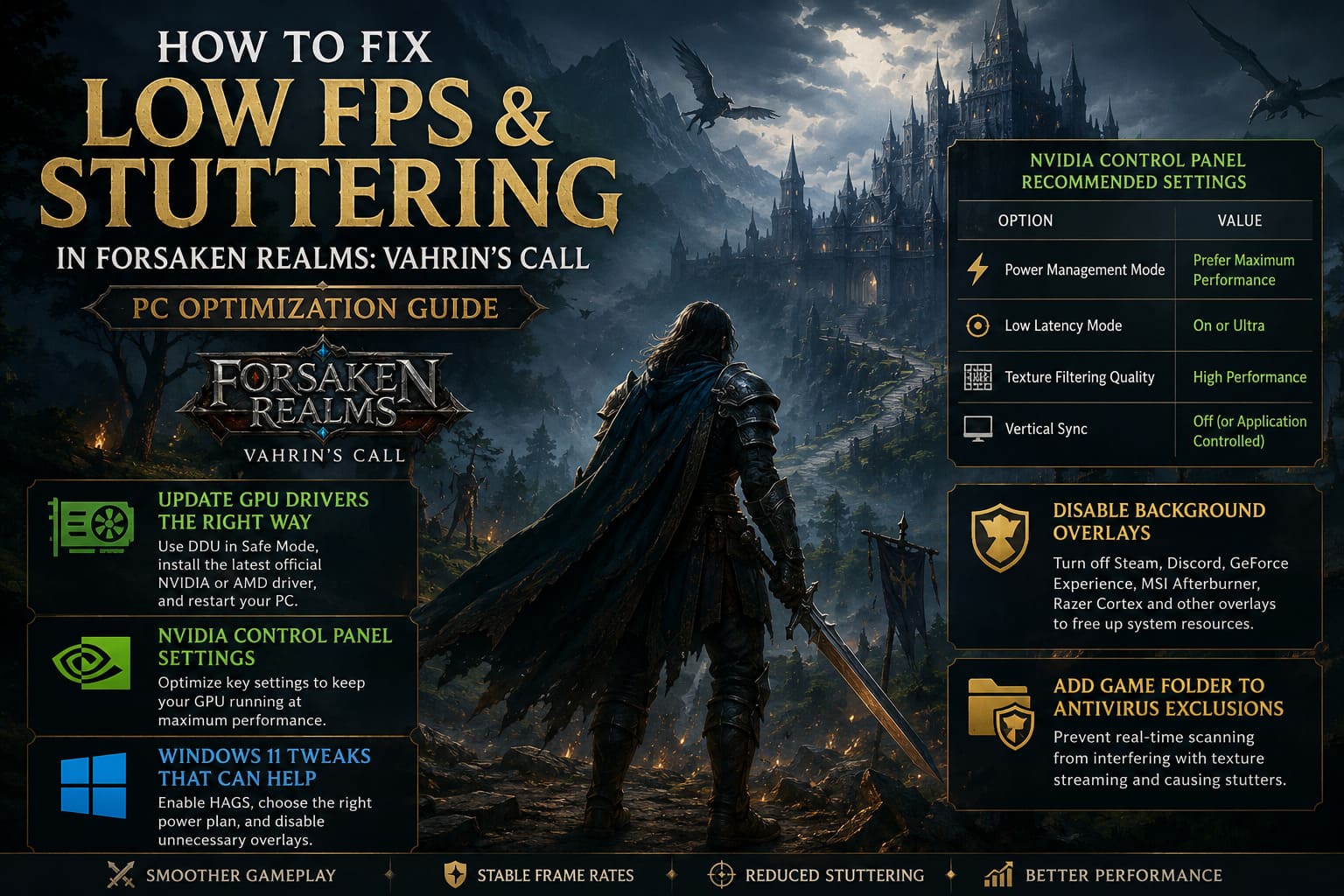
I recommend:
- Removing the existing driver with Display Driver Uninstaller (DDU) in Safe Mode.
- Installing the latest official NVIDIA or AMD driver afterward.
- Restarting your PC before launching the game.
Some NVIDIA users have also reported surprisingly stable results using the Studio Driver instead of the standard Game Ready release. It’s not guaranteed to help everyone, but it’s worth trying if you’re experiencing unexplained stuttering.
NVIDIA Control Panel Settings Worth Changing
If you’re using an NVIDIA graphics card, a few driver-level tweaks can prevent unnecessary slowdowns.
The settings I recommend are:
| Option | Value |
|---|---|
| Power Management Mode | Prefer Maximum Performance |
| Low Latency Mode | On or Ultra |
| Texture Filtering Quality | High Performance |
| Vertical Sync | Off (or Application Controlled) |
These changes keep the GPU running at higher clock speeds instead of constantly switching between power states.
Windows 11 Tweaks That Can Help
Windows itself can sometimes become part of the problem.
Fortunately, a few built-in settings are easy to adjust.
Enable Hardware-Accelerated GPU Scheduling
Open Graphics Settings in Windows and enable Hardware-Accelerated GPU Scheduling (HAGS).
Depending on your hardware, this may improve latency and reduce frame-time spikes.
Remember to restart your PC afterward.
Choose the Right Power Plan
Using the default Balanced power plan can cause unnecessary CPU clock fluctuations.
Switch to:
- High Performance
- Ultimate Performance (if available)
This helps your processor maintain consistent boost clocks during demanding gameplay.
Disable Background Overlays
One thing many players overlook is how many overlays are running simultaneously.
Consider disabling:
- Steam Overlay
- Discord Overlay
- GeForce Experience Overlay
- MSI Afterburner Overlay (if you don’t actively need it)
- Razer Cortex
Each overlay uses a small amount of system resources, but together they can contribute to stuttering.
Add the Game Folder to Antivirus Exclusions
Real-time antivirus scanning can interfere with texture streaming.
If you’re comfortable doing so, add the game’s installation folder to your antivirus exclusion list.
This prevents the security software from repeatedly scanning game files while you’re exploring the world.
Storage Speed Matters More Than You Think
One thing I learned after helping a friend troubleshoot performance was that the installation drive makes a surprisingly large difference.
Running Forsaken Realms: Vahrin’s Call from an older HDD caused constant pauses whenever the game loaded new areas.
After moving it to an NVMe SSD, those hitching issues became much less noticeable.
If you’re still using a mechanical hard drive for modern open-world games, upgrading to an SSD is one of the biggest real-world improvements you can make.
Watch Your Temperatures
Performance can slowly decline during longer gaming sessions without any warning messages.
That’s usually a sign of thermal throttling.
| Component | Recommended Maximum |
|---|---|
| CPU | Under 90°C |
| GPU | Under 83°C |
If temperatures regularly exceed these values:
- Clean dust from your PC.
- Improve airflow.
- Increase fan speeds if necessary.
- Replace aging thermal paste if your system is several years old.
Stable temperatures usually mean stable performance.
How to Fix Forsaken Realms: Vahrin’s Call Black Screen on Startup on Windows 11
Small Changes That Add Up
None of these tweaks alone transformed the game overnight, but together they produced a noticeably smoother experience.
Here’s a quick checklist before launching the game:
- Exclusive Fullscreen enabled
- Medium Shadows
- Low Volumetrics
- Motion Blur disabled
- V-Sync disabled
- RTSS frame cap configured
- Latest clean GPU driver installed
- High Performance power plan enabled
- Background overlays closed
- Game installed on an SSD
- CPU and GPU temperatures under control
Spending ten or fifteen minutes making these adjustments can save hours of frustration later.
Forsaken Realms Vahrin’s Call Combat Guide: How to Master the Parry and Roll Mechanics
Final Thoughts
I genuinely enjoy Forsaken Realms: Vahrin’s Call, and that’s exactly why I wanted to spend time optimizing it instead of giving up after the first evening. The game has some rough technical edges, but most of the performance problems can be reduced with the right combination of graphics settings, driver tweaks, and Windows optimization.
What surprised me most was that lowering every graphics option wasn’t the answer. Smart adjustments—especially improving frame pacing, reducing expensive lighting effects, and keeping the system free from unnecessary background processes—had a much bigger impact than simply chasing the lowest settings.
If you’re still seeing occasional drops after following these recommendations, don’t immediately assume your hardware isn’t powerful enough. Modern PC games are complex, and a few overlooked settings can make the difference between a stuttering experience and one that feels consistently smooth.
With a bit of tuning, Forsaken Realms: Vahrin’s Call becomes far more enjoyable, letting you focus on exploring its world instead of watching an FPS counter.