How to Fix Halo: Campaign Evolved Low Video Memory Error on PC
There are few games I revisit as often as Halo: Combat Evolved. No matter how many modern shooters I play, I always end up coming back to Master Chief’s first adventure. That’s why it was incredibly frustrating when the game suddenly started throwing the dreaded “Out of Video Memory” error on my PC.
The strange part? My system wasn’t even close to running out of VRAM.
After digging through community discussions, testing different solutions, and comparing experiences from other players, I realized that this error is usually much more complicated than it sounds. In many cases, your graphics card isn’t actually the problem at all.
If Halo: Combat Evolved, Halo Anniversary, or Halo: The Master Chief Collection keeps crashing with memory allocation errors, these are the fixes that made the biggest difference for me.
Why Halo Reports Low Video Memory When VRAM Isn’t Full
At first, I assumed my graphics settings were simply too high. That turned out to be completely wrong.
Halo’s engine—especially the Anniversary version—sometimes struggles with modern hardware and newer Windows memory management. Instead of properly releasing memory between levels, it can slowly consume more resources until Windows refuses another allocation.
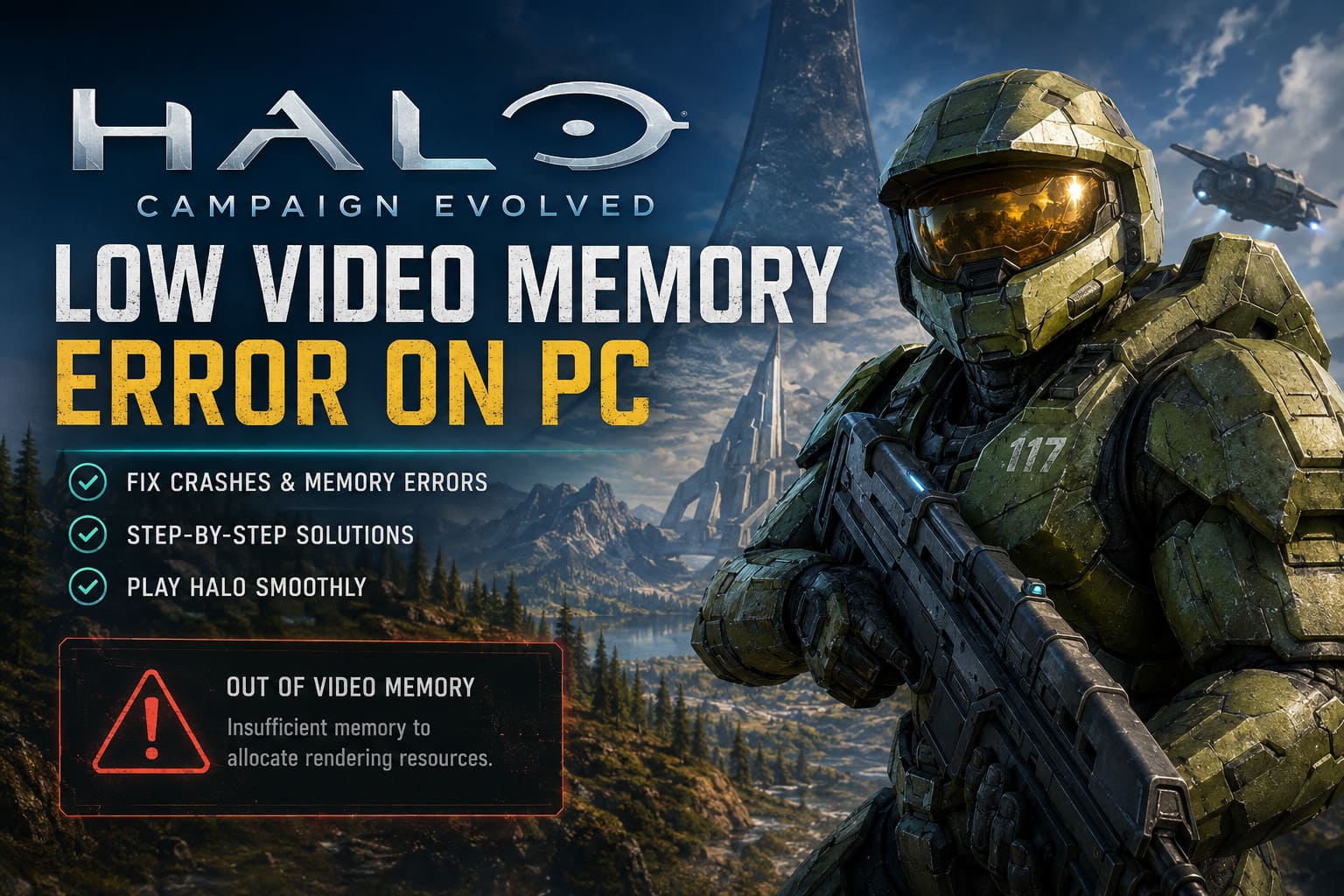
The result usually looks something like this:
- Sudden crash to desktop
- Frozen loading screen
- Rendering resource allocation error
- “Out of Video Memory” popup
- Crash during level transitions
Ironically, I’ve seen people with RTX 4090 cards report the exact same issue as players using much older GPUs.
That tells you the problem isn’t always about available VRAM.
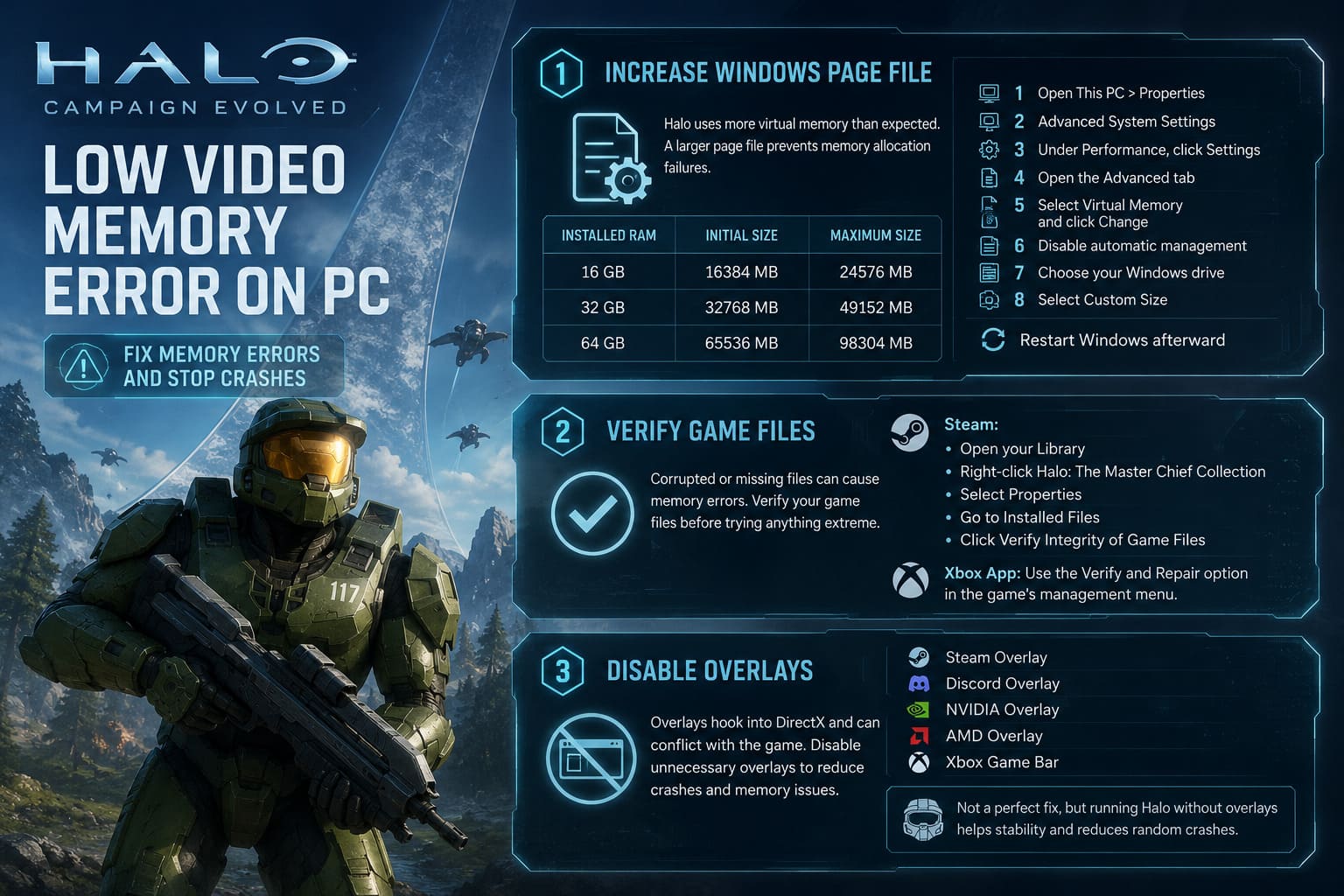
My First Recommendation: Increase the Windows Page File
This ended up being the biggest improvement on my system.
Halo occasionally leans on Windows virtual memory much harder than expected, especially when loading remastered textures or changing campaign levels.
If your paging file is too small—or disabled completely—the game may fail even though your graphics card still has free memory available.
Here’s What I Changed
- Open This PC and select Properties.
- Open Advanced System Settings.
- Under Performance, click Settings.
- Open the Advanced tab.
- Select Virtual Memory and click Change.
- Disable automatic management.
- Choose your Windows drive.
- Select Custom Size.
I generally recommend using values like these:
| Installed RAM | Initial Size | Maximum Size |
|---|---|---|
| 16 GB | 16384 MB | 24576 MB |
| 32 GB | 32768 MB | 49152 MB |
| 64 GB | 65536 MB | 98304 MB |
Restart Windows afterward.
It isn’t the flashiest fix, but it’s the one that solved the crashes for me.
Verify the Game Files Before Trying Anything Extreme
I’ve seen plenty of people immediately reinstall Windows or replace GPU drivers without checking something much simpler.
Corrupted game files can trigger memory allocation errors if the engine attempts to load damaged textures or missing assets.
For Steam users:
- Open your Library.
- Right-click Halo: The Master Chief Collection.
- Select Properties.
- Open the Installed Files tab.
- Click Verify Integrity of Game Files.
Xbox App users have a similar Verify and Repair option inside the game’s management menu.
It only takes a few minutes and can save hours of troubleshooting.
Turn Off Every Overlay You Don’t Need
This was another surprisingly effective fix.
Modern overlays hook directly into DirectX. Most of the time they work perfectly, but older engines don’t always react well to several overlays competing for the same rendering resources.
I disabled:
- Steam Overlay
- Discord Overlay
- NVIDIA Overlay
- AMD Overlay
- Xbox Game Bar
Did it completely eliminate the problem?
Not entirely.
Did it noticeably reduce random crashes?
Absolutely.
If you’re trying to isolate the issue, running Halo without background overlays is worth testing.
Classic Graphics Are More Stable Than Anniversary Graphics
I love the remastered visuals.
But after several long campaign sessions, I noticed something interesting.
The original graphics mode consistently behaved better.
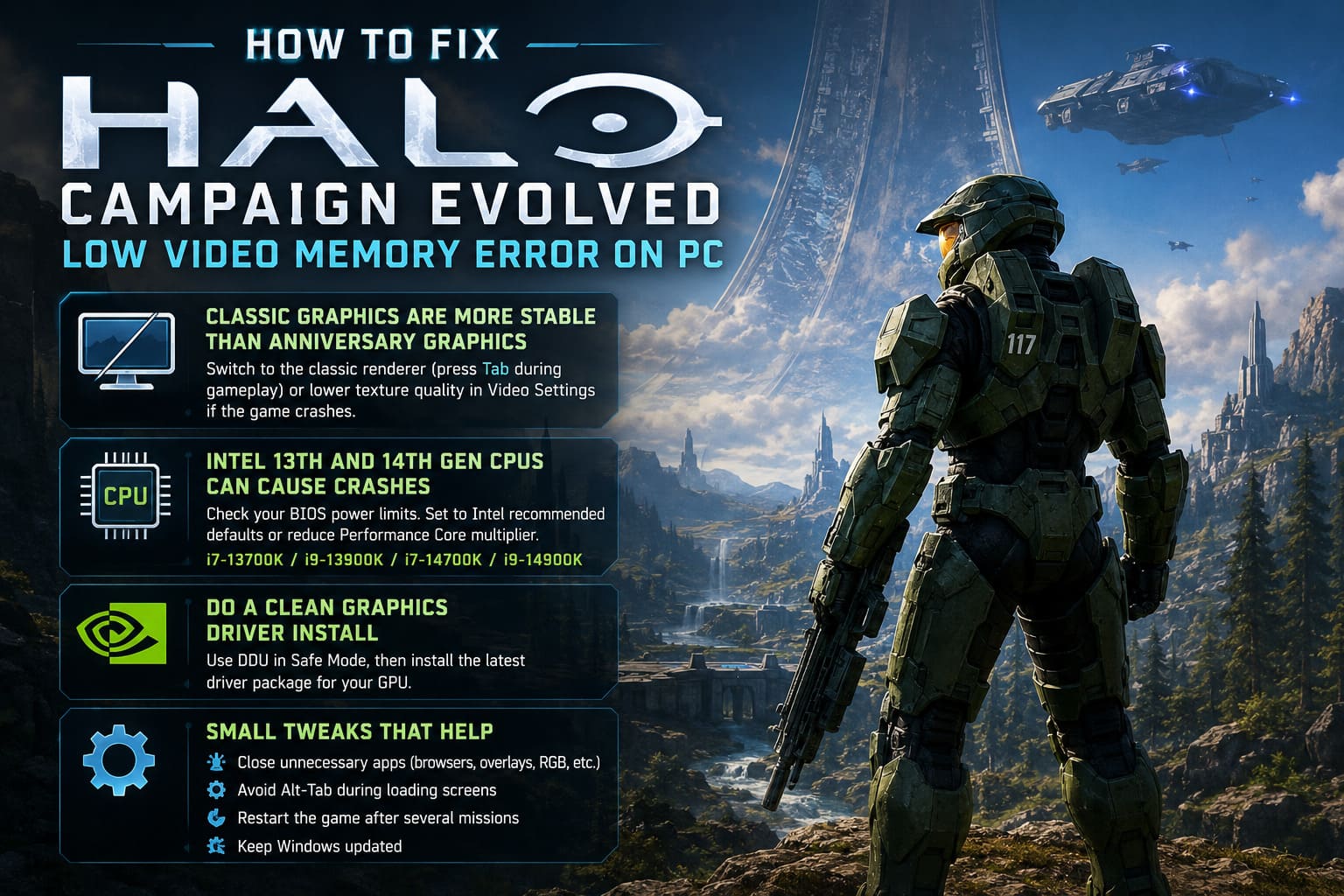
If your crashes mostly happen during long missions or after multiple level loads, try switching to the classic renderer by pressing Tab during gameplay.
The visual downgrade isn’t nearly as dramatic as many people remember, and stability tends to improve considerably.
If the game crashes before reaching gameplay, lower texture quality or choose the classic renderer in the Video Settings menu before loading your save.
Intel 13th and 14th Generation CPUs Can Be Part of the Problem
This one surprised me.
Some newer Intel processors have been linked to rendering resource errors in several PC games—not just Halo.
The issue often comes from aggressive motherboard power settings rather than faulty hardware.
If you’re running processors like:
- Core i7-13700K
- Core i9-13900K
- Core i7-14700K
- Core i9-14900K
It’s worth checking whether your BIOS is using unlimited power limits.
Returning to Intel’s recommended defaults or slightly reducing the Performance Core multiplier has helped many players eliminate crashes.
Obviously, this isn’t necessary for everyone, but if every software fix has failed, it’s definitely worth investigating.
Perform a Clean Graphics Driver Installation
Updating a graphics driver isn’t always enough.
Over months—or even years—old driver components, shader caches, and leftover profiles can create strange compatibility issues.
That’s why I prefer performing a completely clean installation whenever troubleshooting stubborn game crashes.
My process is simple:
- Download the latest graphics driver for your GPU.
- Boot into Windows Safe Mode.
- Use Display Driver Uninstaller (DDU).
- Restart Windows.
- Install the fresh driver package.
It takes longer than a standard update, but it removes a lot of variables from the equation.
Small Tweaks That Helped Me
These weren’t miracle solutions individually, but together they noticeably improved stability.
- Close unnecessary applications. Browsers with dozens of tabs, RGB software, recording tools, hardware monitoring utilities, and launchers all consume memory.
- Avoid Alt-Tab during loading screens. Halo occasionally becomes unstable if you switch applications while a new mission is loading.
- Restart the game after several hours. If you’re playing through the campaign all day, restarting the game every few missions helps prevent memory usage from steadily increasing.
- Keep Windows updated. Recent Windows updates have improved DirectX stability and memory management.
Which Fixes Are Most Likely to Work?
Based on everything I’ve tested and what the wider PC community continues to recommend, I’d rank the solutions like this:
| Fix | Success Rate | Difficulty |
|---|---|---|
| Increase Windows Page File | ★★★★★ | Easy |
| Verify Game Files | ★★★★☆ | Very Easy |
| Disable Overlays | ★★★★☆ | Easy |
| Switch to Classic Graphics | ★★★★☆ | Very Easy |
| Clean GPU Driver Installation | ★★★☆☆ | Moderate |
| Adjust Intel CPU Power Limits | ★★★☆☆ | Advanced |
Starting with the easiest fixes first makes the most sense, and in many cases you won’t need to touch BIOS settings at all.
Halo Combat Evolved Audio Desync in Cutscenes: How to Fix in 2026
Final Thoughts
The biggest lesson I learned while troubleshooting Halo’s Out of Video Memory error is that the message itself can be misleading. More often than not, it isn’t a sign that your graphics card has actually run out of VRAM. Instead, it’s usually the result of memory leaks, virtual memory limitations, overlay conflicts, or modern hardware behaving differently than an older game engine expects.
If I had to recommend only two fixes, they would be increasing the Windows paging file and disabling every unnecessary overlay before launching the game. Those two changes alone made the campaign dramatically more stable on my PC.
Halo may be over two decades old, but it’s still one of the greatest FPS campaigns ever made. Spending a little time optimizing Windows is well worth it if it means you can experience the entire journey without crashes interrupting every mission.