Halo Combat Evolved Co-Op Lag Fix: How to Stop P2P Delay in 2026
Few things in gaming hit quite like returning to Halo: Combat Evolved with a friend. The campaign still has that magic: the first time you step onto a massive Halo ring, the sound of an Assault Rifle ripping through the silence, Warthogs flying over cliffs, and those classic firefights that somehow remain fun decades later. Co-op should be the perfect way to experience it.
Unfortunately, there is one gigantic problem that can turn that nostalgia trip into a rage-inducing mess: campaign co-op lag.
If you have played Halo CE co-op through Halo: The Master Chief Collection in 2026, you may have experienced the exact same nightmare. You press forward and your Spartan reacts late. You pull the trigger and the shot seems to happen a fraction of a second afterward. You try to jump across a gap, but the game feels like it is waiting for permission before responding.
The worst part? Your internet connection might be perfectly fine.
Modern competitive multiplayer can feel incredibly responsive, yet campaign co-op suddenly feels like you are playing underwater. That is because the problem is not always your PC, controller, or even your broadband connection. The bigger issue is the way the legacy campaign networking architecture handles synchronization.
The good news is that there are several things you can do to reduce the problem. Some are simple settings changes. Others involve your router or graphics configuration. And if the standard setup still feels terrible, the community has experimented with virtual LAN solutions that can sometimes produce a dramatically better experience.
Here is my complete Halo CE co-op lag fix guide for 2026, covering the most practical ways to reduce P2P delay, stabilize your connection, and get back to shooting Covenant without fighting your own network.
Why Halo CE Co-Op Has So Much Input Lag
Before changing a dozen settings, it helps to understand what is actually happening.
Halo: Combat Evolved’s campaign co-op networking is built around an older synchronization model that behaves very differently from modern competitive shooters. Instead of using the same kind of client-side prediction and dedicated-server architecture that players expect from newer multiplayer games, the campaign simulation needs to keep the participating game instances closely synchronized.
That creates a nasty side effect: network latency can become gameplay latency.
Imagine your friend is hosting the session and you are the second player. You press a movement key, but the game needs to synchronize that action with the host. If your connection has noticeable latency, you can feel the delay immediately.
At 20 or 30 milliseconds, the effect might be manageable. At 60ms, it becomes much easier to notice. Add packet loss, unstable Wi-Fi, routing problems, or relay servers into the equation, and the experience can become genuinely painful.
This is why Halo CE co-op can feel strange even when your speed test says everything is fine. Bandwidth is not the same thing as latency. You could have a fast fiber connection and still suffer from poor routing or inconsistent packet delivery.
That is also why fixing Halo CE campaign co-op often requires attacking the problem from multiple directions.
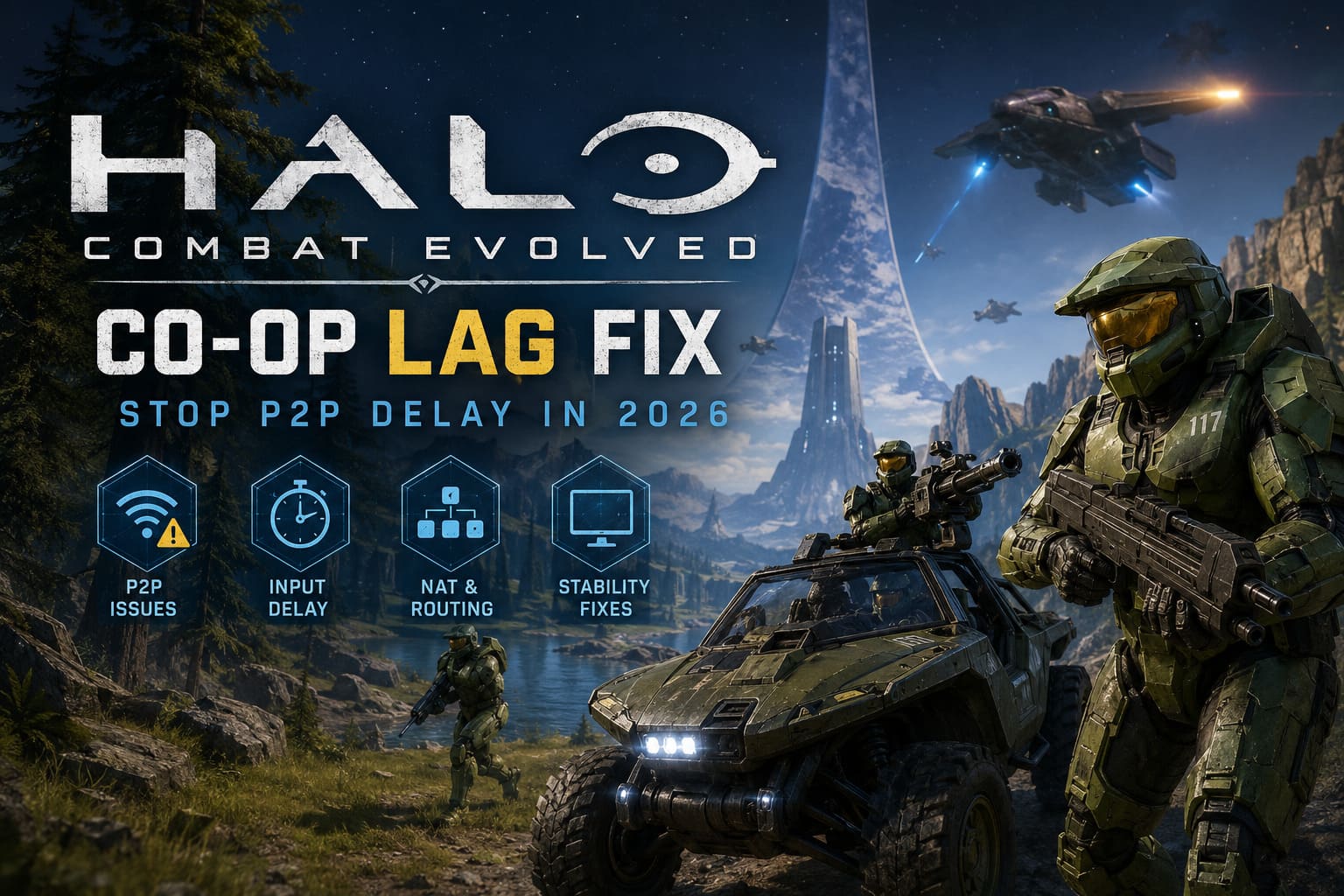
The Best Halo CE Co-Op Lag Fixes at a Glance
| Fix | What It Helps With | Priority |
|---|---|---|
| Use Ethernet | Reduces Wi-Fi instability and packet loss | High |
| Choose the Better Host | Improves overall session stability | High |
| Disable Network Relays | Can reduce unnecessary routing | High |
| Use 60 FPS + V-Sync | May improve consistency on legacy setups | Medium |
| Configure GPU Low Latency | Reduces local input processing delay | Medium |
| Restart Xbox Live Auth Manager | Helps with connection and authentication issues | Medium |
| Improve NAT Type | Makes P2P connections more reliable | High |
| Try Virtual LAN | Community workaround for severe P2P delay | High |
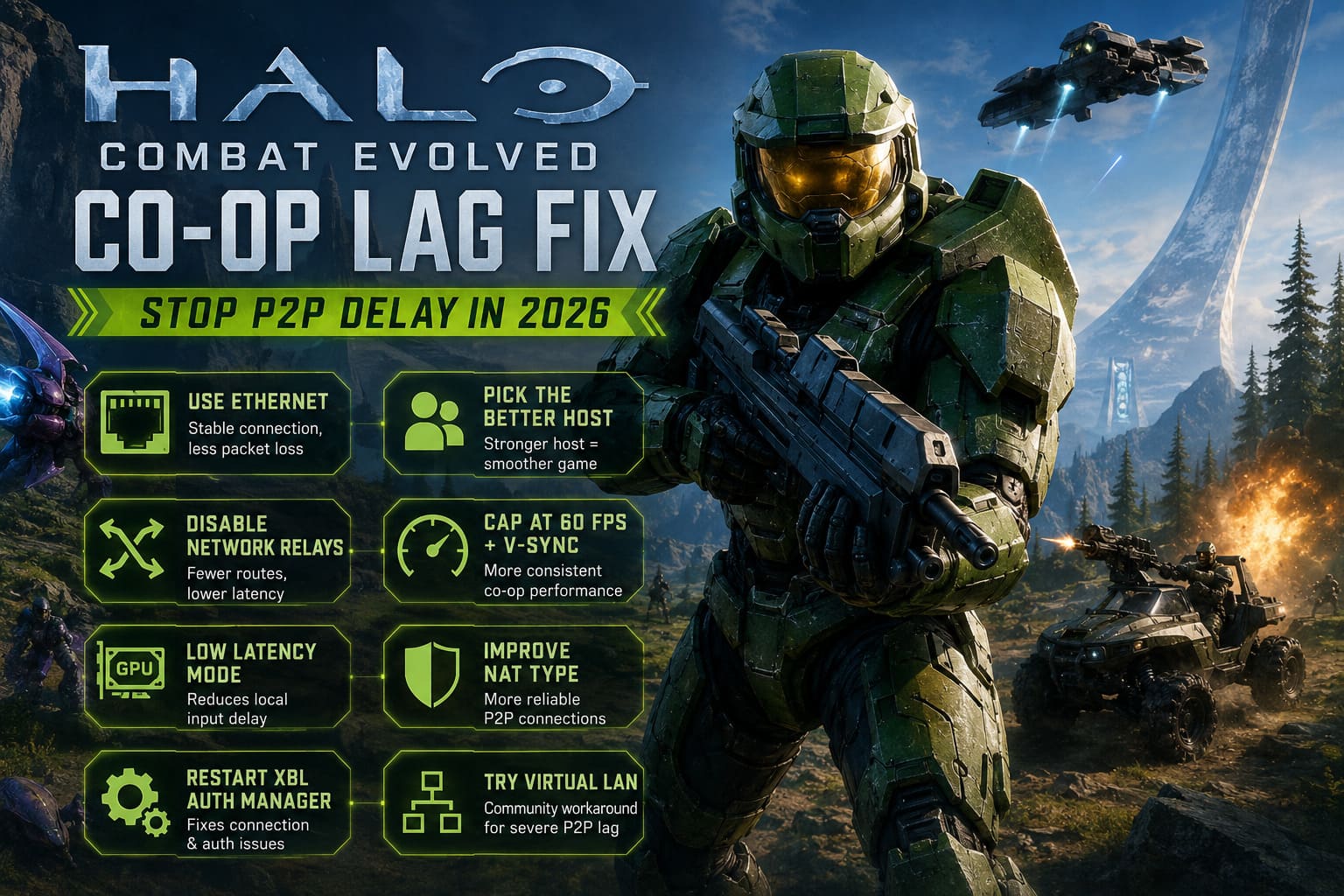
Fix #1: Use a Wired Ethernet Connection
I know this sounds like the most boring advice imaginable, but it is still one of the first things I would try.
Both players should use Ethernet whenever possible.
Wi-Fi introduces variables that you simply do not need when dealing with an old-school synchronized co-op system. Even if your Wi-Fi connection looks fast, you can still experience interference, sudden latency spikes, packet loss, or inconsistent response times.
A wired connection gives you a much more stable foundation.
If only one player can use Ethernet, make sure the person hosting the campaign has the strongest and most stable connection. Ideally, the host should have:
- A wired Ethernet connection
- Low and stable ping
- Strong upload bandwidth
- A reliable router
- A PC capable of maintaining consistent performance
The host is effectively the center of your co-op session, so choosing the right person can make a surprisingly big difference.
Fix #2: Disable Network Relays
This is one of the first settings I would investigate when dealing with persistent Halo MCC campaign co-op delay.
Depending on your configuration, relay services can route traffic through Microsoft’s infrastructure instead of allowing the most direct possible connection between players. That is useful from a networking and privacy perspective, but additional routing can sometimes introduce unnecessary latency.
Open the Halo: The Master Chief Collection settings and look for the relevant Network options. If the game gives you the option to disable network relays, test the campaign with them turned off.
Do not assume this will magically fix every connection. It depends heavily on your NAT configuration and network environment. Still, if your co-op session feels noticeably delayed, this is absolutely worth testing.
After changing the setting, completely restart the game and create a fresh co-op session.
Fix #3: Cap Halo CE at 60 FPS
This one is a little controversial, but it is worth testing if you are experiencing strange stuttering or inconsistent co-op behavior.
Halo CE is a legacy game running inside a modern PC environment. Throwing extremely high or uncapped frame rates into an older engine can sometimes create unexpected behavior, particularly when the game is dealing with synchronization and timing.
For troubleshooting purposes, I recommend that both players test a 60 FPS cap.
Turn on V-Sync as well and compare the result against your previous configuration.
You may prefer playing Halo at 144Hz or higher when playing solo, and honestly, I get it. Once you experience modern high-refresh gaming, going back to 60 FPS can feel like stepping into a time machine. But when troubleshooting campaign co-op, stability is more important than squeezing every possible frame out of a game that was never designed around modern hardware.
If 60 FPS fixes the stuttering or makes the input response more consistent, you have found a useful workaround.
Fix #4: Reduce Local Input Latency
Not every millisecond of delay comes from the internet.
Your GPU settings can also affect how quickly your inputs become visible on screen. If your co-op session already has network latency, adding unnecessary frame buffering on top of it can make the whole experience feel even worse.
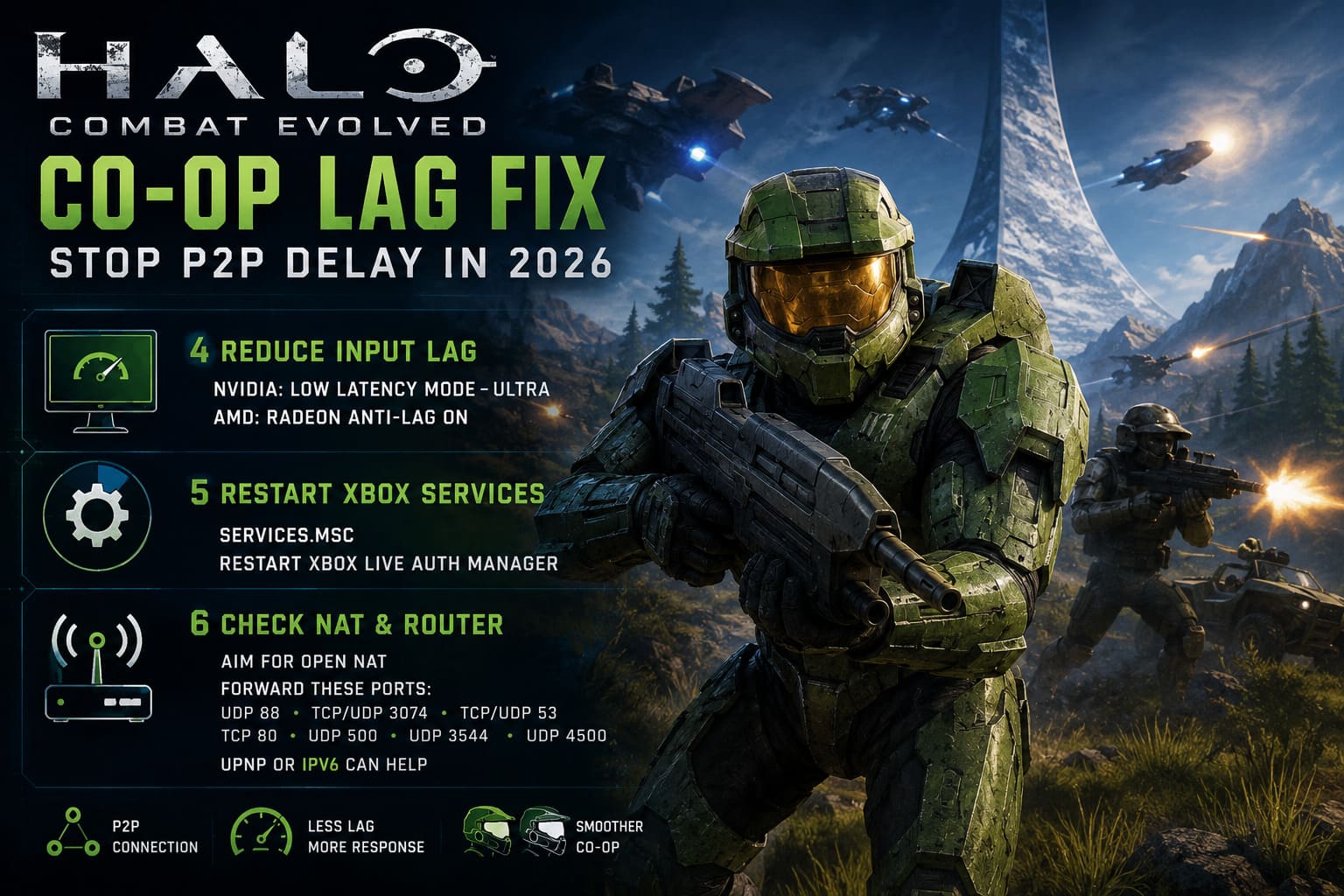
NVIDIA users can open the NVIDIA Control Panel and find Halo: The Master Chief Collection under Program Settings. Test the Low Latency Mode setting and consider using Ultra.
AMD users can open AMD Software and look under the Gaming section for Halo. Radeon Anti-Lag may help reduce local input latency.
I would not expect these settings to eliminate genuine P2P network delay. They cannot rewrite the game’s networking architecture. What they can do is reduce additional delay introduced by your own hardware and rendering pipeline.
When every little bit of responsiveness matters, that can still be worthwhile.
Fix #5: Restart Xbox Live Auth Manager
If you are dealing with connection failures, strange matchmaking behavior, or co-op sessions that refuse to connect properly, Windows’ Xbox services are worth checking.
A quick restart of Xbox Live Auth Manager can sometimes clear up authentication-related problems.
Press Windows Key + R, type:
services.msc
Press Enter and locate Xbox Live Auth Manager in the services list.
Right-click it and select Restart.
If both players are experiencing weird connection problems, have both restart the service before launching the next campaign session.
This is not a universal solution for input delay, but it is a fast troubleshooting step and costs nothing except a minute of your time.
Fix #6: Check Your NAT Type and Router
If your NAT configuration is restrictive, P2P connections can become significantly more complicated.
A Strict or Moderate NAT may interfere with direct communication between players, potentially causing connection instability, failed sessions, or poor routing.
The ideal goal is an Open NAT configuration.
Start by logging into your router’s administration interface. Depending on the router manufacturer, you may find NAT, UPnP, or Port Forwarding options in different locations.
Common ports associated with Xbox networking include:
- UDP 88
- TCP/UDP 3074
- TCP/UDP 53
- TCP 80
- UDP 500
- UDP 3544
- UDP 4500
If you configure port forwarding, make sure the rules point toward the correct local IP address of the gaming PC.
Important: router configurations vary wildly. Do not blindly copy settings from a random guide and assume they are correct for every network. UPnP may already handle some of this automatically, while certain ISPs use CGNAT, which can prevent traditional port forwarding from working as expected.
If you are comfortable managing your router, improving NAT behavior is absolutely worth investigating.
IPv6 can also be useful if your ISP and router support it properly. Native IPv6 routing can eliminate some traditional NAT complications, although it is not a guaranteed cure for Halo CE co-op latency.
The Community Workaround: Virtual LAN Networking
Now we get to the more interesting option.
If you have tried everything above and Halo CE co-op still feels like your Spartan is operating on a half-second delay, some players have experimented with virtual LAN tools.
The basic idea is simple: create a virtual network that makes two remote PCs behave more like they are connected through the same local network.
Tools such as Radmin VPN and Hamachi have historically been popular for this kind of workaround.
Both players install the same VPN software and join the same virtual network. One player creates the network, while the other joins using the provided credentials.
Once connected, confirm that both PCs can see each other through the virtual network and that the connection status looks healthy.
The next step depends on your specific Halo/MCC configuration. If your version of the game supports LAN functionality for your intended setup, select the LAN networking option and attempt to establish the session through the virtual network.
The goal is to avoid problematic external routing and create a more direct path between the two systems.
However, this is not a guaranteed fix. Your results depend on the VPN software, firewall configuration, NAT behavior, and how Halo MCC handles LAN networking in your particular setup.
Still, when ordinary online co-op produces unbearable input delay, this is one of the more interesting community workarounds to experiment with.
Halo Campaign Evolved Cross Progression: How PS5 and PC Shared Saves Work (2026 Guide)
My Recommended Halo CE Co-Op Setup for 2026
If I were setting up a campaign session with a friend today, I would keep things simple.
First, both players would connect their PCs through Ethernet. I would choose the player with the strongest upload connection and most stable ping as the host. Then I would test the campaign with network relays disabled.
If the game still felt sluggish, I would temporarily cap both systems at 60 FPS with V-Sync enabled. After that, I would check NAT behavior and router configuration.
Only if the standard setup continued to produce ridiculous input delay would I start experimenting with virtual LAN tools.
The important thing is to change one variable at a time. If you change your router, GPU settings, FPS cap, Windows services, and network configuration simultaneously, you will have no idea which fix actually helped.
Halo: Combat Evolved Speedrun Routing Guide & Easter Eggs List (2026 Edition)
Final Thoughts
Halo: Combat Evolved remains one of the greatest co-op campaigns ever made. That is exactly why the networking problems are so frustrating. The game itself is still incredible, but legacy networking architecture can make a modern PC co-op session feel far older than it should.
The key is to remember that there is rarely one magic button that fixes everything.
Start with the basics: Ethernet, the right host, stable ping, and network relay testing. Then move toward FPS consistency, local input latency, Windows services, NAT configuration, and router troubleshooting.
If the P2P delay is still unbearable, virtual LAN solutions are worth experimenting with as a last-resort community workaround.
Once you finally get a stable connection, the difference is night and day. Suddenly that sniper rifle feels responsive again. Warthog driving stops feeling like you are steering through molasses. Grenades actually leave your hand when you expect them to.
And that is when Halo CE co-op becomes what it should have been all along: two friends, one legendary campaign, and absolutely no excuse to blame the network when you both get wiped out by a squad of Elites.