How to Fix Thveit Black Screen on Launch: Winter Cats Studios 2026 Error Guide
Thveit, the charming Norse settlement builder from Winter Cats Studios and Crytivo, has attracted a lot of attention from PC players looking for a slower, more creative experience filled with mythology, village management, and cozy survival elements. After spending years playing everything from hardcore strategy games to smaller indie management titles, I always find these launches interesting because ambitious indie projects often have incredible ideas but can struggle with technical problems during their first days.
Unfortunately, many players jumping into Thveit have encountered one of the most annoying problems a PC gamer can face: the Thveit black screen on startup error. Instead of reaching the main menu and beginning their Viking-inspired adventure, some players are greeted with a frozen dark screen, endless loading, or a crash back to the desktop.
This type of issue is especially common during Early Access releases. It does not necessarily mean the game is broken or your hardware is outdated. In many cases, the problem comes from graphics driver conflicts, fullscreen settings, corrupted files, audio device detection, or Windows security features interfering with the game during its first launch.
Thveit Mac & Linux Support: How to Play the Norse City Builder on Steam Deck and macOS
After looking through community reports and testing common PC troubleshooting methods used for many modern games, I collected the most reliable fixes for the Thveit black screen error. These solutions cover everything from quick graphics resets to deeper Windows configuration changes.
Why Does Thveit Show a Black Screen When Launching?
Before trying random fixes, it helps to understand what is happening behind the scenes. When you start Thveit, the game has to communicate with several parts of your computer at the same time: the graphics card, monitor, audio system, Windows permissions, and game files.
A failure in any of these areas can stop the game before the first menu appears. Sometimes the game is actually running in the background, but the image output fails. Other times, the engine gets stuck while loading startup videos, shaders, or configuration files.
The most common causes include:
| Possible Cause | What Happens |
|---|---|
| Graphics driver conflict | The game launches but cannot display visuals correctly |
| Fullscreen compatibility issue | Monitor handshake fails during startup |
| Damaged game files | Important assets fail to load |
| Audio device conflict | Engine freezes while initializing sound |
| Antivirus restrictions | Game files cannot create necessary folders |
| Outdated drivers | New games fail during hardware detection |
From my experience with PC gaming, especially with indie releases, the fastest solution is usually not reinstalling everything immediately. Start with simple fixes and move toward more advanced ones.
Fix 1: Reset the Windows Graphics Driver
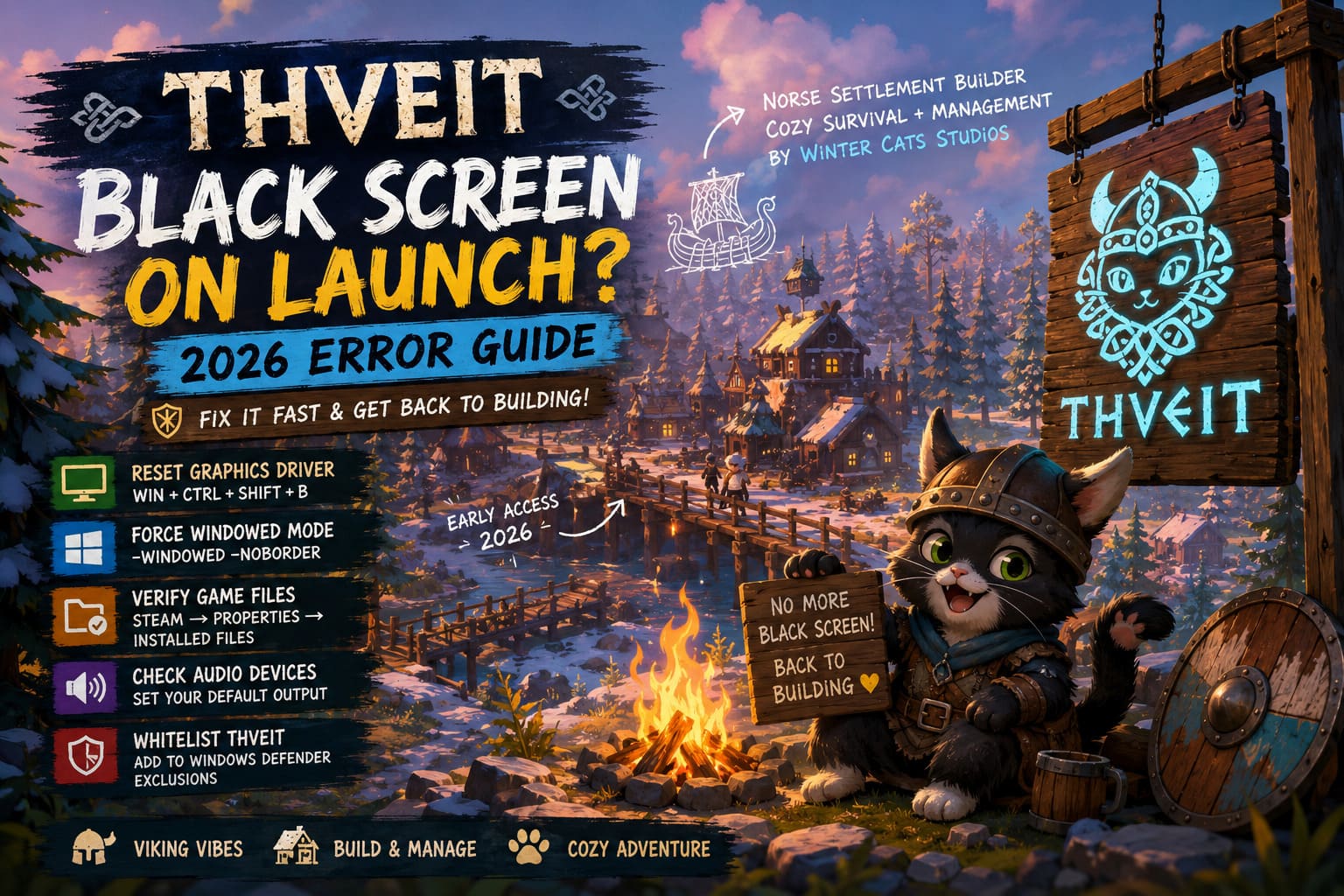
One of the easiest solutions for the Thveit black screen problem is refreshing the Windows graphics subsystem. Sometimes your GPU driver simply fails to establish a proper connection with the game window. Instead of restarting your entire PC, Windows has a built-in shortcut that forces the graphics driver to reload.
When Thveit becomes stuck on a black screen:
- Keep the game running.
- Press Windows Key + Ctrl + Shift + B at the same time.
- Your screen should briefly flicker.
- You may hear a short notification sound.
- Wait several seconds and check if the game appears.
This trick works surprisingly often. I have used it with several PC games where the launch process was active but the display output was frozen. It is a quick method that should always be tried before making bigger system changes.
Fix 2: Force Thveit Into Borderless Window Mode
Fullscreen mode is one of the biggest causes of launch problems in modern PC games. High-refresh monitors, ultrawide displays, and multi-monitor setups can sometimes confuse the initial rendering process.
A simple workaround is forcing Thveit to start in borderless window mode through Steam. This removes many conflicts between the game engine and Windows display settings.
Follow these steps:
- Open Steam.
- Go to your Library.
- Right-click Thveit.
- Select Properties.
- Find the Launch Options section.
- Add the following command:
-windowed -noborder
If that does not help, you can also test different rendering modes:
-dx11
or
-dx12
Different systems react differently depending on your graphics card and installed drivers. In my experience, forcing DirectX versions is one of the most underrated solutions for launch problems.
Fix 3: Skip the Broken Intro Screen
One strange but useful workaround reported by players is that Thveit’s black screen may not always be a complete crash. Sometimes the game is waiting for input while an opening video, logo screen, or disclaimer fails to display correctly.
Try this:
- Launch Thveit.
- Wait until the screen turns black.
- Press Enter, Space, or click the mouse several times.
- Wait 20–40 seconds.
If the problem is only a broken intro sequence, this can push the game into the main menu. This reminds me of older PC games where missing startup videos could make players think the entire game had crashed when the menu was actually loading underneath.
Fix 4: Verify Thveit Game Files Through Steam
Early Access games often receive frequent updates. While this is good for improving the game, it also increases the chance that something goes wrong during downloading or patching.
A single corrupted file can prevent the entire game from launching. Steam includes a built-in repair tool that checks your installation and replaces damaged files automatically.
To verify your installation:
- Open Steam Library.
- Right-click Thveit.
- Select Properties.
- Open Installed Files.
- Click Verify integrity of game files.
Steam will compare your installation with the official version and automatically replace missing or damaged files. This should always be one of the first troubleshooting steps because it is safe, quick, and solves many mysterious crashes.
Fix 5: Disable Fullscreen Optimizations and Run as Administrator
Windows compatibility settings sometimes interfere with newer games. Although these features are designed to improve performance, they can occasionally create problems with fullscreen rendering.
Try changing these settings:
- Open Steam.
- Right-click Thveit.
- Select Manage → Browse local files.
- Find the main executable file.
- Right-click the game launcher.
- Choose Properties.
- Open the Compatibility tab.
- Enable Disable fullscreen optimizations.
- Enable Run this program as administrator.
- Apply the changes.
This method has helped me with many PC titles that refused to display correctly despite running perfectly after startup. Windows permissions and display optimization layers can sometimes create unexpected conflicts.
Fix 6: Check Audio Software Conflicts
This is one of the less obvious causes of black screen problems. Some players use advanced audio programs, virtual mixers, streaming tools, or custom sound routing applications.
Games sometimes freeze while trying to detect audio devices. The engine may struggle to decide which output should be used, causing the entire startup process to hang.
- Close virtual audio software.
- Disable unnecessary playback devices.
- Set your main headphones or speakers as the Windows default device.
- Launch the game again.
If Thveit starts normally, open the audio settings and manually select your real hardware instead of leaving everything on automatic detection.
It may sound unrelated, but modern game engines initialize graphics and audio together. A failure in one system can block another.
Fix 7: Add Thveit to Windows Defender Exceptions
Security software can sometimes mistake new game files for suspicious behavior. This happens more frequently with smaller indie releases because their files are less recognized by antivirus databases.
To whitelist Thveit:
- Open Windows Security.
- Select Virus & threat protection.
- Open Manage settings.
- Find Exclusions.
- Add the entire Thveit installation folder.
After doing this, restart your PC and test the game again. If Windows Defender was blocking important files, the black screen problem should disappear.
Additional Tips Before Launching Thveit
If none of the solutions above work, try these basic checks before reinstalling the game completely:
- Update your NVIDIA, AMD, or Intel graphics drivers.
- Restart Steam completely.
- Disable overlays from Steam, Discord, and GPU software.
- Close unnecessary background applications.
- Make sure Windows is fully updated.
- Avoid launching the game while another demanding application is running.
Small optimization problems are normal during the first stages of an indie game’s life. The important thing is that most black screen errors can be solved without complicated changes or reinstalling everything.
Final Thoughts
Thveit’s black screen launch issue is frustrating, especially when you are excited to build your first Norse settlement and explore its unique world. However, based on how similar PC problems behave across hundreds of games, this is likely a temporary compatibility problem rather than a serious failure.
The best approach is to start with the quick fixes: reset the graphics driver, force windowed mode, verify files, and check background software conflicts. These methods solve the majority of launch problems without requiring a complete reinstall.
Winter Cats Studios is continuing to improve the game, and future patches should make the experience smoother. Until then, these troubleshooting steps should help you get past the black screen and return to building your Viking-inspired village.