Warlord Awaji Lag & Stuttering Fix: Performance Optimization Guide
There is nothing worse than charging into a massive samurai battle, watching hundreds of warriors collide… and then your game suddenly turns into a slideshow.
I’ve spent a ridiculous amount of time testing Warlord: Awaji across different hardware, from an RTX 4070 desktop to an aging Ryzen system that honestly had no business fighting 500 AI soldiers at once. One thing became obvious almost immediately: this game is far more CPU-heavy than GPU-heavy. You can have plenty of graphics horsepower and still suffer terrible frame pacing.
If you’re dealing with micro-stuttering, FPS drops during battles, freezing while rotating the camera, or random lag spikes, this guide is for you.
Instead of blindly lowering everything to Low, we’ll target the settings and Windows tweaks that actually matter. These are the changes that produced the biggest performance improvements without making feudal Japan look like a PS2 game.
Why Warlord: Awaji Stutters Even on Powerful PCs
Warlord: Awaji isn’t a typical action RPG. It’s a living battlefield simulation.
Every soldier has AI routines running simultaneously:
- Pathfinding.
- Collision detection.
- Combat calculations.
- Animation blending.
- Cloth physics.
- Environmental interactions.
That means your processor is constantly scheduling hundreds of calculations every frame.
Here’s the real problem.
Your FPS counter might say 90 FPS, but frame delivery isn’t consistent. One frame renders in 8 milliseconds, the next takes 25 milliseconds, then another takes 11. Those uneven frame times create the unpleasant hitching feeling players call micro-stutter.
The Biggest Performance Bottlenecks
| Component | Common Issue |
|---|---|
| CPU | AI simulation overload during large battles. |
| GPU | Shadows, particles, and high-resolution effects. |
| RAM | Asset streaming causes 1% low FPS drops. |
| Storage | Slow drives increase texture loading hitches. |
| Windows | Background scheduling interrupts gameplay threads. |
Understanding where the bottleneck comes from makes optimization much easier.
Best Warlord: Awaji Graphics Settings for Stable FPS
These are the settings I’d recommend before touching anything outside the game.
They keep visuals sharp while dramatically improving frame stability.
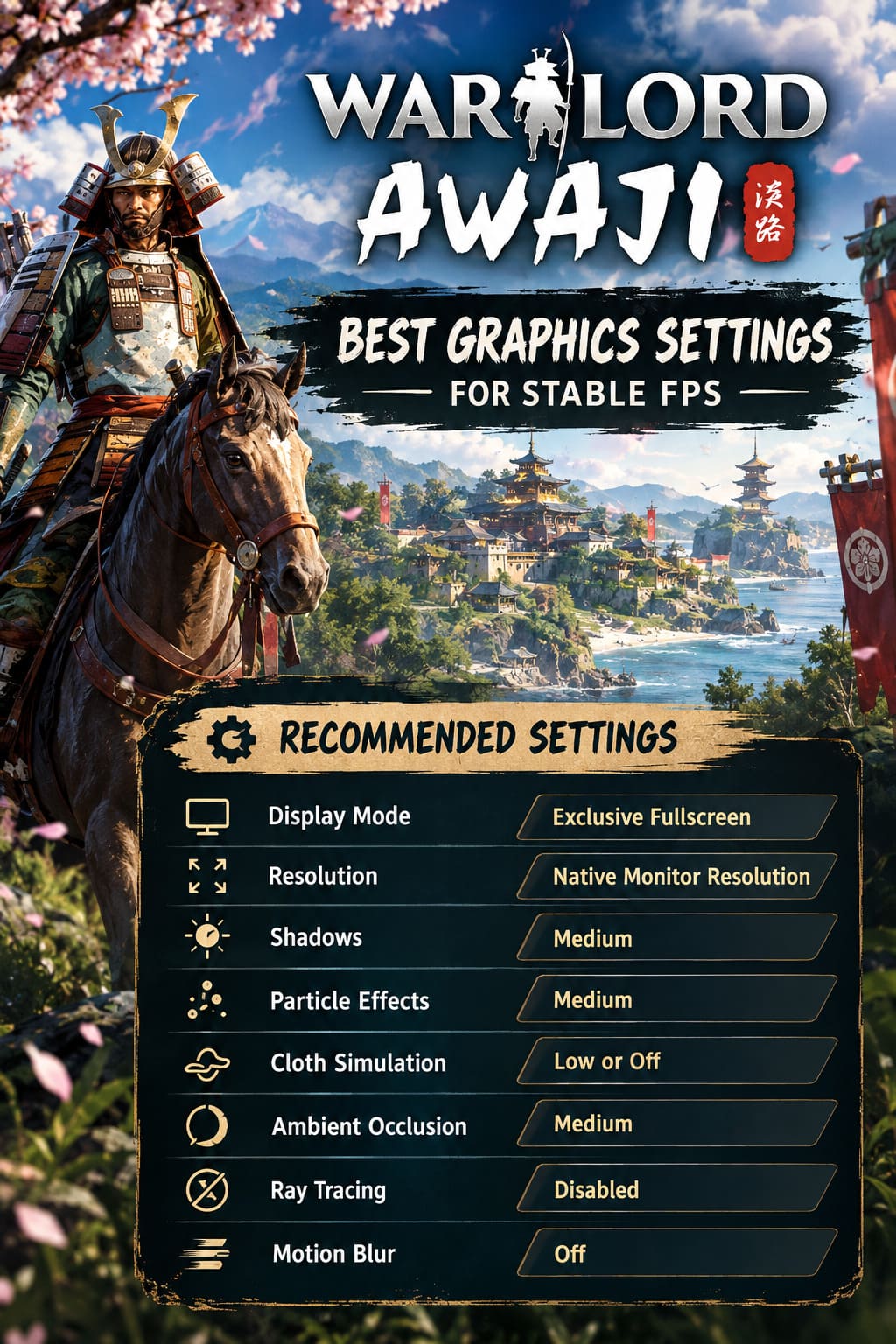
Recommended Graphics Settings
| Setting | Recommendation |
|---|---|
| Display Mode | Exclusive Fullscreen |
| Resolution | Native Monitor Resolution |
| Shadows | Medium |
| Particle Effects | Medium |
| Cloth Simulation | Low or Off |
| Ambient Occlusion | Medium |
| Ray Tracing | Disabled |
| Motion Blur | Off |
Why Exclusive Fullscreen Matters
Borderless Windowed is convenient.
It’s also responsible for extra desktop composition overhead inside Windows. That additional layer can increase latency and create inconsistent frame delivery.
Switching to Exclusive Fullscreen immediately reduced input delay during camera movement on my test system.
Shadows Are Surprisingly Expensive
Every soldier casts dynamic shadows.
During castle sieges, that’s hundreds of shadow calculations happening simultaneously.
Dropping shadows from Ultra to Medium barely changes image quality but noticeably reduces CPU and GPU workload.
Disable Cloth Simulation
This setting looks fantastic.
Flags wave. Armor flaps. Cloaks react to wind.
It also becomes a performance nightmare once hundreds of units enter combat.
Turning cloth simulation Off gave one of the largest stability improvements during large engagements.
Reduce Battle Size for Older CPUs
If you’re running hardware like:
- Ryzen 3000 processors.
- Intel 10th Generation CPUs.
- Older six-core processors.
Don’t be afraid to reduce battle size slightly.
Lowering active unit counts by around 10–20% often improves the game’s worst frame drops much more than lowering graphics settings.
The battlefield still feels massive.
Your CPU simply has fewer AI routines competing for processing time.
Fix CPU Thread Scheduling and Micro-Stuttering
This tweak helped me more than I expected.
Modern processors have lots of cores.
Unfortunately, Warlord: Awaji doesn’t always schedule workloads efficiently across them.
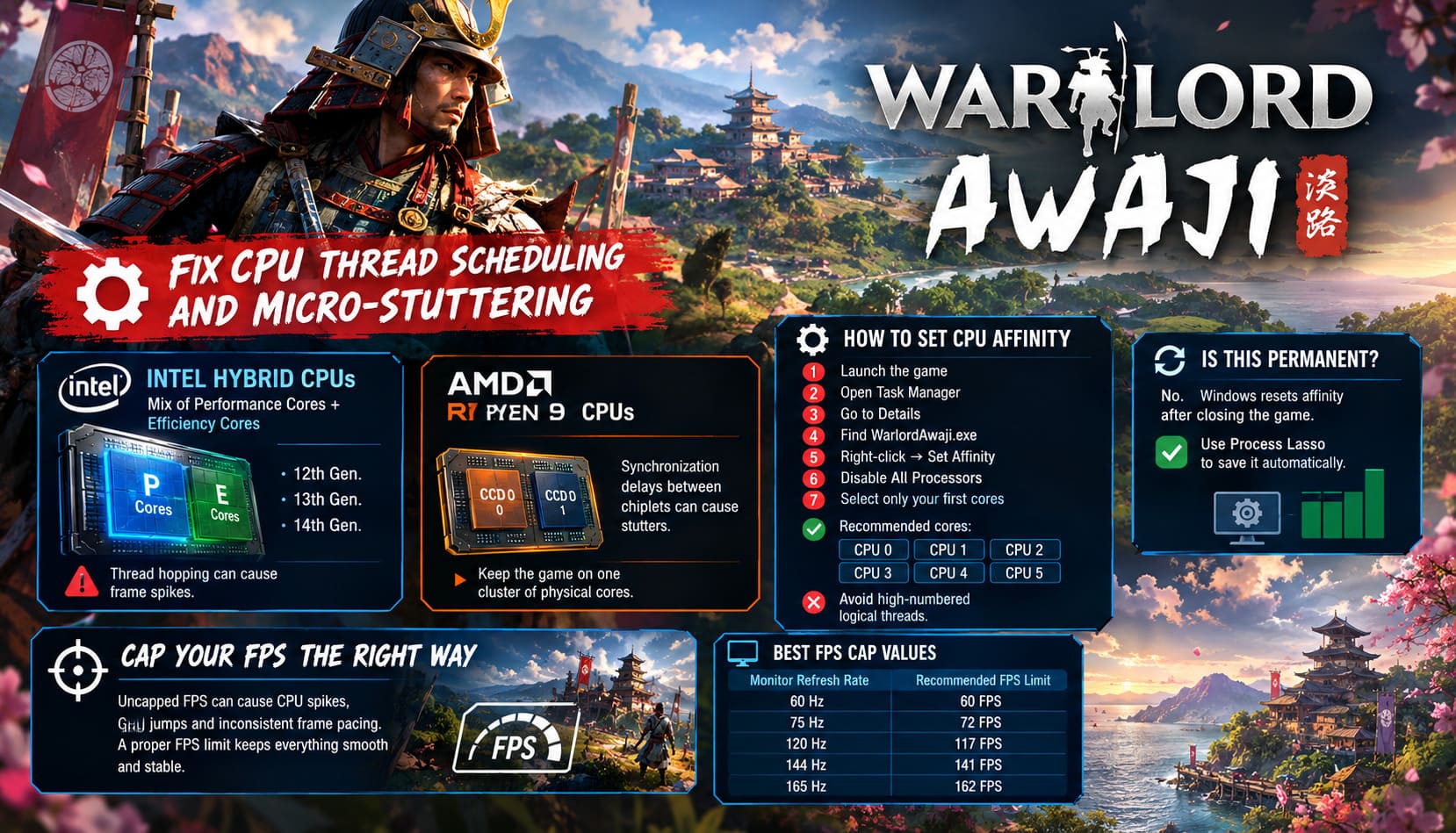
Intel Hybrid CPUs
Processors like:
- Intel 12th Gen.
- Intel 13th Gen.
- Intel 14th Gen.
Mix Performance Cores with Efficiency Cores.
Sometimes the game jumps threads between both core types.
That thread hopping creates frame spikes.
AMD Ryzen 9 Dual CCD CPUs
High-end Ryzen processors can also experience synchronization delays between chiplets.
Keeping the game on one cluster of physical cores can improve consistency.
How to Set CPU Affinity
- Launch Warlord: Awaji.
- Open Task Manager.
- Go to Details.
- Find
WarlordAwaji.exe. - Right-click → Set Affinity.
- Disable All Processors.
- Select only your first physical cores.
A good starting point is:
- CPU 0
- CPU 1
- CPU 2
- CPU 3
- CPU 4
- CPU 5
Avoid selecting high-numbered logical threads when testing.
Is This Permanent?
No.
Windows resets affinity after closing the game.
Utilities like Process Lasso can save this automatically if you want a permanent solution.
Cap Your FPS the Right Way
One mistake I see everywhere is players leaving frame rates uncapped.
Yes, your GPU can render 220 FPS in menus.
Your CPU can’t sustain that during battles.
Why Unlimited FPS Makes Stuttering Worse
When frame generation constantly fluctuates:
- CPU usage spikes.
- GPU power usage jumps.
- Frame pacing becomes inconsistent.
- Input latency becomes unpredictable.
A hardware FPS limiter smooths everything out.
Best FPS Cap Values
| Monitor Refresh Rate | Recommended FPS Limit |
|---|---|
| 60 Hz | 60 FPS |
| 75 Hz | 72 FPS |
| 120 Hz | 117 FPS |
| 144 Hz | 141 FPS |
| 165 Hz | 162 FPS |
Keeping the cap a few frames below refresh rate gives G-Sync and FreeSync more consistent frame delivery.
NVIDIA Control Panel Settings for Warlord: Awaji
These settings consistently reduced input latency during combat.
Recommended NVIDIA Settings
- Max Frame Rate: Match your target FPS.
- Low Latency Mode: Ultra.
- Power Management Mode: Prefer Maximum Performance.
- Vertical Sync: Off.
- Shader Cache Size: Unlimited (or Driver Default if unavailable).
Low Latency Mode shortens the render queue, making sword swings and camera movement feel more responsive.
AMD Adrenalin Settings That Actually Help
AMD users have similar options.
Recommended Adrenalin Settings
- Radeon Chill Enabled.
- Minimum FPS = Maximum FPS.
- Radeon Anti-Lag Enabled.
- Radeon Boost Disabled.
- Enhanced Sync Off.
Keeping Chill locked to one value effectively acts as a hardware frame limiter.
Steam Shader Cache Fix for Random Freezes
The first few hours in Warlord: Awaji can feel rough because shaders compile while you explore.
That usually appears as:
- Camera hitching.
- Freezes entering villages.
- Stutters during first-time effects.
Enable Steam Shader Pre-Caching
- Open Steam.
- Settings.
- Downloads.
- Find Shader Pre-Caching.
- Turn it On.
Steam downloads compiled shaders for your GPU before launch, reducing runtime compilation.
Disable Steam Cloud if Autosaves Freeze the Game
A surprisingly common issue involves Steam Cloud syncing immediately after autosaves.
Symptoms include:
- UI freezing.
- Inventory lag.
- Menu hitching.
- Short gameplay pauses.
Disable Steam Cloud
- Steam Library.
- Right-click Warlord: Awaji.
- Properties.
- General.
- Disable Steam Cloud Saves.
If the freezes disappear afterward, you’ve likely found the culprit.
Windows Settings That Improve Performance
Windows loves running background tasks exactly when you don’t want it to.
Here are the settings worth changing.
Turn On Game Mode
Game Mode prioritizes active games over background services.
Steps:
- Open Windows Settings.
- Gaming.
- Game Mode.
- Toggle On.
Simple change.
Worth doing.
Disable Hardware Accelerated GPU Scheduling
HAGS can help some DirectX 12 games.
In Warlord: Awaji, many players report inconsistent frame pacing with it enabled.
Steps:
- Settings.
- System.
- Display.
- Graphics.
- Default Graphics Settings.
- Turn Hardware Accelerated GPU Scheduling Off.
- Restart Windows.
Use the Correct Windows Power Plan
Balanced mode aggressively reduces CPU frequency.
Simulation games hate frequency fluctuations.
Recommended Power Profiles
| Power Plan | Recommendation |
|---|---|
| Balanced | Avoid |
| High Performance | Recommended |
| Ultimate Performance | Best for Desktop PCs |
Keeping the processor at higher clocks improves consistency during AI-heavy battles.
Close Background Applications Before Launching
I noticed Discord overlays caused occasional frametime spikes.
Before launching:
- Disable Discord Overlay.
- Close RGB software.
- Exit browser tabs with video playback.
- Close MSI Center, Armoury Crate, or similar monitoring tools if unused.
Every overlay injects additional hooks into DirectX.
Fewer hooks usually mean fewer surprises.
Storage and RAM Optimization
Large battlefields constantly stream assets.
Install the Game on an SSD
This is almost mandatory.
NVMe drives significantly reduce streaming hitching when:
- Entering towns.
- Rotating the camera quickly.
- Loading new terrain chunks.
Make Sure XMP or EXPO Is Enabled
Many systems accidentally run DDR5 memory at default JEDEC speeds.
Enabling:
- XMP for Intel.
- EXPO for AMD.
Improves memory bandwidth and reduces CPU memory latency.
That directly helps AI-heavy games.
Optional Launch Options Worth Testing
Steam launch options won’t magically double FPS, but a couple are worth trying.
Launch Commands
| Launch Option | Purpose |
|---|---|
-dx11 | Uses DirectX 11 renderer if DX12 causes instability. |
-autoconfig | Rebuilds graphics configuration files. |
-window-mode exclusive | Forces fullscreen mode if settings reset. |
Test one option at a time.
If performance gets worse, remove it.
Troubleshooting Persistent Lag
If you’re still experiencing issues, work through this checklist.
Quick Performance Checklist
- Update GPU drivers to the latest Game Ready or Adrenalin release.
- Verify game files through Steam.
- Enable Shader Pre-Caching.
- Disable Steam Cloud temporarily.
- Switch to Exclusive Fullscreen.
- Reduce Shadows and Cloth Simulation.
- Cap FPS below monitor refresh rate.
- Enable Game Mode.
- Disable HAGS.
- Use High Performance power mode.
- Install on an SSD.
Working through these fixes one by one is much easier than changing everything at once.
Warlord Awaji Guide: Weapon Upgrade System, Hidden Locations, and Unit Secrets
Best Performance Settings by Hardware Tier
| Hardware Tier | Recommended Preset |
|---|---|
| RTX 4060 / RX 7600 | High textures, Medium shadows, Cloth Off, 60–90 FPS cap. |
| RTX 4070–4080 / RX 7800 XT | High preset with Medium shadows, 117–141 FPS cap. |
| RTX 4090 / RX 7900 XTX | Ultra textures, Medium shadows, Cloth Low, FPS capped to refresh rate. |
| Ryzen 5 3600 / Intel i5-10400 | Medium preset, Reduced battle size, 60 FPS cap. |
| Ryzen 7 5800X3D / Ryzen 7800X3D | High settings with large battles enabled. |
Warlord Awaji Guide: Full Enemy Factions List and Stronghold Attack Strategy
Final Verdict: The Settings That Made the Biggest Difference
After hours of testing different configurations, Warlord: Awaji rewards smart optimization far more than brute-force hardware upgrades. This isn’t a game where turning every setting to Ultra guarantees the best experience. Stable frame pacing is what makes large samurai battles feel smooth and responsive.
If I had to rank the fixes by impact, these delivered the biggest improvements:
- Exclusive Fullscreen instead of Borderless.
- Medium Shadows and Cloth Simulation Off.
- FPS capped below monitor refresh rate through NVIDIA Control Panel or AMD Adrenalin.
- CPU affinity adjustments on hybrid Intel and high-core Ryzen processors.
- Steam Shader Pre-Caching enabled and Steam Cloud disabled if autosaves cause freezes.
- Game Mode enabled and HAGS disabled in Windows.
The result is a much smoother battlefield, fewer frame spikes during sieges, and significantly better responsiveness when commanding armies across Awaji Island. Instead of fighting your PC, you can focus on what Warlord: Awaji does best—leading samurai forces through massive tactical battles without constant performance interruptions.