Aniimo Twitch Drops Guide 2026: How to Link, Claim, and Fix Rewards Instantly
Twitch Drops are one of those systems I genuinely like in online games. You are already watching someone play, maybe checking out a build or just leaving a stream running while doing something else, and suddenly you get a cosmetic or useful reward in Aniimo without spending anything.
The problem is that Twitch Drops can also be surprisingly annoying.
You can watch a stream for hours and discover that the wrong account was linked. You can finish a reward and forget to claim it. Or, even worse, Twitch says the item has been delivered while Aniimo seems to have absolutely no idea where it went.
I have run into enough of these little headaches with Twitch reward systems to know that the process is worth setting up correctly from the beginning. Aniimo Twitch Drops are not difficult to use, but there are a few steps that are easy to overlook.
This 2026 guide explains how to link Aniimo to Twitch, find eligible streams, track your progress, claim completed rewards, and troubleshoot missing items if something goes wrong.
How Aniimo Twitch Drops Actually Work
The basic system is pretty simple.
During an active Twitch Drops campaign, you watch an eligible Aniimo livestream for a specific amount of time. Twitch tracks that viewing session and gradually fills your reward progress. Once the required time is reached, the reward becomes available to claim.
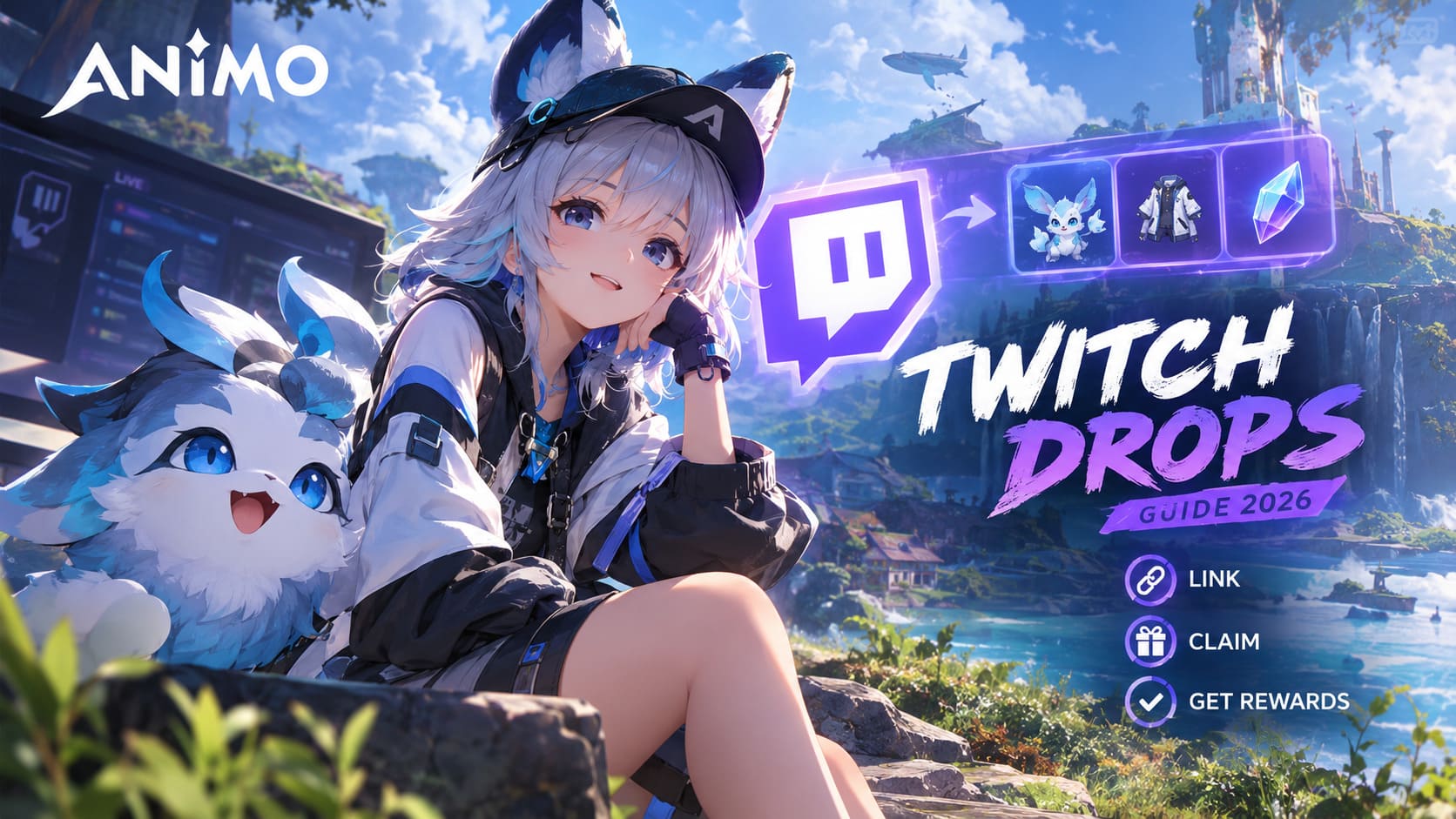
After claiming it, the reward should eventually be transferred to your connected Aniimo account.
The important part is that there are three separate stages:
- Watch an eligible Aniimo stream.
- Complete and claim the Twitch reward.
- Wait for the reward to appear in Aniimo.
That distinction matters. Completing the watch requirement does not necessarily mean the item has already been delivered to your character.
| Stage | What You Need To Do | What Can Go Wrong |
|---|---|---|
| Account Linking | Connect Aniimo and Twitch | Wrong account or failed authorization |
| Watching | Watch an eligible live stream | Stream isn’t participating |
| Progress | Reach the required watch time | Tracking can stop or lag |
| Claiming | Press the Twitch claim button | Reward remains unclaimed |
| Delivery | Restart/check Aniimo | Item may take time to arrive |
Step 1: Link Your Aniimo Account to Twitch
Before watching anything, make sure your Aniimo account is connected to the correct Twitch account.
This is easily the most important part of the entire process. There is not much point in accumulating hours of watch time if Twitch is connected to a different game profile.
Start by opening the official Aniimo account portal and signing into the account you actually use to play. From there, find the section related to promotional campaigns, Twitch Drops, or connected accounts.
Select the option to Connect or Link your Twitch account.
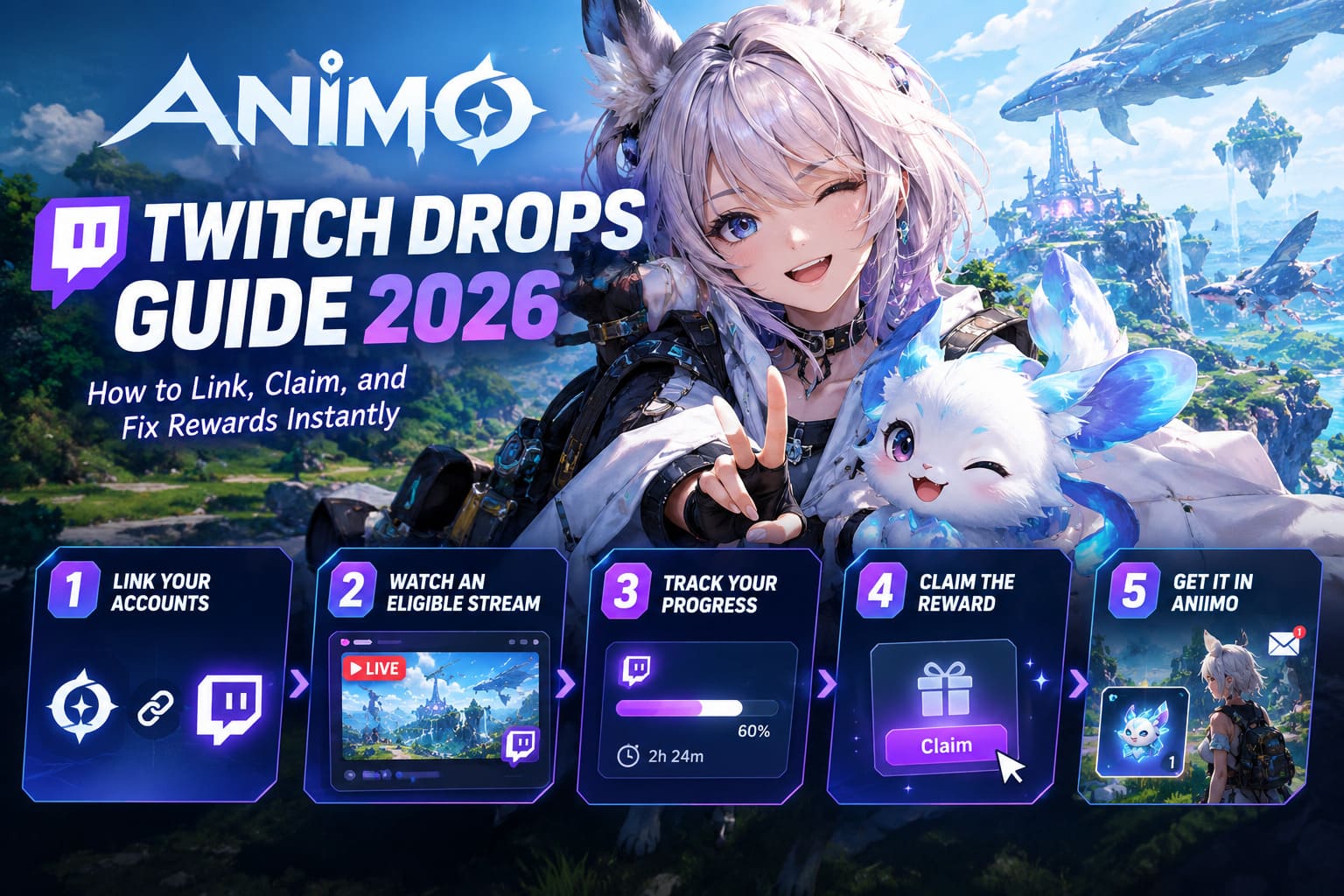
You should then be redirected to Twitch for authorization. Sign into the Twitch account you intend to use for the campaign and approve the requested connection.
Afterward, you should be redirected back to Aniimo.
Don’t just close the browser and assume everything worked. Check for an actual confirmation that the accounts are connected. It takes a few seconds and can save hours of frustration later.
I’d also recommend checking your Twitch connections page afterward. If the Aniimo-related integration appears there, that’s another useful confirmation that the link was completed.
One mistake I would avoid
Don’t connect your Twitch account to Aniimo just because it’s the first account that appears in your browser.
If you have multiple Twitch accounts, or multiple Aniimo profiles, slow down and check the usernames before authorizing anything. Rewards can be tied to the specific account you connect, and fixing a bad connection later is much more annoying than getting it right initially.
Step 2: Find an Aniimo Stream With Drops Enabled
Once your accounts are linked, you need to find a stream that is actually participating in the campaign.
Not every Aniimo livestream automatically qualifies for Drops.
Look for Twitch’s Drops Enabled indicator or other campaign messaging showing that rewards are active for the channel. Twitch should make it reasonably clear when a stream is participating in the current promotion.
There is another important detail here: watch live content.
Don’t assume an old VOD will contribute toward your Drops progress. Twitch Drops campaigns are generally designed around eligible live broadcasts, so watching yesterday’s recording isn’t a reliable way to earn campaign rewards.
And don’t overcomplicate things by opening ten Aniimo streams at once.
Can you watch multiple Aniimo streams to earn Drops faster?
I wouldn’t bother.
Twitch’s tracking isn’t designed to let you multiply your progress simply by opening several qualifying channels. Running multiple tabs does not magically turn one hour of viewing into five hours of progress.
For the cleanest setup, pick one participating Aniimo streamer, leave the stream running, and make sure your account is properly connected.
Honestly, this is much less stressful.
Step 3: Check Your Twitch Drops Progress
Once you’re watching an eligible stream, keep an eye on your reward progress.
Twitch provides a dedicated Drops and Rewards inventory where active campaigns and completed rewards can be viewed.
If you’re watching on desktop, checking the inventory page from time to time is useful because it gives you a much clearer picture of which rewards you’ve already earned and which ones are still progressing.
On mobile, the Twitch app also provides access to your Drops and Rewards section through your profile/menu area.
I recommend checking your progress occasionally instead of leaving a stream running for six hours and assuming everything worked.
Why?
Because finding out after six hours that the campaign wasn’t tracking is one of the dumbest ways to lose an evening.
Step 4: Don’t Forget to Claim the Reward
This is probably the most common mistake with Twitch Drops.
You finish the required watch time. Twitch tells you the reward is ready. And then… nothing happens because you never actually claimed it.
When the reward becomes available, Twitch should give you a Claim option. Use it.
If you don’t see the notification in the stream interface, open your Twitch Drops inventory and look for completed rewards there.
A completed reward that still says “Claim” isn’t necessarily sitting safely in your Aniimo account. Claim it manually.
Also pay attention to the campaign’s expiration rules. Twitch campaigns can have their own deadlines, and you shouldn’t assume an unfinished or unclaimed reward will remain available forever.
My rule is simple: if the reward is ready, claim it immediately.
There’s no advantage to leaving it sitting there.
Step 5: Where Your Aniimo Twitch Rewards Go
After claiming a reward, there can be a delay before it appears inside Aniimo.
Sometimes these systems are almost instant. Other times the game servers need a little longer to process the connection between Twitch and the game account.
If you don’t see your item immediately, don’t panic.
First, completely close Aniimo and launch it again. If you’re using a separate launcher, close that as well before restarting the game.
Then check places where promotional rewards might be delivered, such as your in-game mailbox or system messages.
Some rewards may not appear directly in your character’s inventory. They can arrive as an attachment that you need to accept manually.
That’s another easy one to miss.
Aniimo Twitch Drops Not Working? Try These Fixes
If you’ve completed the watch requirement but something isn’t right, go through the basics before doing anything drastic.
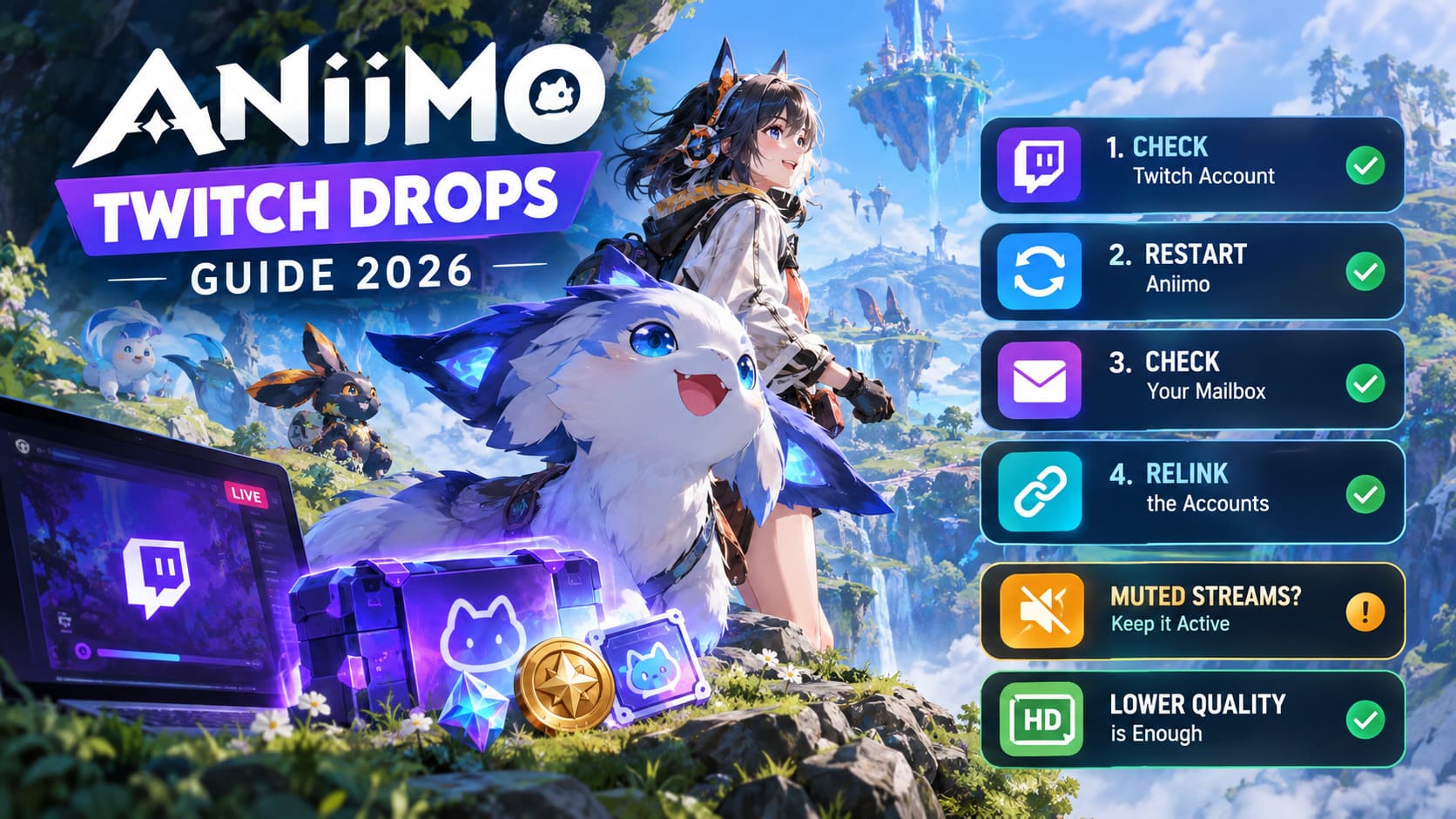
1. Check the Twitch Account
Make absolutely sure the Twitch account you’re watching from is the one linked to your Aniimo account.
This sounds obvious, but it’s surprisingly easy to watch from a secondary Twitch account while your game is connected to another one.
2. Restart Aniimo
If Twitch shows the reward as claimed but Aniimo doesn’t show it, close the game completely and start it again.
A fresh login can force the game to refresh your account information.
3. Check Your Mailbox
Don’t only check your inventory.
Look through your system mailbox or promotional messages. If the reward arrived as an attachment, you may need to manually accept it before it becomes usable.
4. Relink the Accounts
If the reward still hasn’t arrived after a reasonable amount of time, checking the account connection again is worthwhile.
Unlinking Twitch and reconnecting the same Twitch account can sometimes resolve a synchronization problem.
However, I wouldn’t immediately start switching between completely different accounts. Some game publishers place restrictions or cooldowns on account linking, and making the situation more complicated won’t help.
What About Muted Twitch Streams?
This is one of those areas where you’ll see plenty of conflicting advice online.
If your Twitch Drops progress appears stuck, first make sure the stream is actually playing normally and that the campaign is still active. Also check whether the browser player itself has been muted or paused.
You don’t need to blast the stream audio through your speakers just to earn a reward, obviously. If you need silence, use your operating system or browser controls rather than constantly messing with the Twitch player itself.
The important thing is that the eligible live stream remains active and Twitch continues registering your viewing session.
Do You Need High Video Quality?
No.
If you’re leaving an Aniimo stream running purely for Twitch Drops, there is little reason to waste bandwidth on a huge video stream.
You can lower the Twitch stream quality substantially, especially if your internet connection is limited or you’re doing other things on the same connection.
For a Drops-only session, I would rather run a stable low-quality stream than constantly buffer a 1080p broadcast.
The goal is watch-time tracking, not cinematic quality.
Should You Use Twitch Auto-Claim Extensions?
Browser extensions that automatically claim Twitch Drops exist, and some players use them to avoid forgetting completed rewards.
They can be convenient, particularly during campaigns with several reward tiers.
Personally, though, I’d treat them as optional rather than necessary.
You can claim rewards manually through Twitch, and installing additional browser extensions always means introducing another piece of software into your setup. If you do use one, stick to a reputable extension and understand what permissions you’re giving it.
For most Aniimo players, checking the Drops inventory every so often is more than enough.
Aniimo Fast Leveling Guide: How to Level Up Your Pathfinder and Aniimo Quickly (2026)
The Fastest Way to Avoid Missing Aniimo Drops
The whole process sounds more complicated written out than it actually is.
Once your account is correctly connected, the routine is basically:
- Link Aniimo and Twitch correctly.
- Find an eligible live Aniimo stream with Drops enabled.
- Watch until the reward reaches 100%.
- Open Twitch Drops and claim the reward immediately.
- Restart Aniimo if the item doesn’t appear.
- Check your in-game mailbox before assuming the reward is missing.
- If the problem persists, verify the account connection and consider relinking.
The biggest thing to remember is that watching isn’t the same as claiming. Twitch can register your viewing time perfectly and still leave the final step waiting for you.
Aniimo DPS Tier List 2026: Best Damage Dealers Ranked For Launch
Final Thoughts
I actually think Twitch Drops are worth bothering with in Aniimo, especially when the campaign includes cosmetics or useful extras that would otherwise require additional effort or spending.
The system only becomes frustrating when you treat it as completely automatic.
Take five minutes before starting a campaign to verify your linked accounts. Make sure the stream is eligible. Check your progress occasionally. And when Twitch tells you that you’ve earned something, claim it right then instead of telling yourself you’ll do it later.
If a reward doesn’t appear immediately, give the game some time, restart the client, and check your mailbox before assuming it’s gone.
Once you’ve got the setup working, Aniimo Twitch Drops become pretty painless. Leave an eligible stream running, earn your watch time, claim the reward, and get back into the game. That’s really all there is to it.