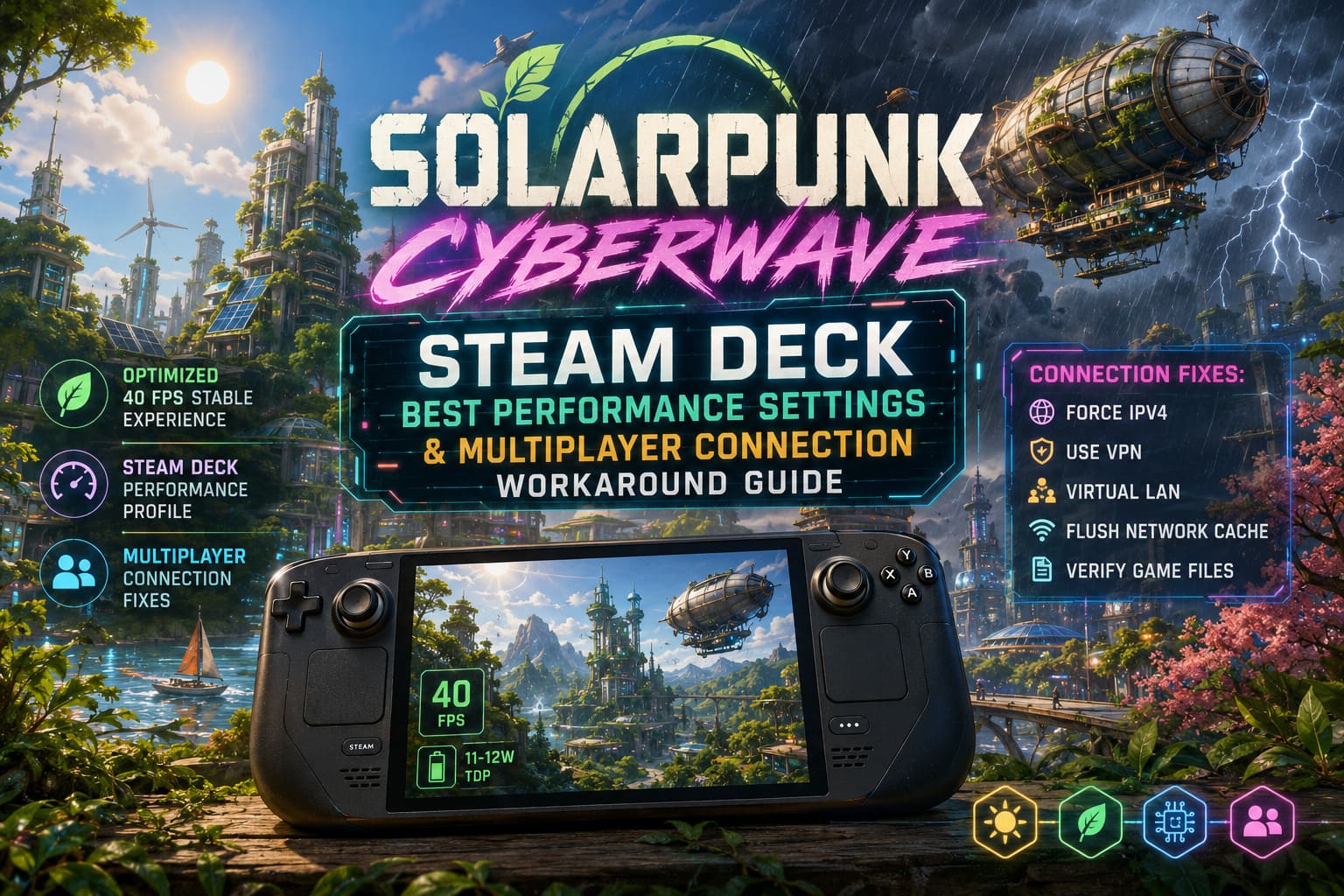
Solarpunk Cyberwave Steam Deck Best Performance Settings & Multiplayer Connection Workaround Guide
There are games that feel like they were made for handheld gaming, and then there’s Solarpunk Cyberwave. The first time I launched it on my Steam Deck and watched sunlight bounce off floating structures while airships drifted across the horizon, I knew this was one of those special experiences. The blend of futuristic eco-technology, survival mechanics, exploration, and creative building is incredibly addictive.
Unfortunately, there’s a catch.
Out of the box, the game can be surprisingly demanding on Valve’s handheld. Frame rates jump all over the place, weather effects can punish performance, and multiplayer occasionally throws connection errors that make cooperative adventures frustrating.
After spending dozens of hours tweaking settings, reading community discussions, comparing results with other Deck owners, and testing every performance option I could find, I finally landed on a setup that delivers a smooth experience without turning the game into a blurry mess.
This guide covers the exact settings I personally recommend for both performance and multiplayer stability.
Why Solarpunk Cyberwave Struggles on Steam Deck
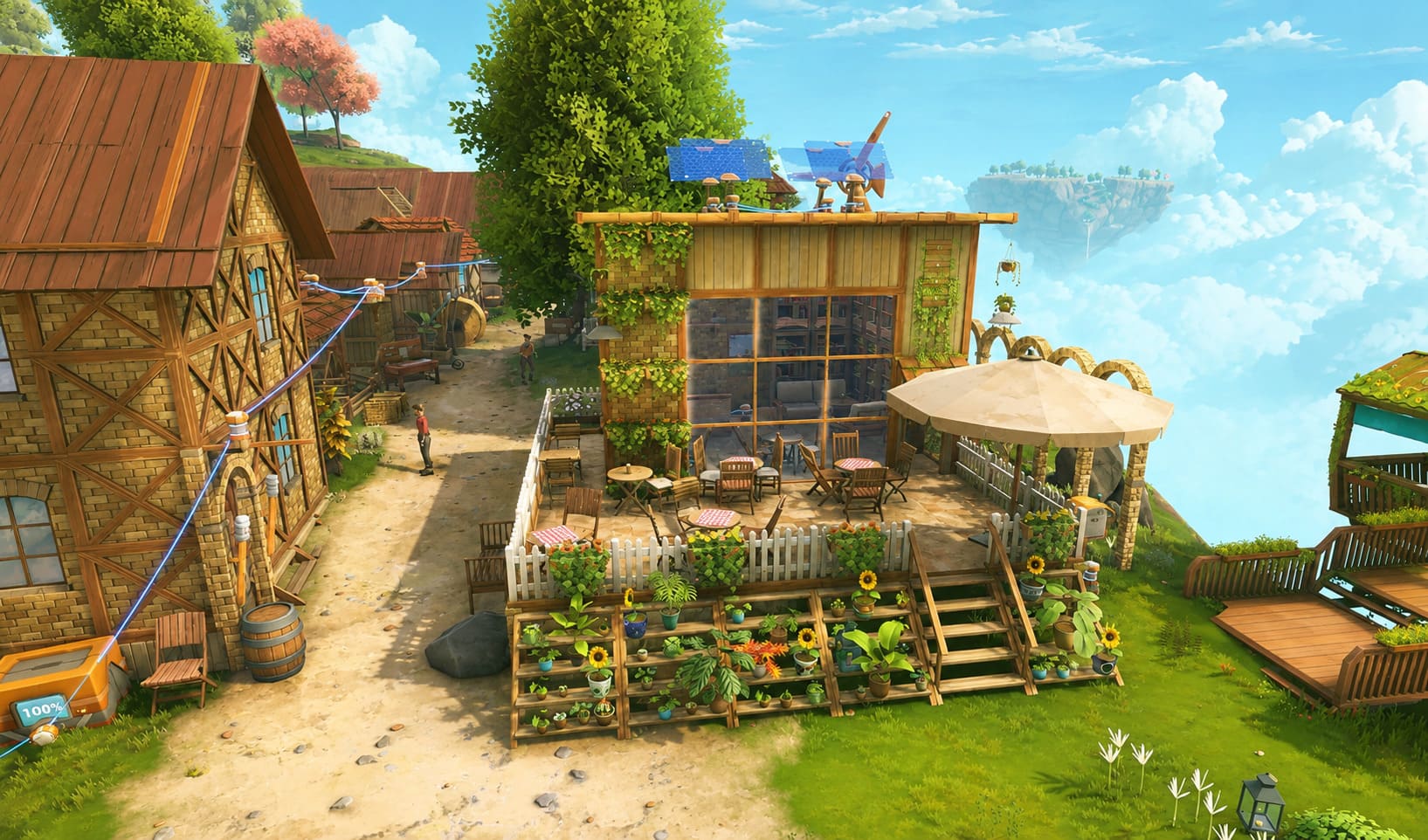
The visual style might look clean and colorful, but there is a lot happening behind the scenes.
The game constantly renders:
- Dynamic sunlight systems
- Volumetric weather effects
- Large draw distances
- Dense vegetation
- Airship travel across huge environments
- Continuous texture streaming
The result is an experience that often swings between smooth gameplay and sudden stutters if left on default settings.
During my early sessions, FPS frequently bounced between the mid-20s and low-50s. The average frame rate looked acceptable on paper, but the inconsistent frame pacing made exploration feel rough.
The goal isn’t chasing maximum FPS.
The goal is creating a stable experience that feels good in your hands.
Best In-Game Graphics Settings for Steam Deck
After extensive testing, these settings provided the strongest balance between visual quality and smooth performance.
| Setting | Recommended Value |
|---|---|
| Resolution | 1280×800 |
| Display Mode | Fullscreen |
| Frame Rate Limit | Unlimited |
| V-Sync | Off |
| Upscaler | XeSS or FSR |
| Upscaler Quality | Balanced |
| Texture Quality | Medium |
| View Distance | Medium |
| Shadow Quality | Low-Medium |
| Anti-Aliasing | TAA |
| Post Processing | Low |
| Vegetation Density | Medium |
| Volumetric Effects | Low |
| Motion Blur | Off |
| Depth of Field | Off |
Resolution
Native 1280×800 remains the sweet spot.
Lower resolutions can improve performance slightly, but image quality suffers enough that the gain simply isn’t worth it.
Texture Quality
This is one setting many players push too high.
Medium textures look surprisingly good on the Deck’s display while preventing memory-related stutters during exploration.
High textures may appear attractive initially, but they can create hitching when flying quickly through large environments.
Shadows
If there is one graphics setting that consistently destroys performance, it’s shadows.
Dropping shadows from High to Medium or Low often delivers a bigger performance boost than reducing multiple other settings combined.
Volumetric Effects
Storms are beautiful.
They’re also brutal.
Heavy fog, cloud simulation, and atmospheric effects can hammer the GPU during bad weather. Running these settings on Low preserves most of the visual atmosphere while dramatically improving consistency.
The Steam Deck Performance Profile I Actually Use
Once the in-game settings are finished, the real magic happens inside SteamOS.
I strongly recommend creating a dedicated game profile.
SteamOS Settings
Enable Per-Game Profile
This prevents your changes from affecting other titles.
Frame Rate Limit: 40 FPS
This is the golden number.
Many Steam Deck owners already know about the famous 40 FPS sweet spot, but Solarpunk Cyberwave demonstrates exactly why it became legendary.
A locked 40 FPS feels significantly smoother than an unstable 60 FPS target while consuming noticeably less power.
Refresh Rate
Set the display to:
- 40Hz for LCD models
- Dynamic refresh behavior for OLED models
The difference in frame pacing is immediately noticeable.
Allow Tearing
I personally keep this enabled.
Input latency feels slightly more responsive, especially during building sessions and airship navigation.
TDP Limit
When gaming away from a charger:
- 11W to 12W TDP
This creates an excellent balance between battery life and performance.
Fan noise stays under control, temperatures remain comfortable, and battery longevity improves dramatically.
GPU Clock
Leave it alone.
Seriously.
Manual GPU tuning sounds exciting until CPU-heavy weather calculations arrive and suddenly performance becomes less stable than before.
Automatic scheduling consistently produced better results during my testing.
What Kind of Performance Can You Expect?
Using the setup above, my average experience looked like this:
| Scenario | Expected FPS |
|---|---|
| Base Building | 40 FPS |
| Exploration | 40 FPS |
| Forest Regions | 38-40 FPS |
| Airship Travel | 35-40 FPS |
| Severe Weather | 32-40 FPS |
More importantly, frame pacing feels far smoother.
I’d happily choose a locked 40 FPS over a chaotic 55 FPS every single time.
Solarpunk Cyberwave Multiplayer Connection Failed Error: Real Fixes That Actually Work

Now for the issue that has probably driven more players crazy than performance ever did.
The infamous:
“Multiplayer Connection Failed”
If you’ve encountered endless loading screens, failed lobby joins, random disconnects, or co-op sessions refusing to launch, you’re definitely not alone.
After helping several friends troubleshoot their setups, I discovered that the problem usually isn’t the game itself.
Most cases involve networking conflicts.
Fix #1: Force IPv4 Instead of IPv6
This was the solution that worked for me personally.
Some routers handle IPv6 strangely, and certain multiplayer systems don’t react well when both protocols compete for priority.
To test this:
- Enter Desktop Mode.
- Open Network Settings.
- Edit your active connection.
- Navigate to IPv6 options.
- Set IPv6 Method to Ignore.
- Save changes.
- Reconnect and launch the game.
The process takes less than two minutes and can instantly solve connection issues.
Fix #2: Use a VPN If Your ISP Uses CGNAT
Many internet providers place customers behind Carrier-Grade NAT.
The average player never notices this.
Peer-to-peer multiplayer absolutely notices it.
Symptoms include:
- Unable to host games
- Friends unable to connect
- Constant lobby failures
- Random timeout messages
A quality VPN can often bypass these restrictions.
Popular options include:
- ProtonVPN
- NordVPN
Both have been reported by players to improve connectivity in difficult network environments.
Fix #3: Create a Virtual LAN
This method is incredibly effective when playing regularly with friends.
Tools such as:
- Tailscale
- ZeroTier
allow players to create a secure virtual network that behaves similarly to a local LAN environment.
I’ve seen stubborn connection problems disappear almost instantly after switching to this approach.
For dedicated co-op groups, this may be the best long-term solution available.
Fix #4: Flush Network Cache
Networking issues occasionally come from outdated DNS information.
A quick cleanup can help.
Open Konsole in Desktop Mode and clear cached networking information before reconnecting.
You can also manually switch to reliable DNS providers such as:
- Cloudflare DNS
- Google DNS
This won’t fix every multiplayer problem, but it’s a simple step worth trying.
Fix #5: Verify Game Files After Updates
Large patches sometimes create unexpected compatibility issues.
Whenever multiplayer suddenly stops working after an update:
- Open Steam Library.
- Select the game.
- Open Properties.
- Navigate to Installed Files.
- Verify integrity of game files.
I’ve fixed multiple multiplayer issues across different Steam Deck games using this exact method.
Never underestimate corrupted files.
Fix #6: Try a Different Proton Version
This trick saves headaches more often than people realize.
Compatibility layers evolve constantly.
A newer Proton release may solve networking bugs that older versions struggle with.
If multiplayer starts acting strange:
- Open Properties
- Compatibility
- Force a specific Steam Play tool
- Test the latest stable Proton version
Many players also report success with Proton GE builds.
Solarpunk Crafting Guide: All Recipes, Material Sources, and Automation Systems
Final Verdict
Solarpunk Cyberwave feels like one of those games that was practically destined for portable gaming. Building sustainable futuristic settlements while relaxing on the couch or traveling with a Steam Deck is an experience that never gets old.
The default configuration, however, leaves performance on the table and can expose networking frustrations that ruin co-op adventures.
A carefully tuned 40 FPS profile transforms the experience. The game becomes smoother, battery life improves, temperatures stay manageable, and airship exploration feels far more enjoyable. Combine those optimizations with a few networking tweaks—especially IPv4 prioritization, VPN support, or a virtual LAN setup—and most multiplayer headaches disappear.
After hundreds of hours spent inside survival crafting worlds across countless handheld devices, this remains the setup I would personally recommend to any Steam Deck owner who wants the best possible Solarpunk Cyberwave experience.