How to Fix EA Sports FC 27 Black Screen After Stadium Intro Glitch
There are few things more annoying in a football game than finally getting into a match, watching the stadium intro, hearing the crowd build up, and then… nothing.
The players are supposed to walk onto the pitch, the camera should transition into the gameplay view, and you should be ready to play. Instead, EA SPORTS FC 27 suddenly gives you a completely black screen. Sometimes the commentary continues. You may still hear the stadium crowd, menu sounds, or even the players moving around in the background. The game itself appears to be running, but visually, it has simply disappeared.
This particular FC 27 black screen after stadium intro problem is especially frustrating because it can look like a full crash when it is actually a display or rendering transition that has gone wrong.
I would start with the simple fixes before doing anything drastic. There is no reason to reinstall a massive football game because the renderer decided to lose the picture during a cinematic transition. Below are the methods worth trying, starting with the quickest solutions and moving toward deeper PC troubleshooting.
Why Does EA FC 27 Go Black After the Stadium Intro?
The timing of the problem is the biggest clue.
If FC 27 works normally through the menus but turns black immediately after the pre-match stadium presentation, the issue may be connected to the transition between the cinematic presentation and the actual gameplay renderer.
On PC, display-mode switching, graphics drivers, overlays, corrupted launcher data, and Windows fullscreen handling are all possible trouble spots. Console players have fewer settings to change, but system-level accessibility and display options can also be worth checking.
The useful thing is that you don’t necessarily need to know the exact cause before starting. Try the fixes in order and stop once the game consistently gets you onto the pitch.
| Possible Cause | What It Can Affect | Main Fix |
|---|---|---|
| Fullscreen transition | Resolution or display hand-off | Alt + Enter |
| Launcher cache | Temporary game/launcher data | Clear cache |
| Overlay conflict | Rendering during transitions | Disable overlays |
| Windows fullscreen handling | Direct3D presentation | Disable fullscreen optimizations |
| Graphics driver hang | Loss of rendered image | Win + Ctrl + Shift + B |
| Corrupted runtimes | Game rendering components | Update DirectX/VC++ |
| Console accessibility conflict | Presentation/display transition | Disable audio descriptions |
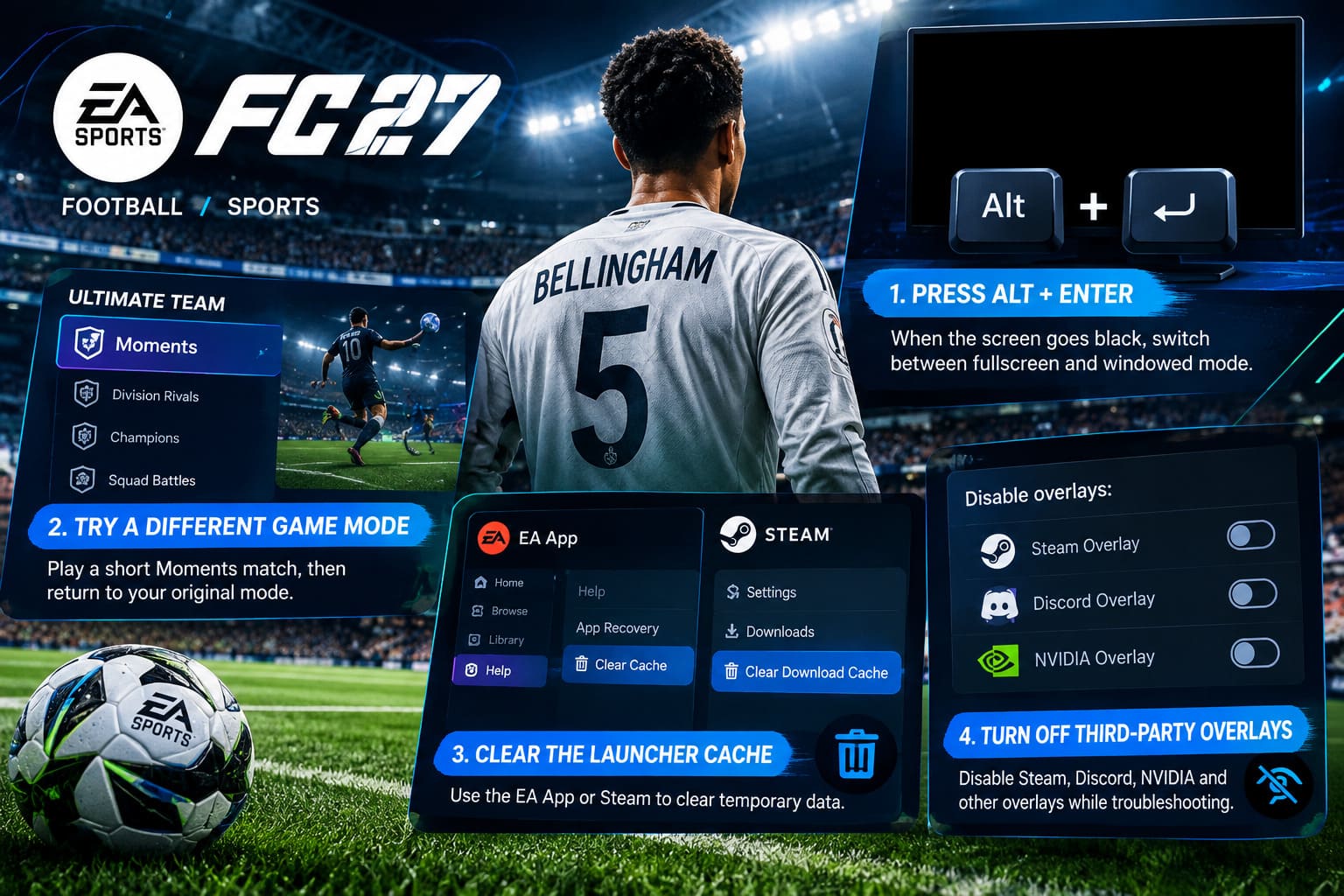
1. Press Alt + Enter When the Screen Turns Black
This is the first trick I would try on PC because it takes about two seconds and doesn’t require changing files or reinstalling anything.
When the stadium intro finishes and the display suddenly goes black, press:
Alt + Enter
Windows should force the game to switch between fullscreen and windowed presentation. If FC 27 suddenly appears again, you’ve got a strong indication that the problem is related to the display-mode transition rather than the match itself.
Once the picture returns:
- Open the game’s Settings.
- Go to Display Configuration.
- Find Screen Mode.
- If you’re using Fullscreen, test Borderless Windowed.
- If you’re using Borderless Windowed, test Fullscreen.
- Save the change.
- Restart FC 27 and test another match.
I personally prefer Borderless Windowed for troubleshooting because it tends to play more nicely with Windows when you’re switching between the game and other applications. Once everything is stable, you can experiment with fullscreen again.
2. Try a Different Game Mode Before Returning to Your Main Match
This one sounds strange, but it is worth testing if the normal match presentation keeps getting stuck.
Instead of immediately launching Division Rivals, Champions, or Squad Battles, enter Ultimate Team and look for Moments.
Launch a short challenge and let the presentation sequence play normally.
The idea is simple: a different match mode may initialize the gameplay renderer through a slightly different sequence. If the Moments match loads correctly, enter gameplay, pause, and return to the Ultimate Team hub.
Then try your original mode again.
This isn’t a guaranteed permanent solution, but when the problem is caused by a temporary rendering state, forcing FC 27 through another match-loading sequence can sometimes get things working again.
3. Clear the EA App or Steam Cache
If the black screen started appearing after an update, crash, or interrupted session, clearing temporary launcher data is another sensible step.
EA App
Completely close FC 27 first.
Then:
- Open the EA App.
- Click the main menu in the upper-left corner.
- Select Help.
- Choose App Recovery.
- Click Clear Cache.
- Let the EA App restart.
Afterward, launch FC 27 normally and test the same match.
Steam
For the Steam version:
- Open Steam.
- Select Steam > Settings.
- Open Downloads.
- Select Clear Download Cache.
- Sign back into Steam if required.
- Launch EA SPORTS FC 27 again.
Don’t expect this to magically fix every graphical problem, but it’s a low-risk troubleshooting step. If the issue involves damaged or stale temporary launcher data, clearing it gives the game a cleaner starting point.
4. Turn Off Every Third-Party Overlay
This is one of the first things I would test on a PC where FC 27 otherwise runs perfectly.
Overlays are useful, but football games already have plenty happening during match transitions: cinematics, camera changes, menus, HUD elements, stadium effects and real-time rendering. Adding another layer on top can occasionally create problems.
Temporarily disable:
- Steam Overlay
- Discord Overlay
- NVIDIA In-Game Overlay
- Other monitoring or recording overlays
For Steam, go to Settings > In Game and disable the Steam Overlay.
For Discord, open User Settings > Game Overlay and switch off the in-game overlay.
For NVIDIA software, disable the In-Game Overlay from its settings.
You can always turn these features back on later. For troubleshooting, though, I prefer running FC 27 with as little third-party software attached to it as possible.
5. Disable Fullscreen Optimizations in Windows
If changing between Fullscreen and Borderless didn’t solve the problem, Windows’ fullscreen handling is the next thing I’d investigate.
Find the FC 27 executable in your installation directory. Depending on where you installed the game, it may be inside your EA Games folder or Steam’s steamapps\common directory.
Right-click the game’s executable and choose Properties.
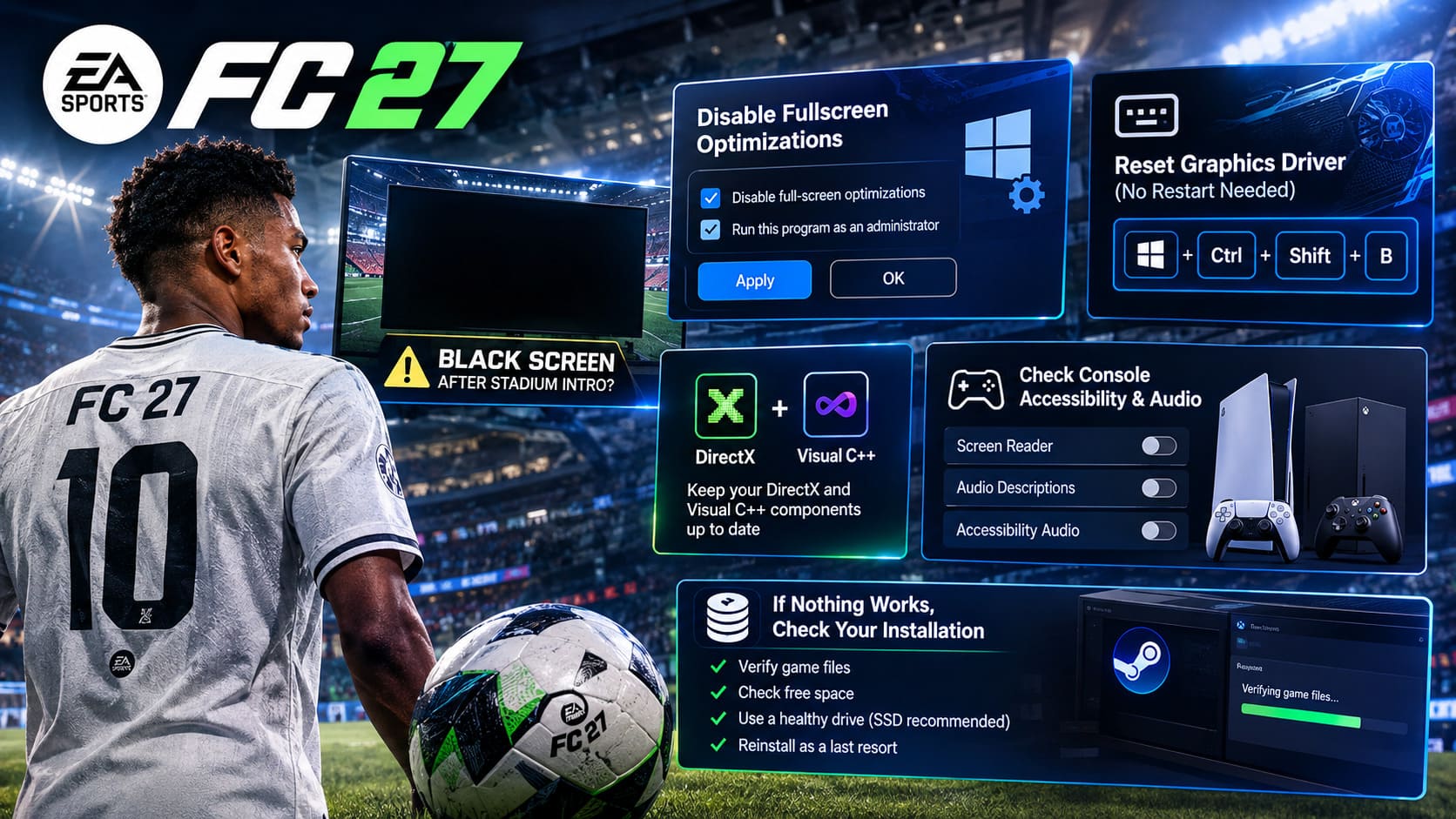
Open the Compatibility tab and enable:
Disable full-screen optimizations
You can also test:
Run this program as an administrator
Click Apply, then OK.
Launch the game through your normal EA App or Steam shortcut rather than creating a completely different launch method.
The important setting here is the fullscreen optimization option. Windows sometimes applies its own presentation behavior to games, and removing that extra layer is worth testing when the image disappears during a fullscreen transition.
6. Reset the Graphics Driver Without Restarting the PC
Here’s a Windows shortcut that deserves to be in every PC gamer’s troubleshooting toolbox.
When FC 27 goes black, press:
Windows + Ctrl + Shift + B
Your screen should briefly flicker, and Windows may play a short notification sound. This resets the graphics driver.
If the game image returns afterward, the problem may have been a temporary graphics-driver hang rather than FC 27 completely crashing.
That distinction matters.
If you regularly encounter black screens in other games as well, don’t treat this shortcut as the permanent solution. Check your GPU driver and consider installing the latest stable driver available for your graphics card.
7. Update DirectX and Visual C++ Components
FC 27 depends on the Windows graphics environment being in good shape. If system runtime components are damaged or outdated, strange rendering problems can appear even when your GPU itself is perfectly capable of running the game.
Make sure your system has current versions of the required Microsoft DirectX components and Microsoft Visual C++ Redistributable packages.
This is particularly worth doing if:
- FC 27 worked previously and suddenly stopped;
- other DirectX games are also behaving strangely;
- you’ve recently reinstalled Windows;
- you’ve manually removed old Microsoft runtime files;
- the game crashes or loses its display during other rendering transitions.
Don’t download random DLL files from third-party websites. If Windows is missing a runtime component, use Microsoft’s official installers instead.
8. Check Console Accessibility and Audio Settings
PC users have considerably more troubleshooting options, but PS5 and Xbox Series X|S players shouldn’t be left out.
If you’re experiencing the FC 27 black screen after the stadium intro on console, check your platform’s accessibility settings.
Look for options related to:
- Screen Reader
- Audio Descriptions
- Accessibility audio assistance
- Other system-level narration features
Temporarily turn these options off, then completely close FC 27.
Don’t just return to the dashboard and immediately reopen the game. Perform a proper restart of the console, then launch FC 27 and test a standard match again.
This is a particularly useful test if the black screen began after changing accessibility settings or after a system update.
9. If Nothing Works, Check Your Installation
If FC 27 continues to produce a black screen across multiple game modes, it’s time to move beyond quick fixes.
On PC, verify the game files through your launcher and make sure the installation hasn’t been damaged.
Also check that the game is installed on a healthy drive with sufficient free space. If you’re running the game from an older or heavily stressed storage device, moving it to your primary SSD can be a worthwhile troubleshooting step.
A complete reinstall should be the last resort, not the first thing you try.
Before doing it, make sure you’ve already tested display modes, disabled overlays, cleared the launcher cache, reset the graphics driver, and checked your Windows components.
EA FC 27 Holographic Cards Guide: Rarity, FUT Gallery Set Scores, and Collection Rewards
Final Thoughts
The EA SPORTS FC 27 black screen after stadium intro is especially irritating because the game can appear to be functioning normally underneath the problem. Hearing the crowd or commentary while staring at a completely black display makes it feel like the match has crashed, but that isn’t necessarily what’s happening.
Start with Alt + Enter, then test Borderless Windowed or Fullscreen. After that, disable overlays and clear the EA App or Steam cache. If you’re still stuck, move into Windows compatibility settings, reset the graphics driver, and check DirectX and Visual C++ components.
Console players should also check accessibility audio settings and perform a proper cold restart.
EA FC 27 Ultimate Team Beginner Guide: Top Tips to Build a Meta Squad Fast
The good news is that you don’t have to immediately reach for the nuclear option of reinstalling the entire game. FC 27 is a huge installation, and spending hours downloading it again only to discover that an overlay or fullscreen transition was responsible would be a pretty painful way to spend an evening.
Work through the fixes one at a time, test the same type of match that originally triggered the black screen, and keep track of which change actually makes a difference. Once FC 27 consistently survives the stadium presentation and finally puts you back on the pitch, you can turn your usual overlays and preferred display settings back on one by one.