WoW Forever Black Screen Shader Compilation Fix PC: How to Fix Freezes and Crashes
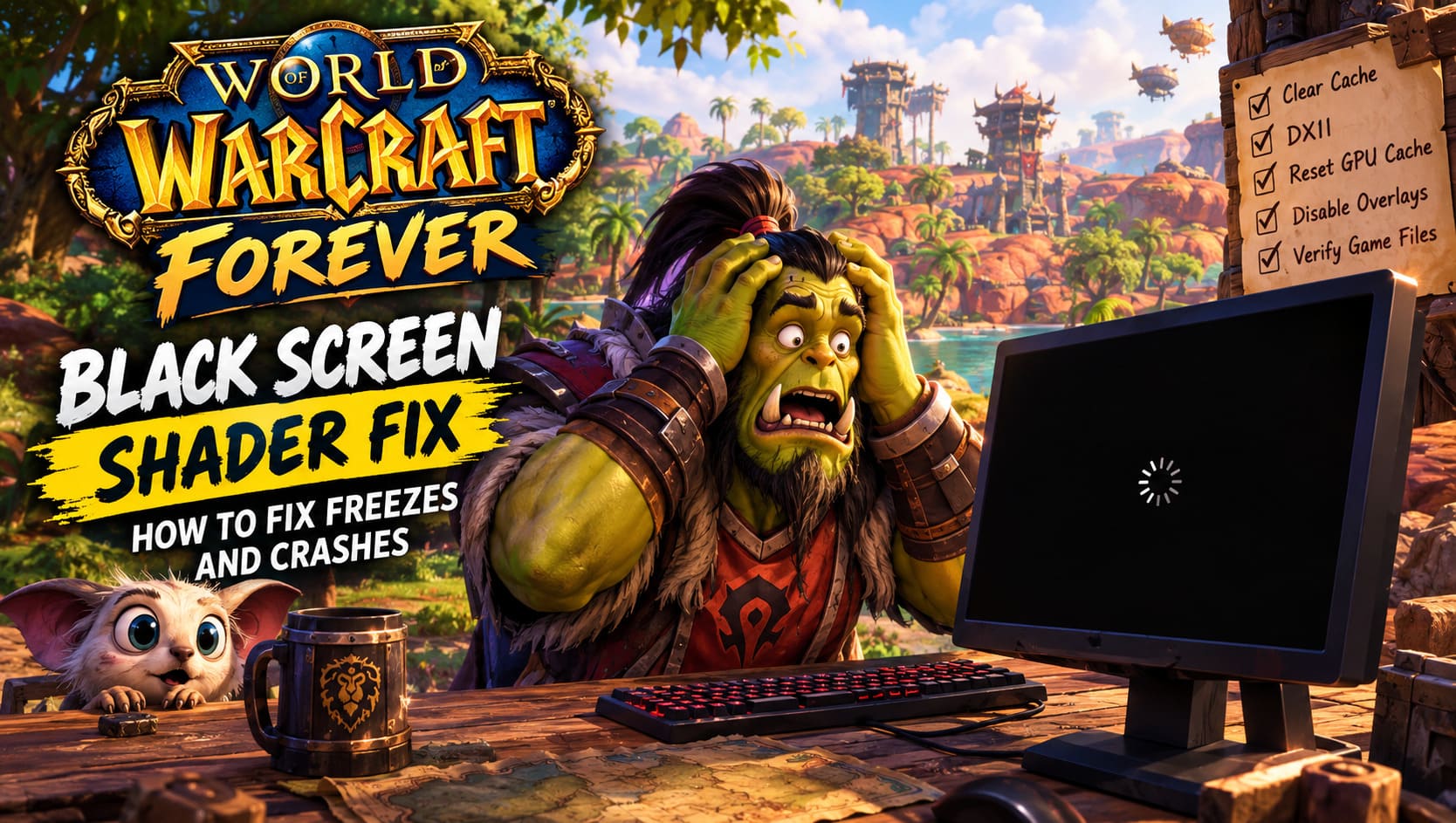
If you have ever launched a big PC game after an update only to be greeted by a completely black screen, you already know how annoying this particular problem can be. World of Warcraft can be especially frustrating when the black screen appears during shader compilation, because it is not always obvious whether the game is actually loading, frozen, or about to crash.
The problem becomes even more confusing when you can still hear music, interface sounds, or other background audio while the screen remains black. In some cases, the game eventually recovers. In others, the graphics driver crashes, the application closes, or the entire desktop becomes temporarily unresponsive.
From my experience troubleshooting PC games over the years, shader-related crashes are rarely caused by one single thing. A new GPU driver, a major game patch, an outdated cache, an overlay, an unstable GPU overclock, or corrupted Windows files can all create similar symptoms. That is why I would not immediately start changing registry settings or reinstalling Windows.
The better approach is to start with the safest fixes and only move toward more advanced solutions if the simpler ones do not work.
Is WoW Forever Canon to Warcraft Lore The New Timeline Explained
Why Does WoW Get Stuck on a Black Screen During Shader Compilation?
Shader compilation happens when the game prepares graphical effects specifically for your hardware. Modern games rely on thousands of shader instructions for lighting, shadows, materials, particles, reflections, terrain, and other visual effects.
Normally, this process is almost invisible to the player. However, after a major patch or graphics driver update, the game may need to rebuild part of its shader and pipeline cache. If an old cache conflicts with the new version of the game, compilation can fail.
The symptoms can vary considerably:
- The game opens to a completely black screen.
- Shader compilation appears to stop progressing.
- Background audio continues while there is no picture.
- WoW freezes during startup or character selection.
- The graphics driver resets.
- The game crashes back to the desktop.
- Windows becomes temporarily unresponsive.
The important thing is not to assume immediately that your GPU is dying. A shader compilation failure can look remarkably similar to a hardware problem, even when the hardware itself is perfectly healthy.
1. Clear the World of Warcraft Cache First
This is the first thing I would try because it is simple, reversible, and does not involve changing Windows configuration.
Cached rendering data can become outdated after patches or driver changes. If WoW tries to use incompatible pipeline data, the result can be a freeze right when the game is preparing its graphics.
Completely close WoW and also exit the Battle.net launcher. I recommend opening Task Manager with Ctrl + Shift + Esc afterward and checking that there are no remaining Blizzard or World of Warcraft processes running.
Next, open the game’s installation directory. The exact location depends on where you installed Battle.net, but it is commonly somewhere under:
C:\Program Files (x86)\World of Warcraft
Inside the installation, you will normally see folders such as _retail_ or _classic_, depending on the version you use.
Look for the Cache folder and remove its contents. If you specifically see files associated with the game’s pipeline cache, those can also be removed.
Don’t panic about deleting the cache. This data is temporary and can be generated again when the game launches.
Afterward, start Battle.net and launch WoW again. The first startup may take a little longer because the game has to rebuild data that was previously cached.
Personally, I would always try this before touching the registry. It solves a surprising number of weird post-update graphics problems without introducing another variable.
2. Force WoW to Use DirectX 11
If clearing the cache does nothing, the next test I would perform is switching the rendering API.
DirectX 12 offers plenty of advantages, but it can also expose problems involving drivers, shader compilation, and specific hardware configurations. DirectX 11 is older, but that is precisely why it can be useful as a troubleshooting fallback.
Open the Battle.net launcher and select World of Warcraft. Open the game settings using the gear icon near the Play button and find Additional command line arguments.
Enter:
-d3d11
Save the setting and launch the game.
If WoW suddenly gets past the black screen, you have learned something useful: the problem is likely connected to the DX12 rendering path, shader compilation, or the interaction between the game and your graphics driver.
Should You Stay on DirectX 11?
Not necessarily.
If the game works perfectly in DX11, I would play for a while and make sure the system is stable. You can later experiment with returning to DX12 after updating the game and drivers.
For some older hardware configurations, another legacy option may also be worth testing:
-d3d11legacy
I would treat this as a troubleshooting option rather than a permanent recommendation. If DX11 fixes the problem, there is little reason to start changing five other settings at the same time.
3. Reset Your GPU Shader Cache
If the WoW cache is clean but the problem remains, the next suspect is the graphics driver’s own cache.
Both NVIDIA and AMD drivers maintain cached shader data. This is useful because the GPU does not have to rebuild everything repeatedly, but corrupted or outdated cached data can occasionally survive a game or driver update.
NVIDIA Graphics Cards
NVIDIA users can inspect the local application-data directories by pressing Windows + R and entering:
%localappdata%
Look for NVIDIA-related folders and cached data such as DXCache. Depending on your driver version, the exact folder structure may differ, so don’t worry if your system does not contain precisely the same directories described in older troubleshooting guides.
Delete the contents of the relevant shader cache folders rather than randomly deleting NVIDIA configuration files.
Restart Windows afterward and launch WoW again.
AMD Graphics Cards
AMD users have a more convenient option through AMD Software: Adrenalin Edition.
Open Adrenalin, go to the graphics settings, and look for the shader cache reset option. The exact wording and location can change between driver releases, but AMD provides a built-in mechanism for clearing shader cache data.
After performing the reset, reboot the PC before testing WoW.
4. Don’t Ignore GPU Stability
Here is where things get more interesting.
Shader compilation can put unusual workloads on a GPU. A graphics card that appears perfectly stable in normal gaming can sometimes crash under a particular combination of shader compilation, memory activity, and power behavior.
If you have an overclock, undervolt, custom voltage curve, aggressive memory tuning, or other GPU modifications, temporarily return the card to stock settings.
I prefer this approach to immediately lowering voltage or modifying Windows’ TDR settings because it tells you whether the underlying instability is coming from the GPU configuration.
If WoW suddenly becomes stable at stock settings, that is valuable information. You can then experiment with a more conservative overclock or undervolt later.
| Situation | What I Would Try First |
|---|---|
| Black screen after a game update | Clear WoW cache |
| Crash specifically with DX12 | Test -d3d11 |
| Problem appeared after GPU driver update | Reset shader cache |
| PC has GPU overclock/undervolt | Return GPU to stock |
| Multiple games crash | Investigate drivers and hardware stability |
| WoW alone crashes | Focus on game files, cache, and settings |

5. Be Careful With Windows TDR Registry Tweaks
You may find guides recommending that you increase the Windows TDR (Timeout Detection and Recovery) delay.
TDR is a Windows mechanism designed to detect when the graphics processor has stopped responding. If the GPU takes too long to answer, Windows can reset the graphics driver.
In theory, increasing the timeout can prevent a legitimate long-running shader operation from being interpreted as a GPU failure.
You may see instructions involving:
HKEY_LOCAL_MACHINE\SYSTEM\CurrentControlSet\Control\GraphicsDrivers
and a DWORD value called TdrDelay.
However, I would not make this one of the first fixes.
Changing the registry does not repair a corrupted shader cache, broken driver installation, or unstable GPU. It can simply give the GPU more time before Windows reacts.
If the problem is caused by genuine instability, hiding the symptom can make troubleshooting harder.
Before touching TDR settings, I would exhaust the cache reset, DX11 test, driver cleanup, and stock GPU configuration options.
6. Disable Overlays Temporarily
Overlays are another thing I routinely disable when diagnosing strange PC game crashes.
Discord, Xbox Game Bar, NVIDIA’s overlay, recording software, and other utilities can inject additional components into the game. Most of the time this works perfectly, but startup rendering is exactly the kind of situation where conflicts can appear.
For troubleshooting, temporarily disable:
- Discord Overlay
- Xbox Game Bar
- GPU recording and overlay software
- Performance monitoring overlays
- Third-party screen capture applications
You don’t necessarily have to uninstall anything. The goal is simply to remove as many external variables as possible.
If WoW launches normally afterward, re-enable your overlays one by one. This makes it much easier to identify which application caused the conflict.
7. Test WoW Without Addons
If the black screen appears after an interface update or major patch, addons deserve attention too.
WoW’s addon ecosystem is enormous, and that is one of the things I love about the game. But after a major update, an addon that worked flawlessly yesterday can suddenly behave badly.
For testing, temporarily rename the following folders inside the appropriate WoW directory:
InterfaceWTFCache
For example, you could rename them to InterfaceOld and WTFOld.
This gives the game a clean environment without permanently deleting your addon setup.
If the game suddenly works, restore the folders gradually and identify the problematic addon rather than reinstalling the entire game.
8. Verify and Repair the Game
Battle.net includes repair functionality for World of Warcraft, and it is worth using if you suspect corrupted game files.
A failed update, interrupted download, unexpected shutdown, or storage problem can leave individual files damaged.
Run the launcher and use the game’s available Scan and Repair option. Allow the process to finish completely before testing again.
This can take some time, but it is considerably less drastic than deleting the entire installation and downloading hundreds of gigabytes again.
9. Check Windows System Files
If other games and applications have also started behaving strangely, I would move beyond WoW and inspect Windows itself.
Open Command Prompt as Administrator and run:
DISM.exe /Online /Cleanup-image /Restorehealth
Allow the operation to complete. Afterward, run:
sfc /scannow
System File Checker will look for damaged Windows system components and attempt to repair them.
Restart the PC once both operations are finished.
This step is particularly worthwhile if the issue appeared after a failed Windows update, sudden shutdown, blue screen, or other system-level problem.
10. Update Drivers—but Don’t Assume the Newest Is Always Best
Graphics drivers are an obvious suspect whenever shader compilation goes wrong, but there is an important distinction between updating and blindly installing the newest driver.
If the problem began immediately after a driver update, the latest version might actually be the trigger. In that situation, testing a previous stable driver can be more useful than repeatedly installing newer releases.
On the other hand, if your driver is several months old and the WoW version has recently received significant rendering changes, updating is a sensible first step.
My general rule is simple: change one major variable at a time.
If you update the driver, clear every cache, change DX12 to DX11, install new addons, and modify the registry simultaneously, you may fix the problem but have absolutely no idea what actually solved it.
Final Thoughts
A WoW black screen during shader compilation looks much more dramatic than it often is. In my experience with PC gaming, graphics problems like this are frequently caused by the interaction between several otherwise harmless components rather than a catastrophic hardware failure.
I would troubleshoot the problem in this order: clear the WoW cache, test DirectX 11, reset the GPU shader cache, disable overlays, test without addons, verify the game installation, and then investigate driver or hardware stability.
Only after those steps would I start experimenting with Windows TDR registry settings or more aggressive GPU configuration changes.
The biggest lesson is to troubleshoot methodically. If -d3d11 suddenly lets WoW launch, that is useful evidence. If clearing the cache fixes everything, you have another clue. If every game crashes under heavy GPU load, the investigation needs to move away from World of Warcraft.
And honestly, that is a much better way to approach PC troubleshooting than randomly changing ten settings and hoping for the best.