Gunman Contracts Stand Alone Low FPS Fix: Performance Optimization Guide
There is something wonderfully old-school about Gunman Contracts: Stand Alone. It wants you to feel like the star of a violent action movie rather than just another player moving through a shooting gallery. Weapons have weight, environments react to what you do, and firefights can become wonderfully chaotic within seconds.
That is also exactly why performance matters so much.
A traditional shooter can sometimes get away with a few frame-time spikes. In Gunman Contracts, a stutter at the wrong moment can completely ruin a room-clearing sequence. In VR, the problem becomes even more obvious because inconsistent frame delivery can affect aiming, tracking, and general comfort.
After looking through the game’s performance requirements and the kinds of problems players are likely to encounter, my advice is simple: don’t immediately throw every graphics option to Low. There are several settings outside the game that can have a much bigger effect, especially if you’re playing in VR.
This guide focuses on the changes I would make first to get higher FPS, better frame pacing, and fewer stutters without turning the game into a blurry mess.
First, Check Where Your PC Is Bottlenecking
Gunman Contracts: Stand Alone isn’t particularly forgiving when it comes to hardware near the minimum requirements. The game combines gunplay, physics, AI, environmental interaction, and VR rendering, so your GPU isn’t necessarily the only component doing the heavy lifting.
Here is the baseline hardware you should keep in mind:
| Component | Minimum Target |
|---|---|
| OS | Windows 10/11 64-bit |
| CPU | Intel Core i5-7500 / Ryzen 5 3600 |
| RAM | 12 GB |
| GPU | GTX 1070 or better |
| Storage | 20 GB available |
| VR | OpenXR-compatible headset |
If you’re sitting close to these specifications, I wouldn’t chase extremely high refresh rates. A stable 72–90 FPS in VR is far more valuable than constantly jumping between 90 and 120 FPS.
The same philosophy applies to Non-VR. I’d rather play at a locked 90 or 120 FPS than have the counter display 160 FPS one second and 80 FPS the next.
My First VR Fix: Make Sure OpenXR Isn’t Fighting Itself
This is one of those things that is easy to overlook because the game still launches even when your VR runtime configuration isn’t ideal.
Gunman Contracts: Stand Alone uses OpenXR, so you want to avoid unnecessary layers between the game and your headset.
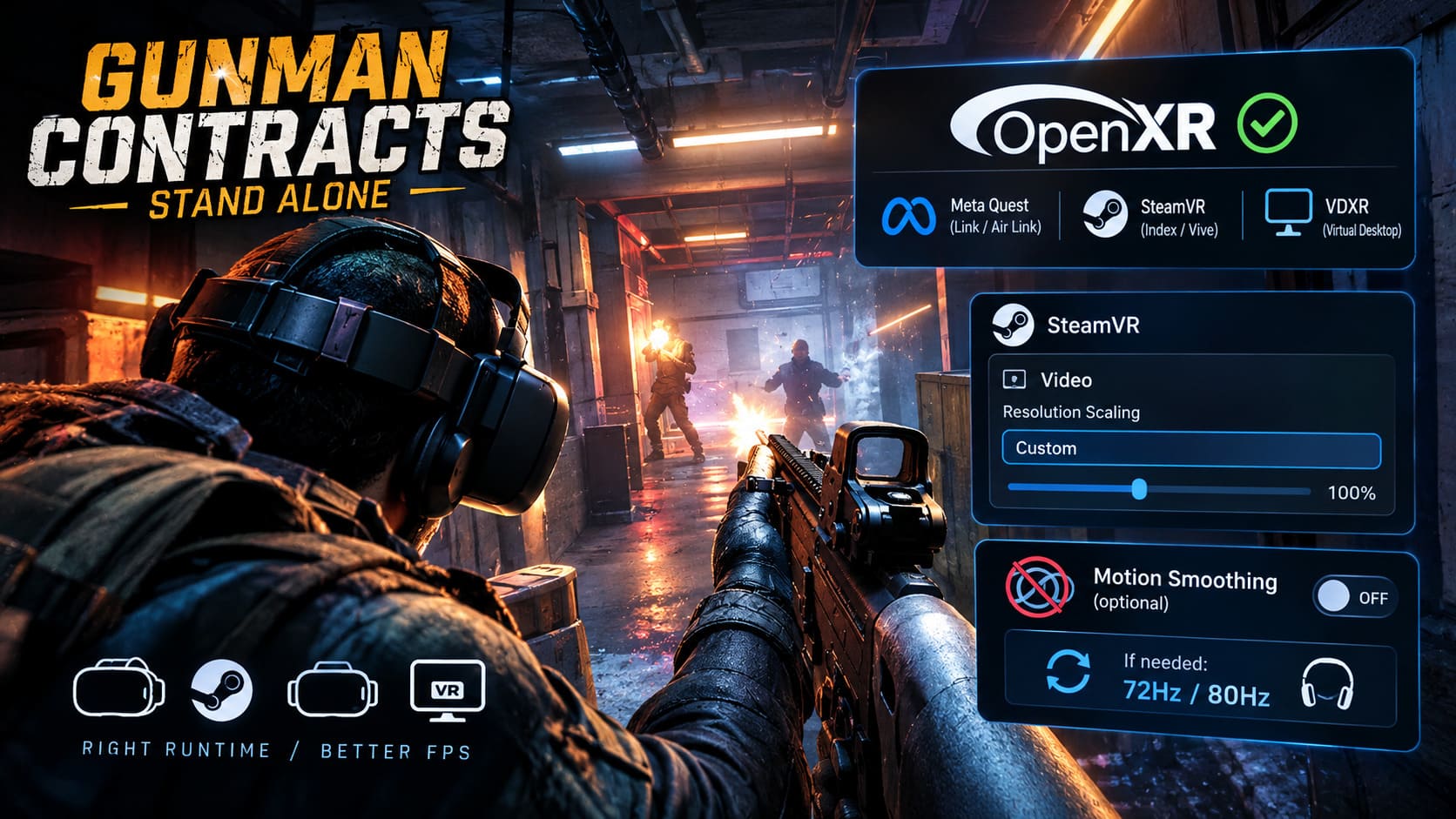
For Meta Quest users playing through Link or Air Link, check the Oculus/Meta PC application and make sure its OpenXR runtime is configured correctly.
If you’re using a Valve Index or HTC Vive through SteamVR, check the SteamVR OpenXR configuration instead.
Virtual Desktop users have another interesting option: VDXR. In my experience, reducing unnecessary SteamVR overhead can be surprisingly useful in games where every millisecond of frame time matters.
The important part isn’t blindly selecting one runtime because someone online claims it is “the fastest.” Use the runtime that matches your actual headset and connection method. Mixing runtimes is where things can become messy.
Don’t Let SteamVR Render More Than You Need
If you’re using SteamVR, this is probably the first graphics-related setting I would check.
SteamVR’s automatic resolution scaling can sometimes push rendering resolution much higher than you realize. The headset might have a certain physical display resolution, but the game can end up rendering significantly more pixels than expected.
Open:
SteamVR → Settings → Video
Then switch resolution scaling from Auto to Custom and start around 100%.
I would not immediately recommend 150% or 200% just because your GPU is technically capable of running the game. VR rendering is expensive, and Gunman Contracts already has plenty happening on screen.
If performance is still inconsistent, lower the resolution before destroying the game’s lighting and texture quality.
That is one of my personal rules with PC games: I’d rather sacrifice pixels than make every shadow and texture look terrible.
Motion Smoothing Isn’t Always Your Friend
Motion smoothing and asynchronous reprojection can be extremely useful when your PC can’t consistently hit the headset’s refresh target. But they can also create strange visual artifacts during fast movements.
Gunman Contracts is particularly sensitive to this because you’re constantly moving weapons, turning your head, and reacting to enemies.
If your PC can consistently maintain something close to the headset’s target refresh rate, I would test the game with Motion Smoothing disabled.
On the other hand, if you’re struggling to maintain 90 FPS, don’t stubbornly force 90 FPS just because the headset supports it.
Try 72Hz or 80Hz instead.
A consistent lower refresh target usually feels much better than unstable performance bouncing around the target.
Non-VR Players: Use Real Fullscreen
For traditional monitor gameplay, I’d start with Fullscreen rather than Borderless Windowed.
Borderless mode is convenient, especially if you frequently alt-tab, but when I’m troubleshooting a demanding game I prefer removing as many variables as possible.
Go into the game’s display settings and select:
Fullscreen
Then test performance again.
If your FPS suddenly becomes more stable, you’ve learned something useful without touching ten other settings at once.
Enable Windows Hardware-Accelerated GPU Scheduling
Windows 10 and Windows 11 include Hardware-Accelerated GPU Scheduling, usually referred to as HAGS.
If you’re experiencing inconsistent frame pacing, I would test it rather than automatically assuming it must be enabled or disabled.
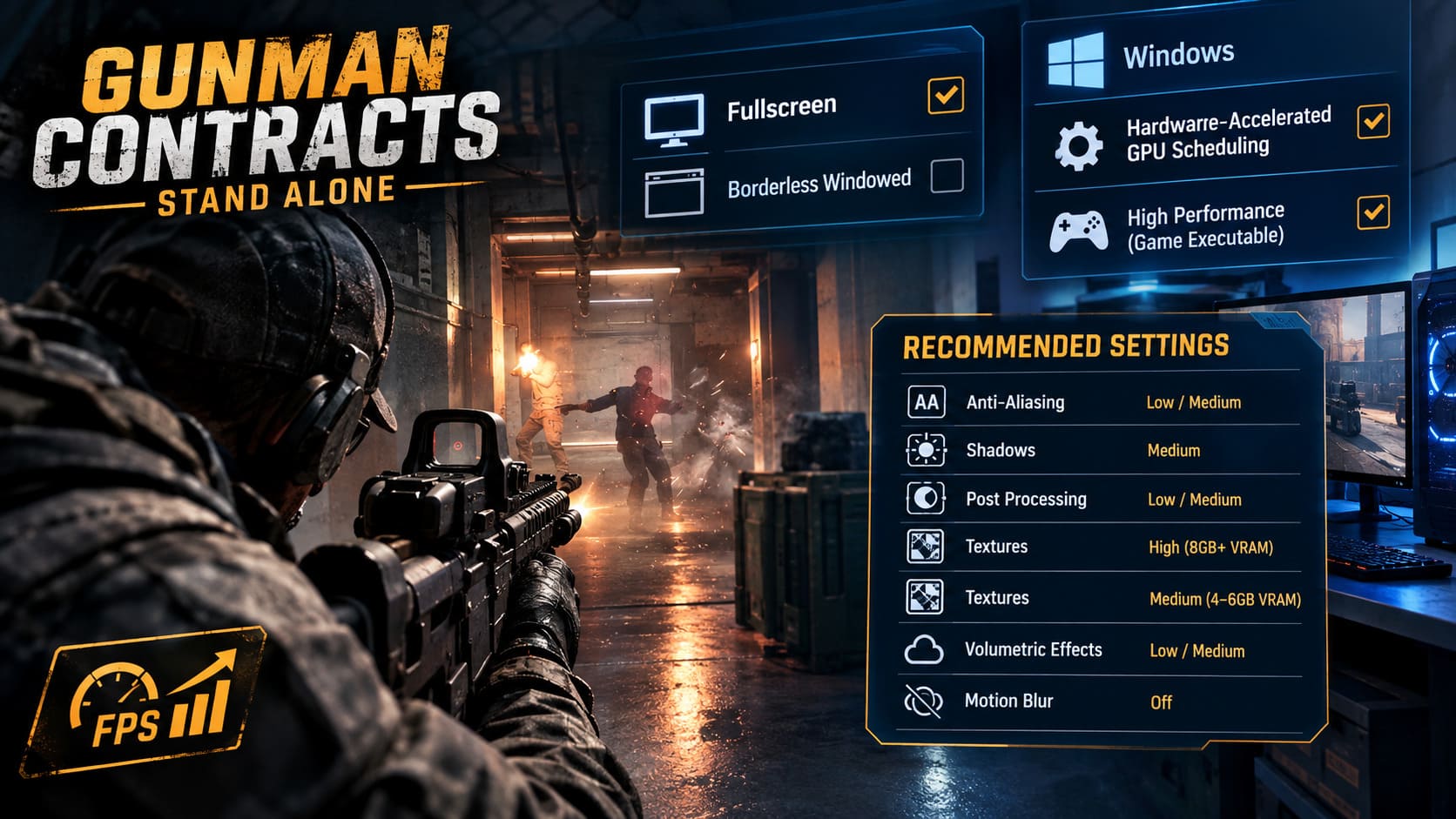
Go to:
Windows Settings → System → Display → Graphics → Default Graphics Settings
Then check the Hardware-Accelerated GPU Scheduling option.
You can also manually add the game’s executable under Graphics Performance Preference and select High Performance.
This isn’t some magical “double your FPS” button. I wouldn’t trust anyone promising that. However, depending on your hardware and driver combination, it can improve how the system handles GPU scheduling and frame delivery.
The Settings I Would Actually Use In-Game
This is where I think many optimization guides go wrong.
The goal isn’t to make Gunman Contracts: Stand Alone look like a game from 2010. You want to identify the settings that cost a lot while providing relatively little visual benefit.
Here is the profile I’d start with:
| Setting | Recommended Value | Why |
|---|---|---|
| Anti-Aliasing | Low/Medium | Keeps image relatively sharp |
| Shadows | Medium | Good performance-to-quality tradeoff |
| Post Processing | Low/Medium | Reduces expensive effects |
| Textures | High with 8GB+ VRAM | Preserves weapon/environment detail |
| Textures | Medium with 4–6GB VRAM | Helps avoid VRAM pressure |
| Volumetric Effects | Low/Medium | Useful for stabilizing demanding scenes |
| Motion Blur | Off | Better clarity during combat |
Shadows are one of the first settings I’d lower.
I like atmospheric lighting as much as anyone, but Ultra shadows rarely justify their performance cost. Medium is usually the sweet spot.
Textures are different. If your GPU has enough VRAM, I would keep them relatively high. Texture quality generally has a different performance impact than effects such as volumetric lighting or shadows.
And please, turn motion blur off if you dislike it.
For a fast tactical shooter, I find motion blur more distracting than cinematic. It also makes the image feel less responsive during rapid turns.
Cap Your FPS Instead of Chasing Huge Numbers
This is another adjustment I strongly recommend.
An uncapped frame rate isn’t automatically better.
If your GPU is rendering 170 FPS while your monitor runs at 144Hz, you’re potentially generating extra heat and power consumption without receiving a proportional benefit.
Use the NVIDIA Control Panel or AMD Software and create a profile for the game.
Set the frame-rate limit somewhere sensible:
- 60 FPS for a 60Hz display
- 120 FPS for a 120Hz display
- 144 FPS for a 144Hz display
You can also experiment with slightly lower caps if your system has unstable frame pacing.
For me, consistent frame delivery beats impressive FPS numbers every time.
This is especially important in a physics-heavy shooter because your CPU still has to process AI, interactions, weapons, and environmental simulation while your GPU is busy rendering the scene.
Don’t Ignore Your Graphics Drivers
If you’ve been playing several demanding games for months without updating or cleaning your GPU drivers, it’s worth checking.
Download the current driver directly from the official NVIDIA, AMD, or Intel source.
If you’re experiencing bizarre stutters that appeared after multiple driver updates, a clean installation can also be worth trying. Advanced users can use Display Driver Uninstaller (DDU) in Windows Safe Mode before installing the fresh driver.
I wouldn’t recommend doing this every time a game stutters. But if multiple games are suddenly behaving strangely, the driver stack becomes a much more likely suspect.
One Advanced Tweak I Would Use Carefully
Windows Task Manager allows you to change the process priority of running applications.
With Gunman Contracts running:
Task Manager → Details → Game Process → Set Priority → High
I would stop at High.
Do not use Realtime priority.
Realtime can interfere with other Windows processes and hardware-related tasks, potentially making the system less stable rather than improving your game.
Honestly, I would treat process priority as a last-mile experiment rather than a primary optimization technique. If your game is badly stuttering, fix resolution scaling, drivers, graphics settings, and background applications first.
Gunman Contracts Stand Alone PC Requirements & Download Size: Can Your Rig Run It?
What I’d Change First
If I had just installed Gunman Contracts: Stand Alone and immediately noticed bad performance, I wouldn’t spend an hour changing every setting individually.
I’d work through these steps:
- Check whether the CPU or GPU is actually hitting its limit.
- Verify the correct OpenXR runtime for VR.
- Set SteamVR resolution scaling to 100%.
- Disable Motion Smoothing if the headset can maintain its target refresh rate.
- Use 72/80Hz instead of unstable 90Hz VR performance if necessary.
- Switch Non-VR gameplay to Fullscreen.
- Lower shadows and volumetric effects before textures.
- Cap FPS to a realistic target.
- Update or clean-install GPU drivers if stuttering persists.
- Only then experiment with advanced Windows tweaks.
That order matters. There is no reason to spend twenty minutes changing obscure Windows settings if your headset is simply rendering at an unnecessarily high supersampling resolution.
Gunman Contracts Stand Alone Review: Release Date, Gameplay, and Is It Worth Buying?
Final Thoughts
Gunman Contracts: Stand Alone is the kind of game where performance directly affects the experience. When everything is running properly, the combination of physical weapons, cinematic firefights, and VR interaction can make every encounter feel far more intense than a conventional shooter.
When the frame rate starts collapsing during a firefight, though, that immersion disappears immediately.
The good news is that you don’t necessarily need an absurdly expensive PC to get a smoother experience. The biggest wins usually come from controlling VR resolution, OpenXR configuration, shadows, volumetric effects, frame-rate limits, and driver stability rather than simply putting every graphical setting on Low.
Personally, I’d aim for a setup that looks good while delivering a predictable frame time. I’d take a locked 80 FPS over a wildly fluctuating 110 FPS, and I’d keep textures high before sacrificing them for small gains elsewhere.
That is especially true in VR. Smoothness is the feature.
With the right balance, Gunman Contracts: Stand Alone can finally deliver what its action-movie-inspired gunplay promises: fast, precise, chaotic shootouts without your hardware becoming the biggest enemy in the room.