How to Fix Mistfall Hunter Crashing: UE-MistfallHunter Fatal Error and Launch Fixes
When Mistfall Hunter finally landed on PC, I was genuinely excited. I’ve spent years bouncing between extraction shooters, hardcore RPGs, and every Unreal Engine experiment developers have thrown at us. From polished releases to rough early launches, I’ve seen almost every type of crash imaginable. So when Mistfall Hunter started throwing the infamous ‘UE-MistfallHunter Game Has Crashed’ error at me, I wasn’t exactly surprised—but I was definitely annoyed.
The frustrating part is that the game itself has a lot going for it. The combat feels weighty, exploration rewards patience, and PvPvE encounters create those tense moments that make extraction games addictive. Unfortunately, technical issues have overshadowed that experience for many players. If your game crashes before reaching the main menu, freezes during loading, or suddenly closes in the middle of a match, you’re dealing with a problem that thousands of PC players have already encountered.
After spending several evenings experimenting with settings, comparing community discoveries, and testing different hardware configurations, I found several solutions that consistently improved stability. Some of them are surprisingly simple, while others require changing Windows settings that most players never touch.
Mistfall Hunter Frame Drops During Combat Fix: How to Stop Stuttering and Low FPS
Why Does Mistfall Hunter Keep Crashing?
One thing I’ve learned after years of PC gaming is that launch-day crashes are rarely caused by a single bug. Modern Unreal Engine games rely on dozens of software layers working together perfectly. If even one component behaves differently than expected, everything can fall apart.
In Mistfall Hunter, the most common causes include:
- Windows security features conflicting with the game.
- Outdated graphics drivers lacking game-specific optimizations.
- Shader cache corruption after updates.
- GPU scheduling or hardware acceleration conflicts.
- Anti-cheat services failing during startup.
- Background overlays interfering with Unreal Engine.
The good news is that most of these issues can be fixed without reinstalling Windows or replacing hardware.
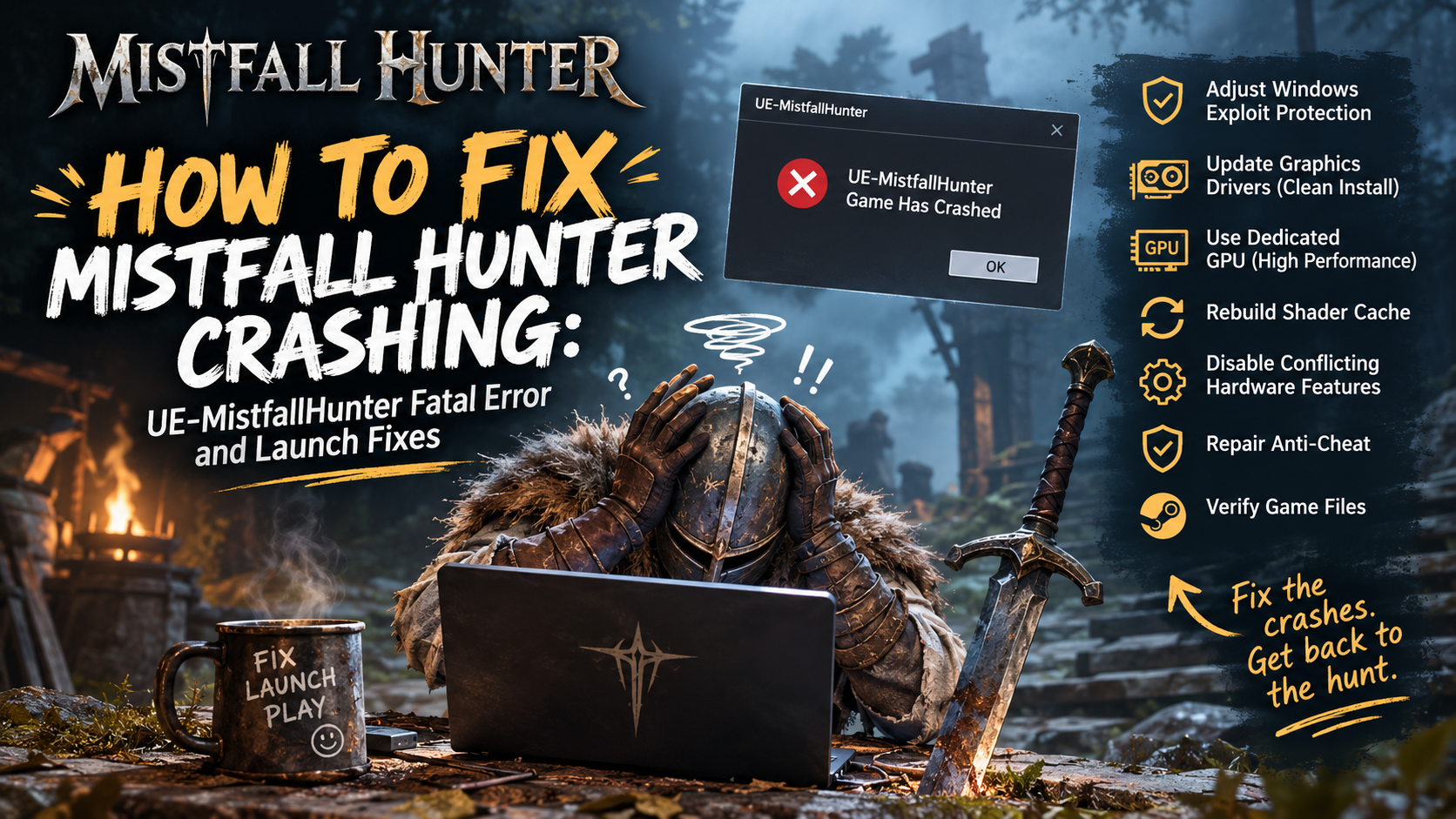
Fix #1 – Change Windows Exploit Protection Settings
This ended up being the biggest breakthrough for me. Normally, I avoid changing Windows security settings unless absolutely necessary. But after seeing countless players report success with this method, I decided to give it a try.
How to Disable Mandatory ASLR
- Open Windows Security.
- Select App & Browser Control.
- Open Exploit Protection Settings.
- Under System Settings, find Force Randomization for Images (Mandatory ASLR).
- Change it from On by Default to Off by Default.
- Click Apply.
- Restart your PC completely.
After rebooting, Mistfall Hunter launched normally for me without producing another Fatal Error. While this isn’t guaranteed to solve every crash, it has one of the highest success rates among players experiencing startup problems.
Fix #2 – Update Graphics Drivers Properly
A surprising number of people think simply installing the latest GPU driver solves everything. From experience, that’s only half true. Previous driver files sometimes remain behind and continue causing conflicts, especially after multiple updates. That’s why I usually perform a clean installation whenever a major Unreal Engine game launches.
Recommended Driver Setup
| Component | Recommendation |
|---|---|
| NVIDIA GPU | Install the latest Game Ready Driver using the Clean Installation option. |
| AMD GPU | Update through AMD Software: Adrenalin Edition. |
| Intel GPU | Install the newest official graphics package. |
| Windows Update | Install every available system update before testing the game again. |
Modern graphics drivers often include hidden optimizations for new releases. Missing those improvements can easily lead to crashes, poor performance, or random freezing.
Fix #3 – Force Mistfall Hunter to Use Your Dedicated GPU
Windows occasionally decides that demanding games should launch using integrated graphics instead of your dedicated graphics card. It sounds ridiculous, but I’ve seen this happen several times over the years.
Steps to Configure High Performance Mode
- Open Graphics Settings in Windows.
- Add the Mistfall Hunter executable manually.
- Select Options.
- Choose High Performance.
- Save your changes.
If you’re gaming on a laptop, this fix is even more important since Windows aggressively tries to save power whenever possible.
Fix #4 – Rebuild the Shader Cache
Shader compilation has become one of the biggest pain points in modern PC gaming. Every Unreal Engine release seems to introduce another collection of shader-related headaches. Stuttering, crashes during loading screens, and random freezes frequently trace back to damaged shader files.
For NVIDIA Users
- Open NVIDIA Control Panel.
- Disable Shader Cache.
- Restart your computer.
- Enable Shader Cache again.
This forces Windows and the graphics driver to rebuild the cache from scratch.
For AMD Users
- Open AMD Software: Adrenalin Edition.
- Navigate to Gaming → Graphics → Advanced.
- Select Reset Shader Cache.
The first launch after rebuilding shaders usually takes a little longer, but stability and overall performance often improve noticeably.
Fix #5 – Disable Hardware Features That May Cause Conflicts
Today’s processors and graphics cards include numerous AI-powered features that automatically improve performance. Ironically, those same technologies sometimes create instability in newly released games.
Players have reported fewer crashes after temporarily disabling:
- Intel AI Boost
- NVIDIA Smooth Motion
- Third-party Frame Generation software
- Performance overlays
- RGB monitoring utilities
I personally noticed fewer random crashes once I closed several hardware monitoring applications running in the background. Sometimes keeping your system simple is the best optimization.
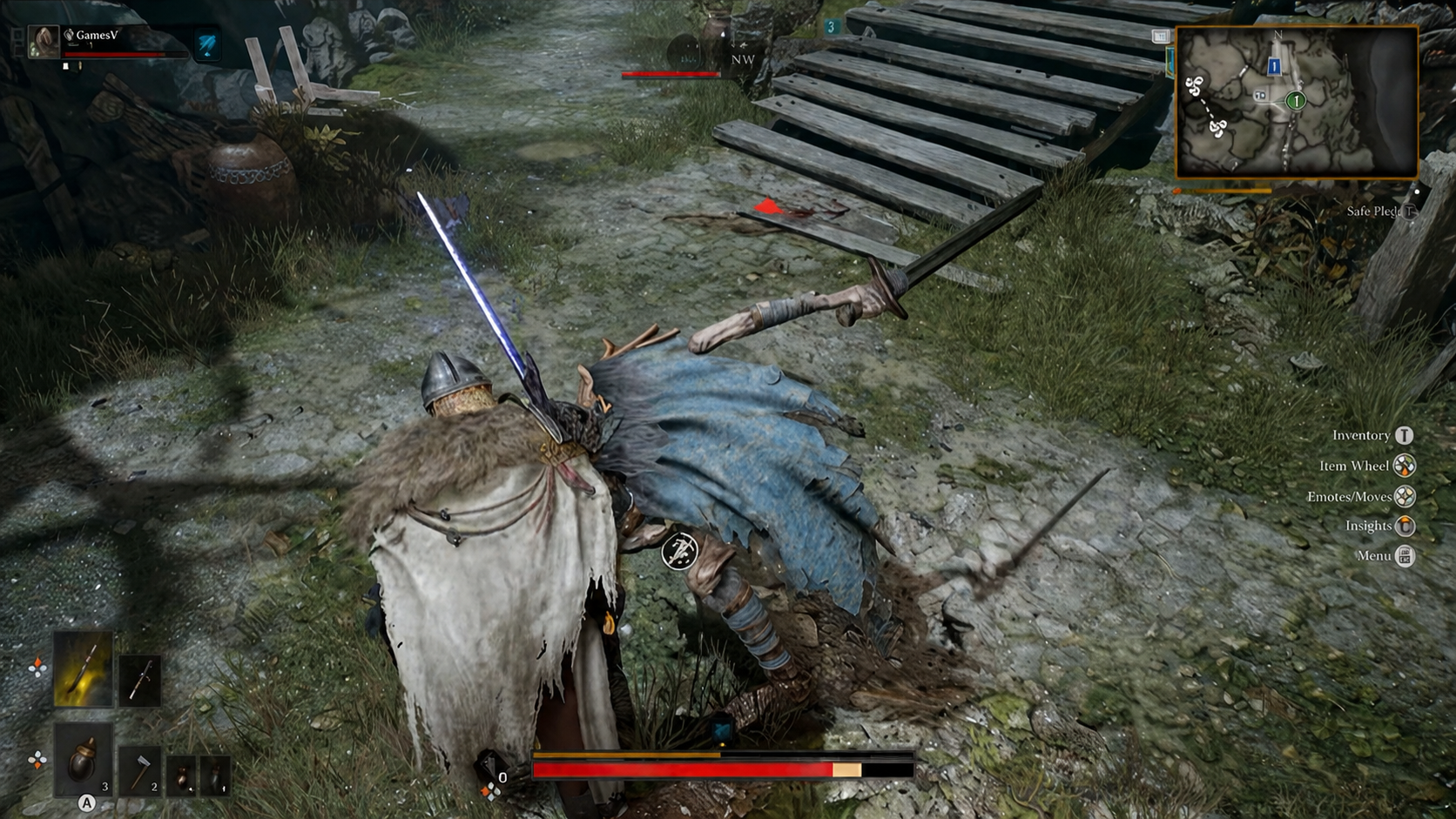
Fix #6 – Repair the Anti-Cheat Installation
Competitive multiplayer games depend heavily on anti-cheat software. If that component fails during startup, the game may crash immediately without explaining the actual problem.
Repair Procedure
- Open the Mistfall Hunter installation folder.
- Locate the anti-cheat installer.
- Run it as Administrator.
- Allow access through Windows Firewall.
- Restart Steam.
While you’re there, add the game’s installation folder to your antivirus exclusions if your security software has a habit of blocking new executables.
Fix #7 – Verify Game Files Before Reinstalling
Completely reinstalling the game should always be your last resort. Steam includes a built-in integrity checker that compares every installed file against the official version.
Verify Game Files
- Open your Steam Library.
- Right-click Mistfall Hunter.
- Select Properties.
- Open the Installed Files section.
- Click Verify Integrity of Game Files.
I’ve recovered broken installations multiple times using this feature without downloading the entire game again.
Additional Tips That Helped Me
Not every PC behaves the same way, but these smaller tweaks have helped plenty of players improve stability.
- Close Discord overlays and browser hardware acceleration.
- Disable unnecessary RGB controller software.
- Launch the game using Medium graphics settings for the first boot.
- Avoid unstable CPU or GPU overclocks.
- Restart your PC after every major troubleshooting step.
These changes may seem minor individually, but together they can make a noticeable difference during long gaming sessions.
My Personal Experience
I’ve played enough PC releases to recognize when a game simply needs developer patches and when the issue can actually be solved locally. Mistfall Hunter feels like one of those games where the foundation is excellent, but the launch version still needs polishing.
Once I changed the Windows Exploit Protection setting, rebuilt my shader cache, and installed a clean graphics driver, the difference was immediate. The game stopped crashing during startup, loading times became smoother, and I was finally able to complete several extraction runs without another Fatal Error interrupting the experience.
That doesn’t mean every technical issue has disappeared forever. Like most major PC releases, Mistfall Hunter will probably receive multiple optimization patches over the coming weeks. Even so, these fixes transformed the game from barely playable into something I could actually enjoy.
Final Thoughts
If you’re constantly running into the UE-MistfallHunter Fatal Error, don’t immediately assume your PC is outdated or broken. In my experience, the majority of crashes come from software conflicts, Windows security settings, corrupted shader files, or graphics driver issues rather than weak hardware.
Start with the Windows Exploit Protection adjustment, then continue with driver updates, shader cache rebuilding, anti-cheat repair, and forcing the game to use your dedicated GPU. Those steps solved the problem for me and have helped countless other players as well.
PC gaming has always involved a bit of troubleshooting, especially with ambitious Unreal Engine releases. Fortunately, once these technical hurdles are out of the way, Mistfall Hunter finally gets the chance to show what makes it such an enjoyable extraction RPG. The combat feels satisfying, exploration becomes genuinely tense, and instead of worrying about another desktop crash, you can focus on surviving the next encounter.