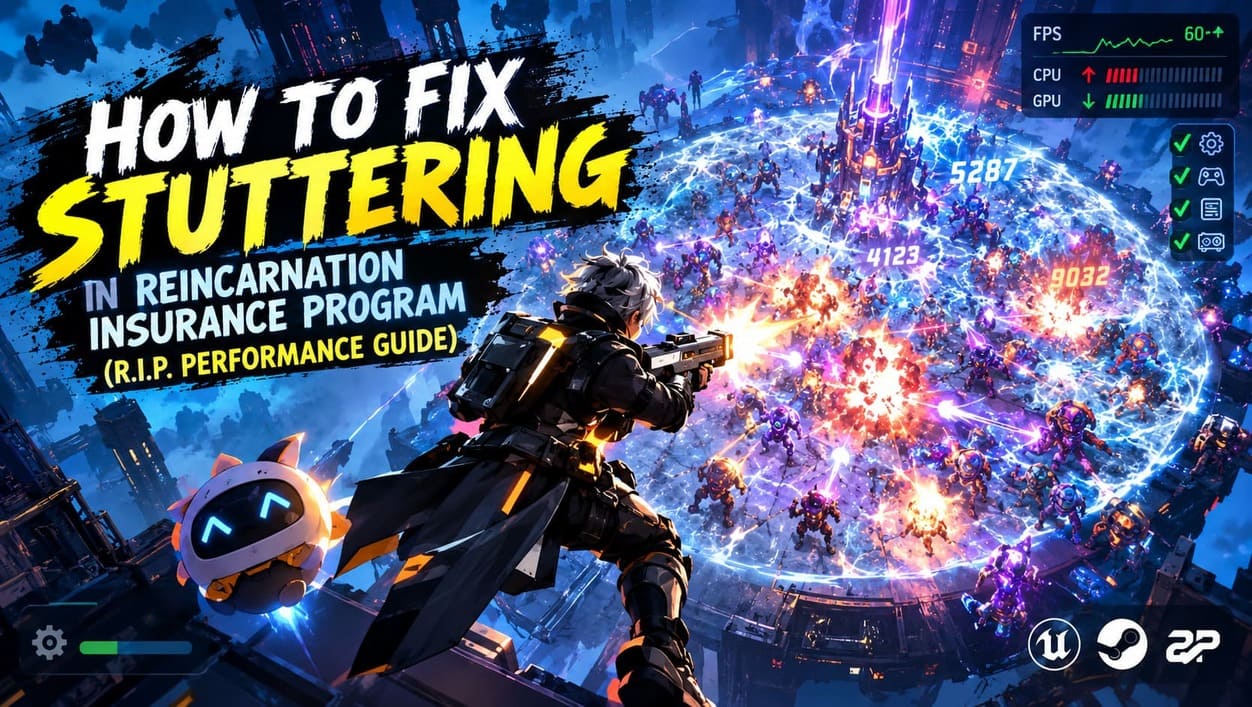
How to Fix Stuttering in Reincarnation Insurance Program (R.I.P. Performance Guide)
Reincarnation Insurance Program (R.I.P.) is the kind of game that can become dangerously addictive once a run starts coming together. Developed by WarmCore Studio and published by 2P Games, it combines Diablo-inspired loot hunting with survivor-like bullet-hell combat, creating those wonderfully chaotic moments where the screen is covered in enemies, projectiles, explosions, and ridiculous damage numbers.
Unfortunately, that chaos can also expose some serious performance problems. Since the full 1.0 release arrived on September 15, 2026, players have reported micro-stuttering, sudden FPS drops, CPU spikes, and short freezes, particularly during demanding Risk 5 runs and later stages of the Void Spire. I have played plenty of Unreal Engine games that look fine during normal exploration and then completely fall apart once the action gets busy, and R.I.P. can occasionally fall into that same trap.
The good news is that you do not necessarily need a new graphics card or a high-end CPU to improve the situation. A combination of sensible graphics settings, a stable frame-rate limit, clean GPU drivers, and a couple of Unreal Engine configuration tweaks can make a noticeable difference. Below is the approach I would use before blaming the hardware.
Does R.I.P. Reincarnation Insurance Program Have Multiplayer? Co-Op Status Explained
Why Does R.I.P. Stutter So Much?
There is no single setting responsible for every performance problem in Reincarnation Insurance Program. Different types of stuttering appear to have different causes, and understanding what is happening makes troubleshooting much easier. In my experience with Unreal Engine games, traversal stutter and combat-related slowdown should be treated as separate problems rather than one generic FPS issue.
One potential culprit is shader compilation and asset streaming. Unreal Engine 5 games can experience brief hitches while new shaders or environmental assets are being prepared. If the game freezes for a moment when you enter a new area rather than when a huge group of enemies appears, this is a particularly likely explanation.
The second issue is much more obvious: combat overload. Some R.I.P. builds can produce an absurd number of simultaneous calculations. Rockets, chain lightning, explosions, damage effects, enemies, physics interactions, and other visual effects can all pile up at once. Your GPU may be rendering the spectacle while the CPU handles game logic, enemy behavior, damage calculations, and other background tasks.
There are also reports of short freezes around certain menus and special animations. Opening systems such as the Divine Tech tree or performing an artisan reforge can temporarily produce unusual CPU activity. These moments are different from traditional low FPS, because the game may appear perfectly smooth and then suddenly pause for several seconds.
| Problem | Typical Symptom | First Thing to Try |
|---|---|---|
| Shader or asset streaming | Short hitch when entering areas | Allow shaders to finish loading and reduce background tasks |
| Heavy combat effects | FPS collapses during large enemy waves | Lower Effects and Shadow Quality |
| CPU bottleneck | GPU usage drops while CPU usage spikes | Close background applications and cap FPS |
| Driver problems | Crashes, freezes or unexplained stutter | Perform a clean driver installation |
| Configuration issues | Inconsistent fullscreen or frame-rate behavior | Check GameUserSettings.ini |
Step 1: Check the Unreal Engine Configuration
If R.I.P. refuses to behave properly in fullscreen or keeps changing your performance settings, checking its Unreal Engine configuration file is worth doing. This is not the first thing I recommend to every player, but it can help when the normal in-game options do not seem to stick.
Press Windows Key + R, enter %localappdata%, and press Enter. From there, look for the folder associated with R.I.P. or WarmCore Studio and navigate to Saved > Config > WindowsNoEditor or the equivalent Windows configuration folder.
Inside it, find GameUserSettings.ini and open it with Notepad. Depending on the version of the game, the exact configuration may differ, so do not worry if you cannot find every single entry mentioned below. If the relevant options are present, settings such as these can be used as a starting point:
FullscreenMode=0
LastConfirmedFullscreenMode=0
PreferredFullscreenMode=0
bUseDynamicResolution=True
You can also check the FrameRateLimit entry. If your monitor is 144Hz, for example, a limit around 144 FPS can be used instead of leaving the game completely uncapped. I generally prefer a sensible FPS limit anyway, because an unlimited frame rate does not automatically mean a smoother game.
One important warning: I would not blindly set the file to Read-only after making changes. Game updates can modify configuration files for a reason, and preventing the game from writing to its own settings can create new problems after a patch. Keep a backup of your preferred configuration instead, and check it again if an update changes your settings.
Step 2: Use Sensible In-Game Graphics Settings
This is the step that most players should try first. You do not have to make R.I.P. look like a game from ten years ago. The trick is to reduce the settings that have the biggest performance impact while leaving the details that make the game attractive alone.
Shadows are an obvious place to start. Unreal Engine’s lighting and shadow systems can become surprisingly expensive, especially when there are hundreds of objects and enemies on screen. Try Low or Medium Shadow Quality before touching textures or resolution.
Effects are another important setting because R.I.P. can become absolutely ridiculous during high-level runs. If your build involves rockets, lightning chains, explosions, or other screen-filling attacks, reducing Effects Quality can make combat considerably more stable.
- Display Mode: Fullscreen
- Resolution Scale: 100%, or use DLSS/FSR if available
- Frame Rate: Cap it to a sensible value for your display
- Shadow Quality: Low or Medium
- Texture Quality: Medium or High depending on VRAM
- Effects Quality: Reduce it if large fights cause drops
- Screen Shake: Low or Disabled if you experience heavy combat hitching
There is also a good reason to avoid leaving FPS completely uncapped. Some games can produce extremely high frame rates in menus or loading screens, wasting power and generating unnecessary heat. A reasonable cap keeps the GPU from working unnecessarily hard when there is nothing meaningful to render.
Step 3: Perform a Clean GPU Driver Installation
If your R.I.P. performance suddenly became worse after a graphics driver update, I would investigate the driver before changing twenty different game settings. Driver conflicts and leftover files can cause strange crashes, graphical glitches, or inconsistent frame pacing, particularly after several major driver updates.
A clean installation using Display Driver Uninstaller (DDU) is one of the more thorough ways to start fresh. Download DDU and the current driver for your NVIDIA GeForce or AMD Radeon GPU, boot Windows into Safe Mode, and use DDU’s clean-and-restart option.
Once Windows starts normally again, install the new graphics driver. If the installer provides a clean installation option, use it. Afterward, check your GPU control panel and make sure the game is not being restricted by an unusual power-saving profile.
I would also avoid changing a dozen driver-level options at once. If performance improves after the clean installation, you want to know what actually solved the problem rather than ending up with a mysterious collection of tweaks that becomes difficult to troubleshoot later.
Step 4: Improve Steam Deck and Linux Performance
R.I.P. is designed to work on Steam Deck, but that does not mean every Proton configuration will perform identically. Linux users can sometimes see different frame pacing depending on the Proton version being used, especially in a demanding game with lots of simultaneous effects and CPU calculations.
If the default compatibility layer gives you inconsistent performance, Proton-GE is worth testing. On Steam Deck, switch to Desktop Mode and install ProtonUp-Qt through the Discover store. From there, install an appropriate Proton-GE release and return to Gaming Mode.
Open the game’s Properties, select the Compatibility section, enable the option to force a specific Steam Play compatibility tool, and choose the Proton-GE version you installed. If the game suddenly feels smoother, keep that version for your R.I.P. installation rather than constantly switching between compatibility layers.
However, I would treat Proton-GE as a troubleshooting option rather than a guaranteed universal fix. Performance can vary between Proton versions, Steam Deck configurations, and game updates, so if one version performs worse, simply test another supported option.
Step 5: Reduce CPU Load During Extreme Runs
One of the easiest things to overlook is CPU usage outside the game. When R.I.P. is already processing an enormous number of enemies and effects, having a browser with dozens of tabs, Discord overlays, recording software, launchers, and other applications running in the background can make frame-time spikes more noticeable.
This becomes particularly relevant during special events and animations. If you notice the game becoming sluggish immediately after a major reward or during a complex menu transition, close unnecessary applications before starting another high-level run. I have found that eliminating background software is often a better first move than immediately lowering resolution.
For testing, try running R.I.P. with Discord hardware acceleration, browser windows, recording applications, RGB utilities, and unnecessary overlays closed. Then compare the same type of run. If the stuttering improves, you have probably found a system-level bottleneck rather than a purely graphical problem.
What Settings Should You Change First?
If you do not want to spend an entire evening experimenting with configuration files, I would approach the problem in a simple order. Start with the in-game settings, then establish a stable FPS cap, and only after that move on to drivers and configuration files.
- Cap your FPS to a sensible target.
- Lower Shadows and Effects if combat causes major drops.
- Close unnecessary background programs and overlays.
- Clean-install your GPU driver if the problem appeared after an update.
- Test the Unreal Engine configuration if fullscreen or resolution behavior remains inconsistent.
- Steam Deck users can test Proton-GE when the default Proton version performs poorly.
Final Thoughts on R.I.P. Performance
Reincarnation Insurance Program is at its best when the chaos feels intentional rather than when your frame rate becomes part of the challenge. The game’s survivor-style combat naturally pushes hardware harder as a run progresses, and those late-game builds can create some genuinely ridiculous scenes. That is exactly why stable frame pacing matters more than chasing the highest possible FPS number.
If you are dealing with stuttering, I would not immediately assume that your PC is too weak. Start with the easy fixes: cap the frame rate, lower shadows and effects, shut down unnecessary background software, and make sure your GPU driver installation is healthy. If those changes do not help, then move deeper into the Unreal Engine configuration or experiment with Proton-GE on Steam Deck and Linux.
With a little tuning, the difference can be substantial. Instead of watching your FPS counter collapse every time a screen full of enemies gets vaporized by an absurd combination of rockets and lightning, you can concentrate on what actually matters: building an overpowered character, hunting Mythic gear, and surviving another completely unreasonable R.I.P. run.